



Visible watermarks
Put your name, logo or signature on the picture.
Watermark typesExplore the iWatermark family for Mac ↗

Made for your Mac workspace
A quiet signature helps people recognize your work and remember who made it. Add your name or logo to photos and videos, keep the connection to their creator and reuse your saved watermark choices across the next collection.
Try the tools with your own photos and videos. Unlicensed exports include “Created with iWatermark+”. Activate a Mac license to remove the trial mark from new exports.
Released
“Just wanted you to know I love and have loved the iWatermark App for sometime. I love it!”
An interactive guide to iWatermark’s watermark objects.
Combine objects to protect your work, express your style, share information and keep your photograph connected to you.
Tap Front view or Exploded view above. Tap the buttons below the photo to explore its layers and data.
The next person to see these two friends at the lake might never see the post they came from. A signature tells them who took the picture. A logo can identify a studio. A caption can tell them where they are.
These measurements come from the two files. The field guides below show what photographers can save alongside their pictures.
The capture date field, DateTimeOriginal, is the only shooting detail recorded in this JPEG. These examples can help you compare exposures in your own photos.
A picture editor looks here for a caption, a credit to print, and permission details. These are example entries for this photograph.
On Mac, a Metadata watermark has fields for Author, Copyright, Keywords and Comments. Put your caption in Comments. See the Mac steps.
TIFF is an image format. Its system of named fields, called tags, also organizes EXIF in a JPEG. An image viewer can use these tags to display and describe a photo.
XMP is one way to store IPTC fields so another photo app can read them. Here is how the same example credit and caption can travel together.
dc:creatordc:descriptionPhotograph by julian in the Grand Tetons, Wyoming. Marks and file fields are illustrated.
Explore all 13 Mac tools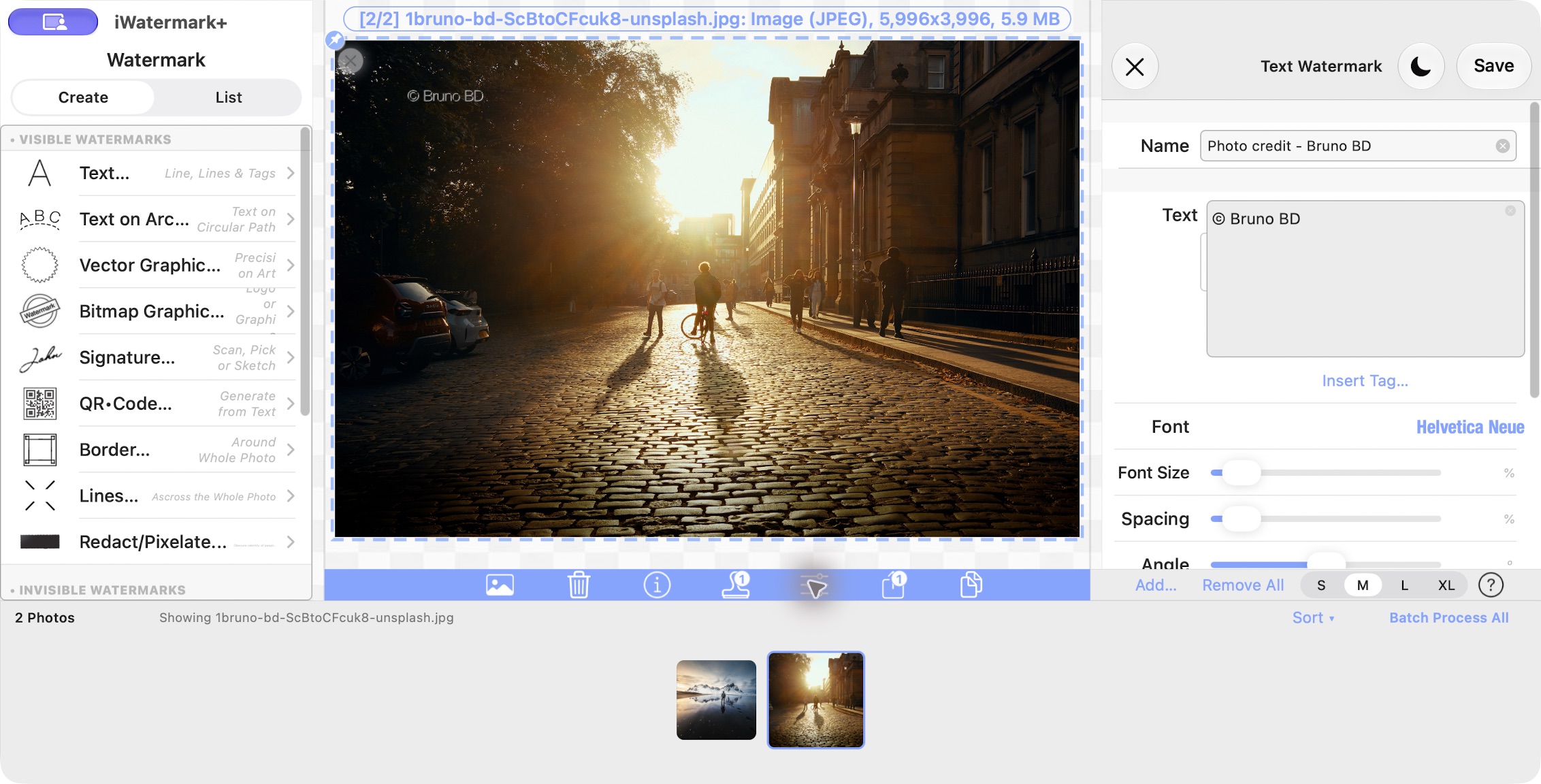
Choose the tools that suit the picture. Save a signature, add creator information and prepare the output together.
Put your name, logo or signature on the picture.
Watermark typesStore creator and copyright details in photo metadata. Sharing services can remove metadata.
Watermark typesAdjust the look, size and output settings for your destination.
Watermark types
Add a name, copyright notice, caption or website.

Curve the lettering for a seal or emblem.

Reuse your logo or an existing image.

Scale artwork and adjust its placement.

Save your signature for the next picture.

Link to a website or encode text. Test the exported code.

Add a frame suited to the photo.

Adjust a pattern of lines and its opacity.
Cover selected details in still photos. Inspect the saved result.

Add creator, copyright, comments or keywords.

Compare a visual treatment with the original.
Prepare the dimensions you want to share.
Choose format, compression and metadata settings.
See the picture, selected photos and controls together. Work through a collection with reusable presets.
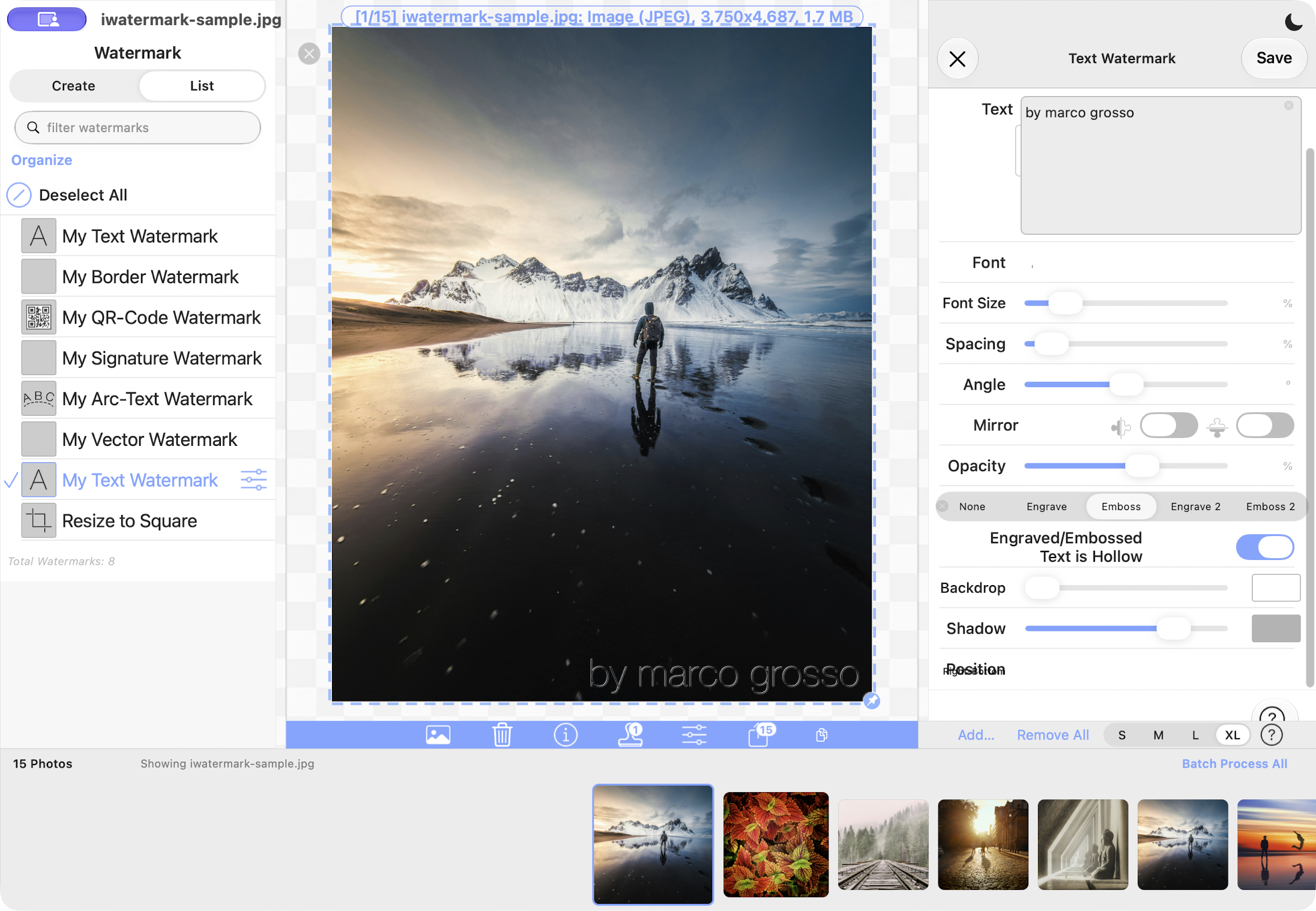
Keep selected photos in view. Choose S, M, L or XL thumbnails for the detail you want to inspect.
Adjust the watermark’s text, size, color and position while keeping the picture visible.
Share rendered copies. Check placement, playback and sound on a short clip before a longer job.
Artists have long signed their work. Give your photographs a subtle signature or a clear credit, placed where it fits the picture.
Choose a consistent name, logo or signature for your studio. Save the placement and use it across a collection of photos and videos.
Combine your mark with a Border, Photo Filter or Resize Photo setting. Check the finished copy at its intended size, then reuse the recipe.
Use Text → Insert Tag to place details from the source photo in a visible label. Use a Metadata watermark to write creator, copyright, comments and keywords into supported photo files.
Show the lens model, focal length, shutter speed or ISO in a visible caption. Useful for photography lessons, comparison images or your own shooting notes.
Label a photo with its recorded date or, when you choose, recorded GPS coordinates. Include location only when you want it shared.
Put your name or copyright in a visible label, and use a Metadata watermark to save creator, copyright, comments and keywords inside supported files.
Tags use metadata already present in the source photo. Missing values may appear as n/a. Sharing sites can remove embedded metadata, so inspect the exported copy and choose which details to share. Explore photo tags in the Mac manual ↗
These original-language reviews are from the iWatermark+ iPhone and iPad App Store community.
Delight
“Love. I love this app so much! You make a watermark one time and it saved it so I don't have to write it out all over again. Font and all . 👍🏾👍🏾👍🏾”
Creativity
“This app is awesome!!!. I love this app! As an artist this is a great app to watermark photos before I post online! Weather it's a logo or meta data it works and it is so super easy to use!”
Craft
“Perfect. Does exactly what's needed, very flexible and creates watermarks varying font, size, colour, placement, angle and much more.”
Choose a Mac license for up to three activations. Prices below are in USD. The checkout shows any applicable tax.
$25.99 USD
One-time payment
Choose a license$1.99 USD
Renews each month
Choose a license$15.99 USD
Renews each year
Choose a licenseAfter purchasing, enter the key from your receipt in the app. Use Deactivate License before moving an activation to another Mac.
Download the ZIP, expand it and move iWatermark+ to Applications. Quit the previous copy before opening the new one.
Import a photo, select or create a watermark and export a new copy. Inspect the result at the size you plan to share.
Choose File → Purchase & License. You can also open Settings with the gear button or Command-comma.
Paste your Mac license key and choose Activate License. Verify License checks it again. The saved key is masked.
184ff98b286cdeb00fe0ce52e5e1f9255b17a19942bba9ad2c1bfa57725a35a11.0 (15) ZIPTell us what works well and where you ran into trouble. Include the version and build, your macOS version and the steps that led to the issue. A sample file can help us reproduce it.
A valid Mac license removes the Created with iWatermark+ trial mark from new photo and video exports. Keep your purchase receipt and key.
An already verified license has up to seven days of offline grace, capped by its provider expiry. Connect again and use Verify License to refresh its status.
Check for Updates opens this official page. Download the newer version and replace the app in Applications after quitting it.
These plans license the direct iWatermark+ Mac app. iPhone, iPad, Android and the earlier desktop iWatermark Pro have their own purchase arrangements.
Mac StegoMark encoding is unavailable in this release. You can add creator metadata and a visible credit. Sharing services may remove metadata.
Use the feedback link with your version and build. The Mac manual covers importing, watermark presets, export and licensing.
Plum Amazing Store holiday offer ends in
Holiday offers and license help