
Visible watermarks
Let people see who made it.
Put a name, logo, signature or other visible mark on the picture. Choose the type that says what you need to say.
For example
A photographer’s signature in the corner.
Explore the three-edition iWatermark family for Android ↗

Made for your Android phone & tablet
Protect your photo identity, from one picture to a whole collection. Add visible credit, carry invisible information and shape the finished image. Create your watermarks once. Make them part of your everyday Android workflow.
Direct APK · installs beside earlier Plus and Google Play editions
Try every feature. Photo exports include a small trial mark. Pro purchasing will open after checkout and licensing are verified.
One Android family. Pro is the first new beta. Reduced iWatermark+ and iWatermark editions are planned; their feature limits and tier switching are not available yet. Older Google Play manual.
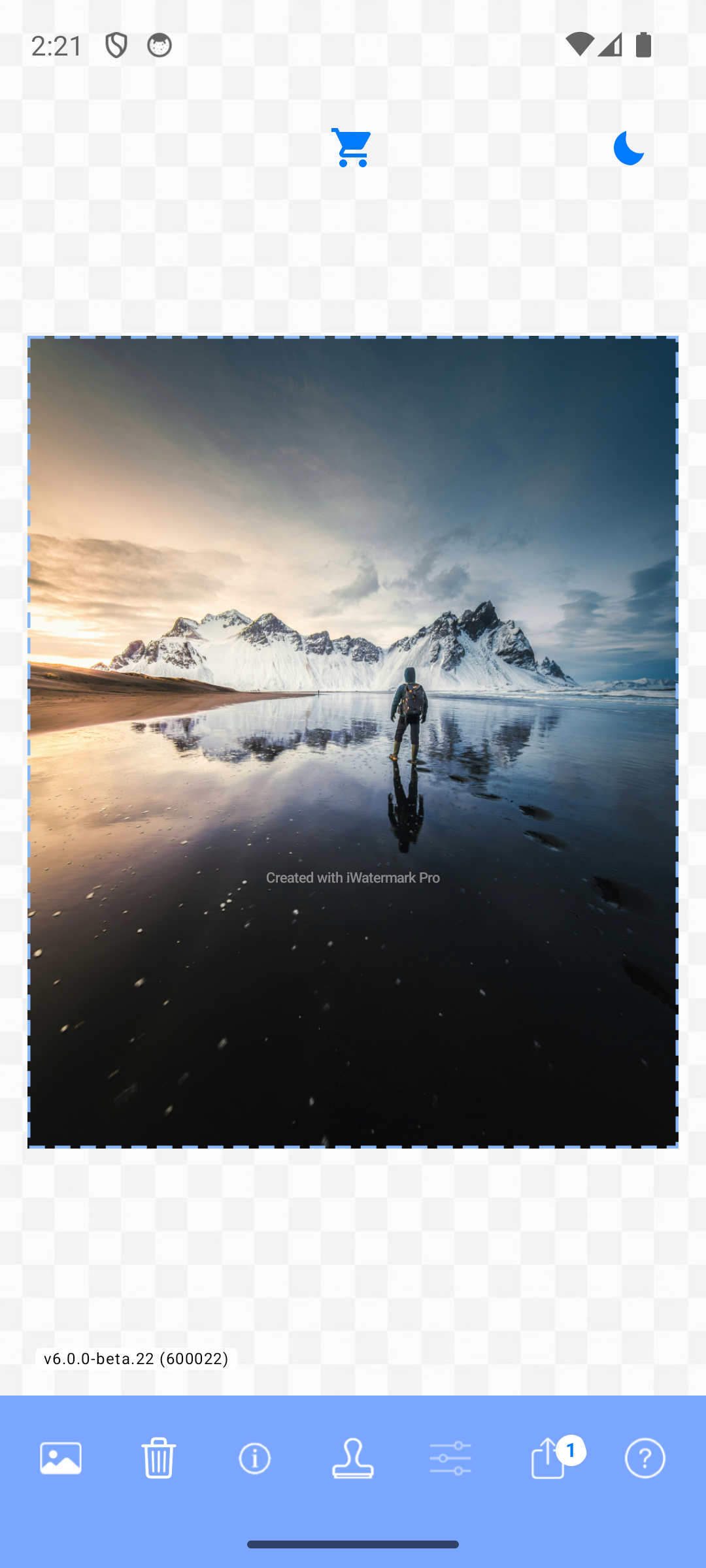
Secure and protect. Then get on with your day.
Built for fast batch watermarking: save a combination of marks, select your photos and export new copies together. Keep your name visible without repeating the same work for every picture.
Start with one photo to check placement and quality. Then try a small batch before your largest collection. Export time depends on your device, photo sizes, output settings and the watermark types you choose.
One idea. Three ways to make it yours.
In the iWatermark family, you choose a watermark type with a purpose. Types belong to three categories. Combine the ones that fit your photo, your identity and the way you want to share.
Let people see who made it.
Put a name, logo, signature or other visible mark on the picture. Choose the type that says what you need to say.
For example
A photographer’s signature in the corner.
Carry information beneath the surface.
Add information without changing the way the photo looks. Metadata and StegoMark use different methods, with different strengths and limits.
For example
Creator and copyright information inside the exported file.
Give the picture your finishing touch.
Use a filter, resize the picture or choose how it is exported. These tools shape its appearance and delivery instead of adding a visible credit.
For example
A consistent look and size for a collection.
Let people see who made it.
 TextA name, copyright line, caption or website.
Try it: Keep the credit readable at the size people will actually see.
 Text on ArcCurved lettering for a seal or emblem.
Try it: Try it around a logo rather than across your subject.
 Bitmap GraphicYour existing logo or other image.
Try it: A transparent background gives a clean result. Check sharpness when enlarging.
 Vector GraphicArtwork with crisp edges at different sizes.
Try it: Choose artwork, then adjust its color, scale and position.
 SignatureA personal signature for your work.
Try it: Make it once, save it and use it again.
 QR CodeA scannable route to a link or text.
Try it: Leave contrast and clear space around it. Scan an exported copy.
 BorderA frame that becomes part of your presentation.
Try it: Check both portrait and landscape photos before using it on a batch.
 LinesA pattern of visible lines over the picture.
Try it: Tune width, color and opacity to keep the subject understandable.
Try it: Inspect the saved copy before sharing. Redaction does not remove other copies or metadata.
Try it: An unverified label, not a signed C2PA Content Credential. Select it deliberately to apply it.
Try it: Check the identity and any generated link or code before sharing.
Carry information beneath the surface.
 MetadataCreator, copyright, comments or keywords stored in the photo file.
Try it: Other services may strip metadata. Pair it with a visible credit when attribution needs to be obvious.
 StegoMarkA message embedded in supported photo exports.
Try it: Recompression or cropping can damage hidden data. Keep any password safe and test your output.
Give the picture your finishing touch.
 Photo FilterA visual treatment for your own photographic style.
Try it: Compare skin tones and highlights with the original.
Try it: Check that important details fit before exporting the whole collection.
Try it: Choose settings for the recipient, then inspect one exported example.
Five minutes. One photo. Your first watermark.
The included sample photo lets you explore without hunting for an image. Your original photos stay where they are; export creates new files.
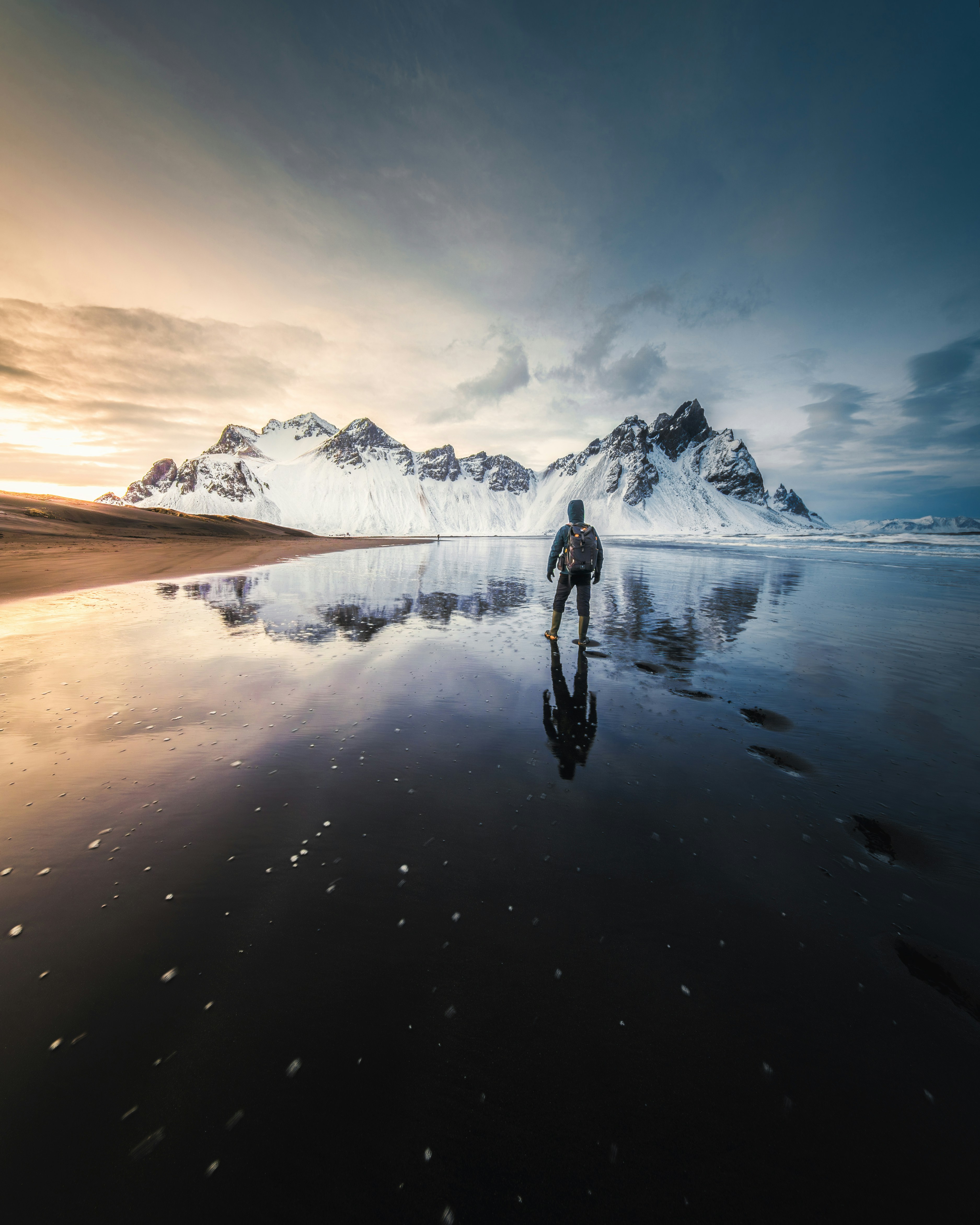 Your name here
A small experiment Try a quiet corner signature, then a bold logo. Which suits the picture? You can save both for different occasions.
Make a little recipe. Reuse it.
You don’t have to use every tool. Choose the combination that serves the picture.
For the photographer
Visible: Signature or Text.
Invisible: Metadata.
Transformation: Resize Photo.
Leave a readable credit, carry creator information in the file and prepare a consistent sharing size.
For the shop or studio
Visible: Bitmap Graphic or Vector Graphic.
Invisible: Metadata.
Transformation: Export Options.
Reuse the same identity on product photos. Inspect a portrait and a landscape image before processing the batch.
For the artist
Visible: Text on Arc or Border.
Invisible: StegoMark, where supported.
Transformation: Photo Filter.
Create a recognizable visual treatment, then save the marks that make your work feel like yours.
Illustrated recipes. Available formats and video behavior differ by platform; test one exported file before a large batch.
A family with a photographic following
These new betas continue the iWatermark idea: let your photos carry your identity in the way that fits your work.
From the iPhone & iPad App Store community. Reviews of the iWatermark+ family, rather than these new betas.
Versatility
“Excellent for watermarking on the go. Love this app as a photographer it offers the ability to store multiple watermarks and does exactly what I need.”
Delight
“Love. I love this app so much! You make a watermark one time and it saved it so I don't have to write it out all over again. Font and all . 👍🏾👍🏾👍🏾”
Creativity
“This app is awesome!!!. I love this app! As an artist this is a great app to watermark photos before I post online! Whether it's a logo or meta data it works and it is so super easy to use!”
A direct download. A few familiar taps.
Sideloading simply means installing the APK from Plum Amazing instead of Google Play. You stay in control of the download and the installation.
Use the official button below. When the download finishes, open it from your browser’s downloads or Files → Downloads.
On Android 8 and later, if prompted, open the offered settings and allow installation from the browser or Files app you used. Return to the download.
Choose Try Sample Photo for your first test. No license purchase is needed to explore all the features.
You can turn “Allow from this source” off again after installation. Keep Google Play Protect enabled.
The setting is usually Settings → Security → Unknown sources. Enable it for this installation, then turn it off again afterward. Device makers use different wording.
You can keep it. The Plum beta is a separate package, with its own settings and saved watermarks. There is no automatic transfer, and a Google Play purchase is not automatically an activation for the Plum edition.
Older Google Play edition ↗Android 7.0 or later is the installation minimum. The manual recommends Android 10 or later and at least 4 GB RAM for a smoother experience; large batches and video benefit from more memory. These are provisional recommendations. Test one photo and a short video on older hardware.
If Android identifies this specific download as harmful, stop and contact us. For device-specific instructions, see Google’s installation guide and Android’s version-specific permission guidance.
Android Pro. Your choice of plan.
All three planned Pro plans are for Android. A family bundle will be priced separately. The free beta lets you explore the currently available Pro tools; unlicensed photo exports carry a small trial notice.
$19.99 USD
One-time purchase
$0.99 USD
Per month
$9.99 USD
Per year
Purchasing is not open yet. We are verifying checkout, activation and subscription behavior before accepting payment. The device allowance is not yet finalized. Existing Google Play purchases do not automatically activate the Plum edition.
Read about plans and licensing in the manual ↗Good questions, clear answers
It means installing the APK directly from Plum Amazing rather than through Google Play. Download it on your Android device, allow installation from the source you used, then open it. The steps below walk you through it.
No. The Plum beta is a separate app and can be installed beside the older Google Play edition. Watermarks and settings do not transfer automatically between them.
Yes. Every feature is available for as long as you like. Unlicensed photo exports include a small “Created with iWatermark Pro” mark. Pro purchasing is not available yet. License activation will remove the trial notice from new photo exports once purchasing is configured and verified.
Yes. Save your watermarks and select the combination you want. For example, use a signature, creator metadata and a resize setting together. Preview the result before exporting.
Yes. Import Media includes Select Video. Try a short clip, then check the exported video’s placement, orientation, playback and sound before processing a longer one. Photo-specific tools and settings do not all apply to video.
No. Metadata can be removed by other services, and cropping or recompression can damage a StegoMark. A visible credit helps people recognize the creator immediately.
Check this page for new Pro beta downloads. An automatic Pro update feed is not configured yet. Install future Pro Plum APKs over the same edition to keep its local data. The older Plus and Google Play apps have separate update paths.
You made the picture. Let it carry a little of you.
Das Feiertagsangebot im Plum Amazing Store endet in
Feiertagsangebote und Hilfe zur Lizenz