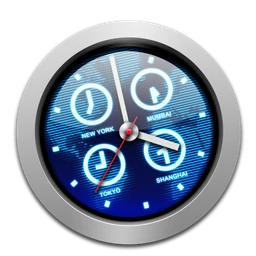
A new generation of a longtime Mac companion

iClock ProFind time for everyone.

Contemplate the idea of time.

Add the cities you care about to your Mac’s Time menu. One glance tells you whether it’s a good time to call family, friends, or colleagues anywhere in the world.

macOS 14 or later · Native Swift & SwiftUI · 30-day all-features trial

Version 1.0.1 (7) · Released 2026-11-07

Illustrated manual · Release notes · Original iClock

Global Scheduler / Pro
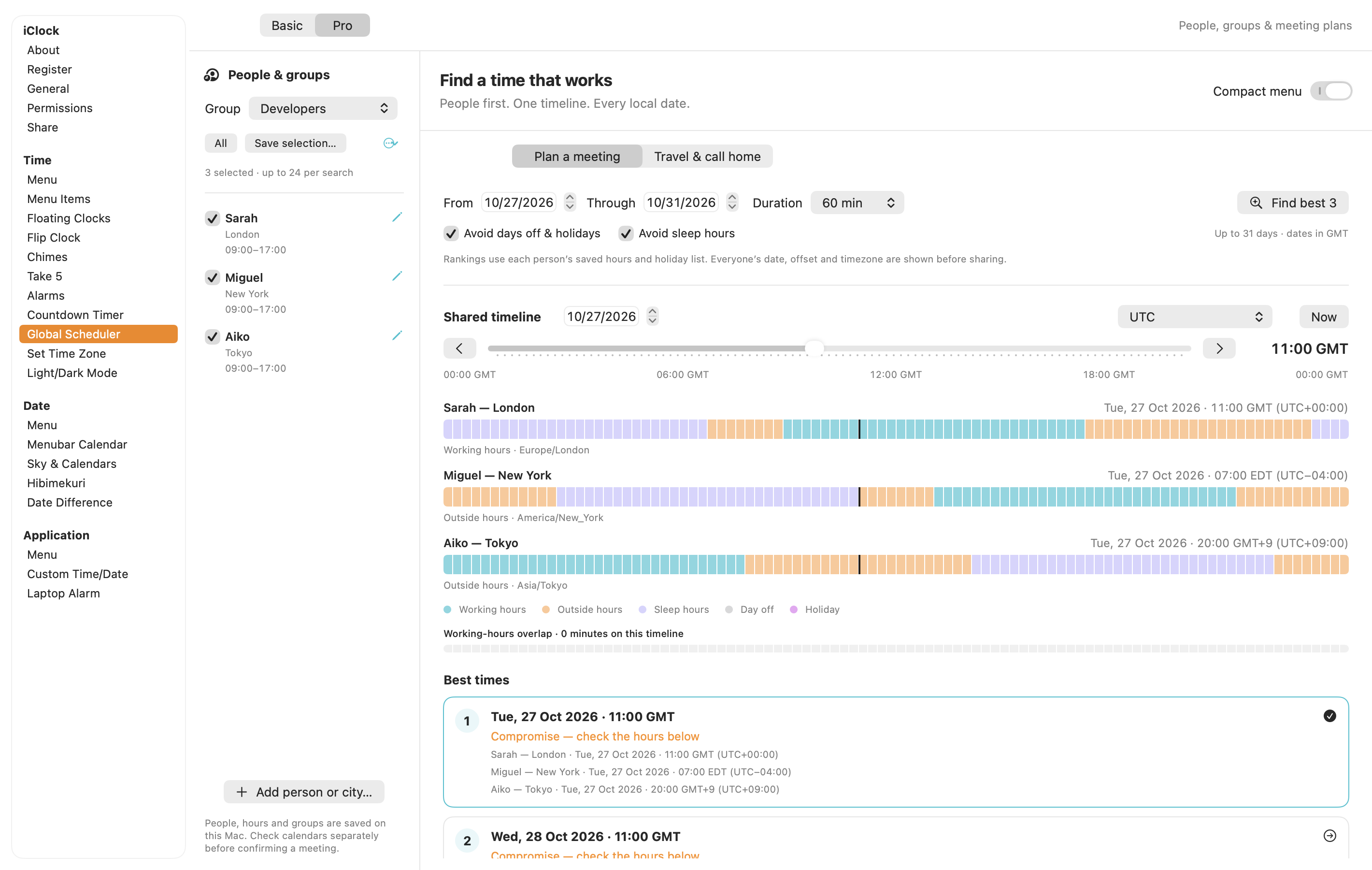
The new iClock meeting planner, with fictional people in different cities, a shared time slider, working hours, and ranked meeting choices.
The new meeting planner. Demonstration people, real time-zone calculations.
A clock that belongs on your MacPeople in different time zonesThe day, the Moon, and a little curiosity

A good meeting begins before it starts

Find a time that
works around the world.

Less mental arithmetic. Fewer midnight calls. Start with the people, then find the overlap.

  1. 01

    Choose your people

    Save Sarah in London, a customer in Tokyo, or a group you meet with every week. Give each person their own working hours and days off.

  2. 02

    Move through the same moment

    Drag the shared time slider. Everyone’s local date and time move together, with labels for work, evening, and sleep.

  3. 03

    Compare the best 3 choices

    Choose a date range and duration. iClock ranks useful times around working hours, weekends, selected holidays, and daylight-saving changes.

  4. 04

    Share the plan, share the inconvenience

    Copy everyone’s local times or create a calendar file. For recurring meetings, preview a rotation that spreads inconvenient hours more fairly.

The planner supports up to 24 people. Holiday lists cover selected regions and years; personal days off can fill the gaps.

Small enough for every day

Your clock.
Your calendar. Your pace.

Keep the everyday menu compact. Open a larger window when you have something bigger to plan.

World clocks right in the Time menu

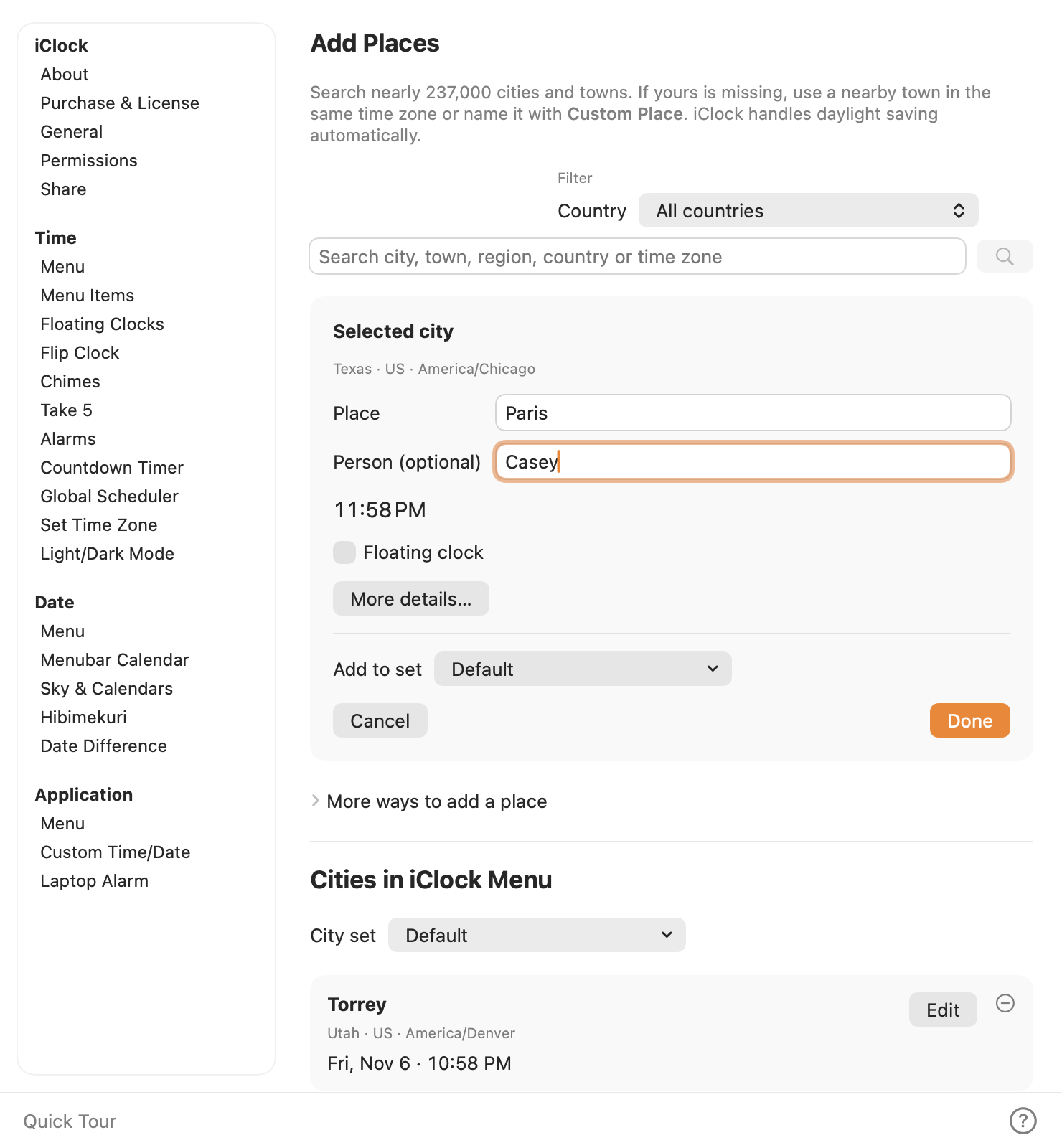
Choose Add Places in the Time menu and search nearly 237,000 cities and towns. Select a place and click Done. Its local time appears in the menu. Save separate city sets for family, work, or travel. Keep the places that matter to you together for a quick check before you call.

TinyCal at your fingertips

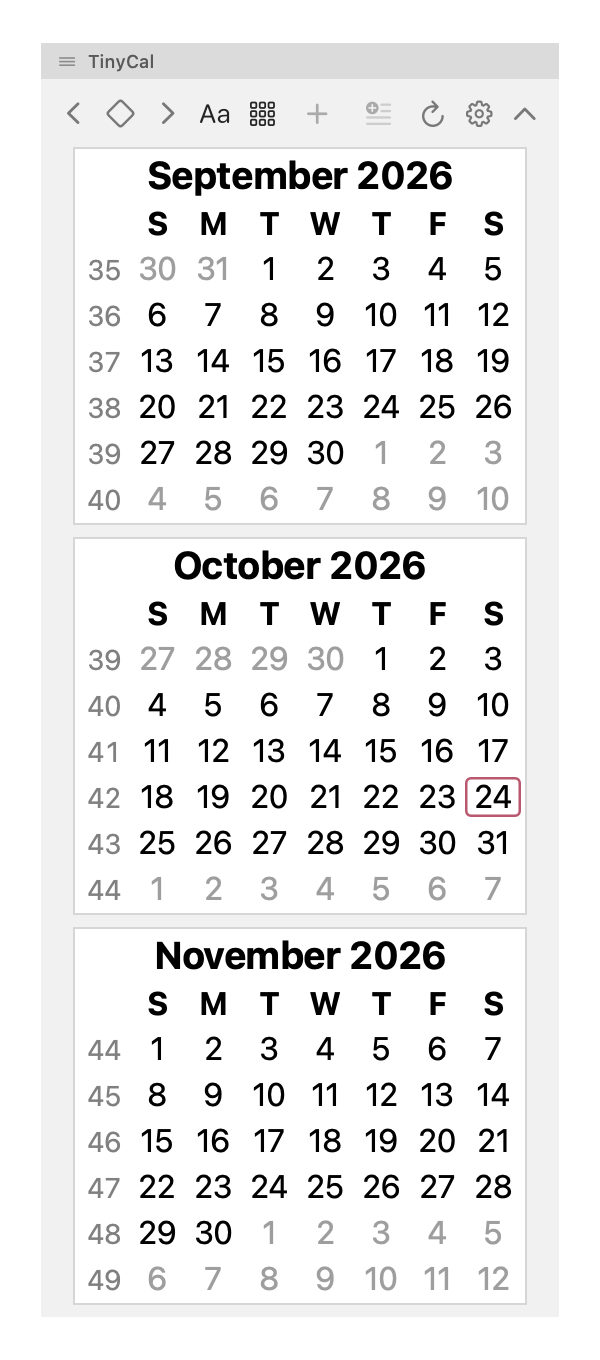
Little month panels drop beneath the date. Browse ahead and bring in the calendars you have configured on your Mac.

A window onto the sky

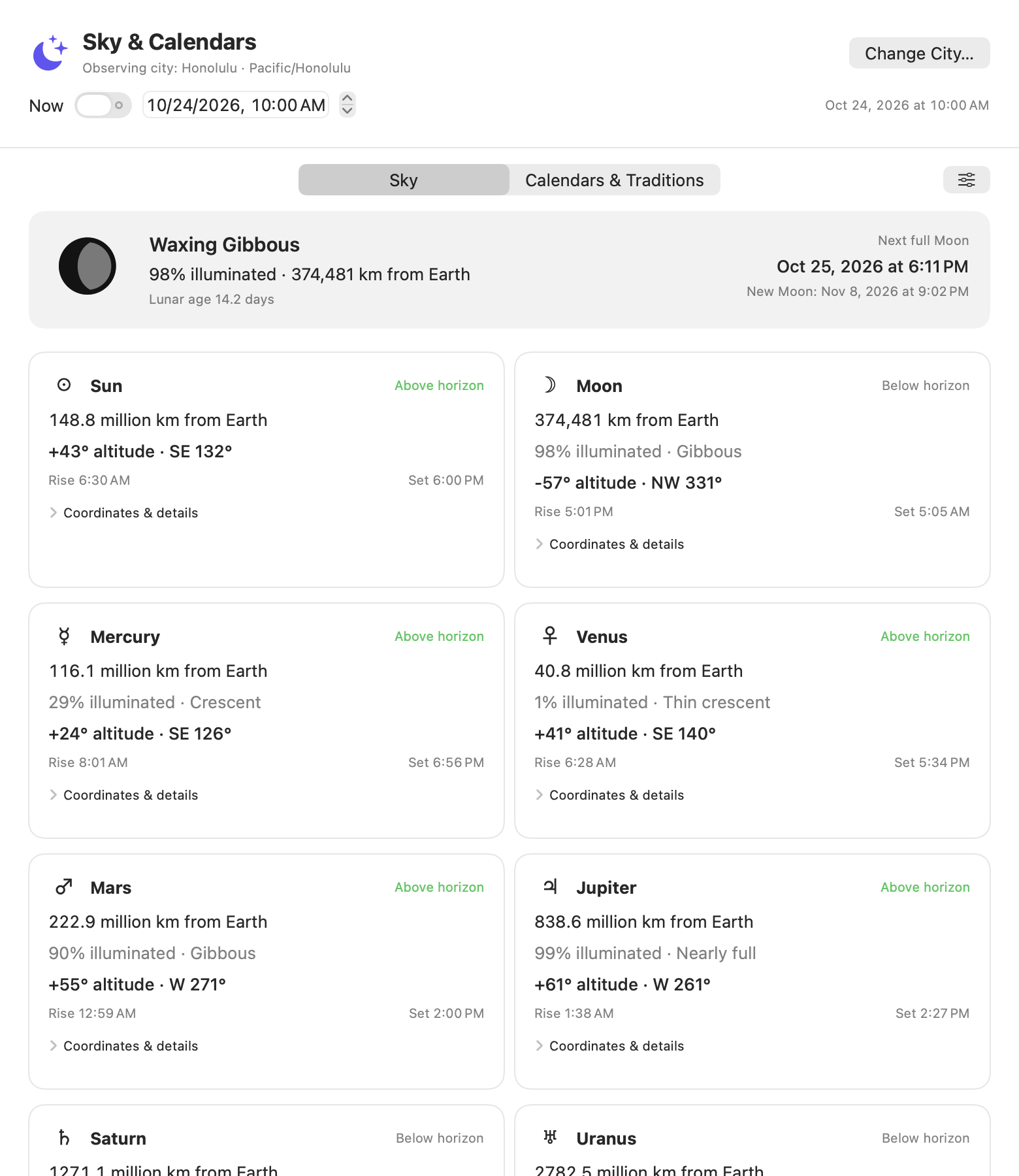
Pause over the Moon for a quick summary. Click for phases, planets, distances, sunrise, sunset, twilight, and many calendar traditions.

Hibimekuri: turn over a new day

A Japanese-inspired daily calendar brings a different rhythm, with seasonal details, quotations, a journal, and tasks.

Make time for your own routine

Alarms, chimes, a stopwatch, countdowns, and Take 5 reminders stay close at hand.

Take a closer look

A few familiar corners.
A few new discoveries.

The Add Places window shows the local time for Paris, Texas and lets you add it to a set.
Add a city to your Time menu
3 stacked month panels from the new TinyCal, with week numbers and the current day marked.
Little calendars, right where you need them
The iClock Sky panel showing the Moon and planets for a demonstration observing location.
Make a little room for the sky

A manual with a sense of time. And humor.

There is a whole
little book to explore.

The illustrated guide walks you through adding your first city, planning a meeting, and making the Time and Date menus your own. It also covers the sky panel and Hibimekuri.

Start with your first five minutes or jump straight to the chapter you need.

Open the illustrated iClock manual

Before you begin

A few timely questions.

What is new about this version?

This is a major update. We rebuilt iClock in Swift and SwiftUI, with separate time and date menus, TinyCal, a more capable meeting planner, a window onto the sky, and Hibimekuri, a Japanese-inspired daily calendar. Add your own world clocks directly from the Time menu.

How does the trial work?

The 30-day, all-features trial begins in the app. No store account, payment card, or Lemon Squeezy trial is required. After 30 days, you can keep using iClock, but changes to its preferences last only until you quit. Your previously saved preferences are preserved. A license restores saving.

Will this replace my current iClock automatically?

No. iClock Pro is a separate download with its own update feed. Keep Original iClock while you try it, and run one iClock at a time. Review imported preferences before relying on an important alarm or appointment.

Does the meeting planner send invitations?

In Global Scheduler’s Basic tab, Email opens the proposed times in your default email app. In Pro, copy a proposal to share or save a calendar file. Open the file in your calendar app to review the event, add guests, and send the invitation.

Which calendars can I use?

With your permission, iClock can show calendars set up on your Mac, including Google accounts added to macOS. Religious observances, holidays, sports schedules, and university calendars are welcome too. Add the calendar or subscribe to its published feed in the Mac Calendar app, then select it in iClock. You can read the clock and browse month panels without granting calendar access.

Does it know every public holiday?

The planner includes selected regional holiday lists and lets you add personal days off. Coverage varies by region and year. Review the local dates and calendars when planning something important.

What does the astronomy information mean?

The sky panel shows calculated positions, phases, distances, rise and set times, and twilight for your chosen observing location. Cultural and religious calendar information explains its conventions; local sightings and observance authorities can differ.

Do Original iClock owners need a new license?

Yes. iClock Pro is a major upgrade. In shareware, a lifetime license means you don’t pay for minor updates. An occasional major upgrade is a separate purchase, and previous owners get a special discount. iClock Pro requires a new purchase. Use your Original iClock registration key with that edition. We plan to keep the original iClock available and maintain it for macOS updates as long as possible. Previous owners will receive a discount code to enter at checkout. After purchasing, use the new license key from your receipt to activate iClock Pro.

Find the Original iClock download and manual

What does iClock cost?

Licenses allow 3 Mac activations. The 30-day, all-features trial starts in iClock and requires no payment card. Check the store for current prices, billing options, and any taxes.

See current iClock prices in the Plum Amazing Store

A longtime clock. A new chapter.

Make yourself at home in time.

macOS 14 or later. The 30-day trial starts in the app, with all features and saving available.

Download iClock Pro

Simple trial. Clear purchase terms.

After 30 days, keep using iClock with session-only preference changes. A license restores saving. The trial does not start a subscription or ask for a payment card.

Buy iClock Pro in the Plum Amazing Store
Questions or feedback? Talk to us.

The earlier Mac edition

Original iClock

Already using Original iClock? Download a fresh copy, look up a setting in the original manual, or get help with your existing license.

Version 5.8.97 · macOS 12 or later