A Plum Amazing guide for Mac
iClock Pro
Contemplate time, compare places, keep appointments and explore the sky.
App version 1.0.0 Updated 2026-11-07
For the time of your life.
— Julian von Boolean
Based on the original iClock guide by Mark Fleming & Julian Miller, expanded for the new Swift/SwiftUI iClock for Mac.
This guide covers iClock Pro version 1.0.0, build 6. Follow Install to get set up, Quick Start to add your first city, or Preferences to explore a tool. The classic guide describes the older application.
The original guide’s quotations, pictures, time lore and customer voices belong in this book. Archival illustrations are labeled. Current interface pictures are renders of actual Swift views with demonstration data.
Dost thou love life? Then do not squander time, for that is the stuff life is made of.
— Benjamin Franklin *
News#
The Swift iClock gives the time and date separate menus again. Click the date for your calendar; pause over the Moon for a summary or click it for Sky & Calendars. A full date row copies its date, and the IP Addresses submenu keeps network details out of the main menu until you want them.
New daily companions include observing information for the Moon and planets, Calendars & Traditions, and Hibimekuri · 日々めくり, a Japanese-inspired daily page with notes, tasks and quotations. The setup tour points out your clocks with a gold arrow; automatic menu text contrast helps over dark wallpaper; the stopwatch has a live readout.
Essential first step: make Apple’s clock compact if you do not want two digital times and dates. Then choose a second city and try a meeting comparison.
Introduction#
The best thing about the future is that it comes only one day at a time.
Time is a kind of illusion—or maya, as the original guide liked to put it. A clock gives a wonderfully crisp answer to a question that becomes less crisp the longer you consider it. The Sun seems to travel across the sky, a month follows the Moon, and a calendar tries to bring those rhythms into agreement. We have made sundials, hourglasses, watches, clocks and an impressive number of appointments out of all this.
So, what is time? We can leave room for that question while helping you get to your next meeting. iClock puts local time, distant places, dates, reminders and a little of the sky close at hand. You can keep it as simple as two readable menu-bar displays, then turn on the tools you enjoy.
Time and space are modes in which we think, not conditions in which we live.
The first iClock grew out of a small daily irritation: clicking the Mac’s clock just to see the date. “Enough of that,” the authors thought. Today the Mac can show the date itself, but the larger idea remains useful: let a glance answer the question, and let a click take you deeper. The Swift rewrite carries that idea into calendars, meeting comparisons, lunar information and a daily almanac.
Requirements#
As if you could kill time without injuring eternity.
— Henry David Thoreau
System requirements#
iClock Pro requires macOS 14 or later. The Mac download includes Apple silicon and Intel binaries.
Expand the download if needed and move iClock Pro.app to Applications. Open it there when setting up Calendar, Reminders, microphone or notification access.
Download the Mac app from the iClock Pro product page.
The clock, month grid and local sky calculations do not require a Google account. Network access is needed for account synchronization, iCloud delivery, update checks and the public-IP lookup. Permission requests belong to individual features; you can start with the clock and add access when you need it. See Permissions and Data, privacy, backup and recovery.
Versions#
Mysterious thing… Time.
iClock Pro is the Swift and SwiftUI generation of iClock for Mac. This guide follows the current app. The classic guide covers the older generation.
The direct Mac edition uses a Plum Amazing Store license. See Purchase and registration for trial, purchase and activation details.
Launching and quitting#
Open the app once and look for its menu-bar time and date. The Swift version checks for another known iClock copy before starting its timers and menu items. Reopening a Swift copy normally brings the existing copy forward. To replace a running test build, choose Quit from its time menu, then open the intended build.
This protection belongs to the new Swift application. An old application that predates it does not acquire the new startup lock, so avoid deliberately opening a classic copy alongside iClock Pro.
In Preferences… → General, review start-at-login and Dock visibility. Starting at login is useful for daily alarms and chimes; hiding the Dock icon leaves the time menu as your route back to preferences and Quit. If macOS reports that a login item needs approval, review its Login Items settings.
Purchase#
This time, like all times, is a very good one, if we but know what to do with it.
— Ralph Waldo Emerson
The Plum Amazing Store offers iClock Pro for Mac. You can explore the app during its 30-day trial. See Purchase and registration for the available license options.
Terminology#
Tempest est Umbra en mente
A small glossary#
Local time is a clock reading in a chosen place. Timezone is the region’s set of time rules. UTC offset is its difference from UTC at a particular instant. DST is a seasonal rule that can change that offset. Calendar can mean either a way of numbering days or one account’s set of events; context matters.
EventKit is Apple’s calendar/reminder access framework. Interface is a network connection such as Wi-Fi or a tunnel. IPv4/IPv6 are address families. Ephemeris is calculated information about celestial positions over time. Illumination describes the lit disk; visibility also depends on where you are and the sky conditions.
A menu-bar item is one of the small displays or icons at the top of the Mac’s screen. Clicking iClock’s time opens its menu. A preference pane is the page of settings for a feature. A floating window can stay above ordinary windows; that is different from a menu that disappears when dismissed.
A timezone is a set of rules, not simply a fixed number of hours. Daylight saving time changes some zones’ offsets during part of the year. A local calendar date belongs to a particular place, so two participants in one meeting can be on different dates. Keep those distinctions in mind when using Global Scheduler.
iClock History#
Consider that this day ne’er dawns again.
Ye olde iClock appeared around the turn of the century and evolved through classic Mac OS, OS X and later macOS releases. The original guide dates a Mac OS 9 edition to 1999 and later rewrites to 2002, 2008 and 2016. These dates describe its own historical account, rather than the release history of iClock Pro.
Mark Fleming and Julian Miller’s guide mixed practical controls with curiosity about time. That is the framework retained here. The new Swift application is another rewrite; familiar names make it approachable, but an older screenshot is not evidence that every classic feature has been recreated.
Upgrading from classic iClock#
A new purchase is required for Swift. Classic registration keys do not unlock iClock (2026). Previous owners will receive a discount code separately; enter it at checkout, then use your new license key in Purchase & License.
iClock Pro can read several classic preference and location records on first launch. Imported formats, alarms-related settings and location lists are starting points, not a guarantee that every classic feature or behavior is identical. Check your locations, sounds, calendar selection and important alarms before relying on the imported settings.
The classic manual is preserved. Instructions for an older release, purchase scheme or macOS settings panel should not be applied blindly to this generation.
Install#
Welcome. The first job is to find your clock and make the menu bar comfortable. You can do this before connecting any calendar or granting any optional permission.
Download & Install#
Classic iClock pictures · First launch and the menu-bar clocks
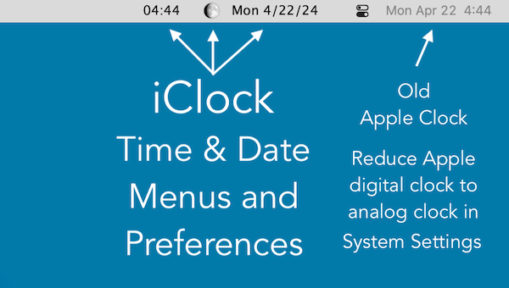
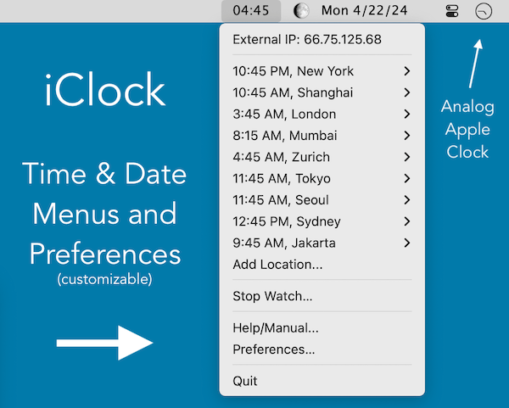
Download iClock Pro from the product page and expand the archive. Open iClock Pro.app from Downloads and choose Move to Applications when asked. iClock Pro moves to Applications and opens from there. If an existing copy is already in Applications, quit it and use Finder to replace it.
If you are switching test builds, Quit the currently running iClock first. Opening a second copy can correctly bring the old process forward; it does not replace that process with the newer file.
Find your new clock
iClock lives in the menu bar at the top of your Mac’s screen. It gives the time and date their own menus. The Moon sits beside the date and opens a different kind of calendar: the sky.
- Open iClock Pro.app. If another iClock is already running, the new copy brings that application forward instead of adding another set of clocks. To switch builds, quit the current iClock first.
- Follow the gold iClock arrow to the time in the menu bar. Click the time to open its menu and dismiss the pointer, then choose Preferences….
- In Preferences, the first stop points to the ? in the bottom right. Click it to open the manual. Choose Continue tour? → Continue to visit one settings page at a time, or choose Stop tour.
- Click the date. TinyCal opens beneath it when TinyCal is your selected menu-bar calendar. Click the date again to dismiss it.
- Pause over the Moon for a quick astronomical summary. Click the Moon to open Sky & Calendars.
The Quick Tour uses the regular Preferences window. Click the gold arrow or its iClock label to dismiss the pointer. Stop tour, Escape or closing Preferences ends the tour. With macOS Reduce Motion enabled, the arrow stays still. Use the ? in the bottom right whenever you need the manual.
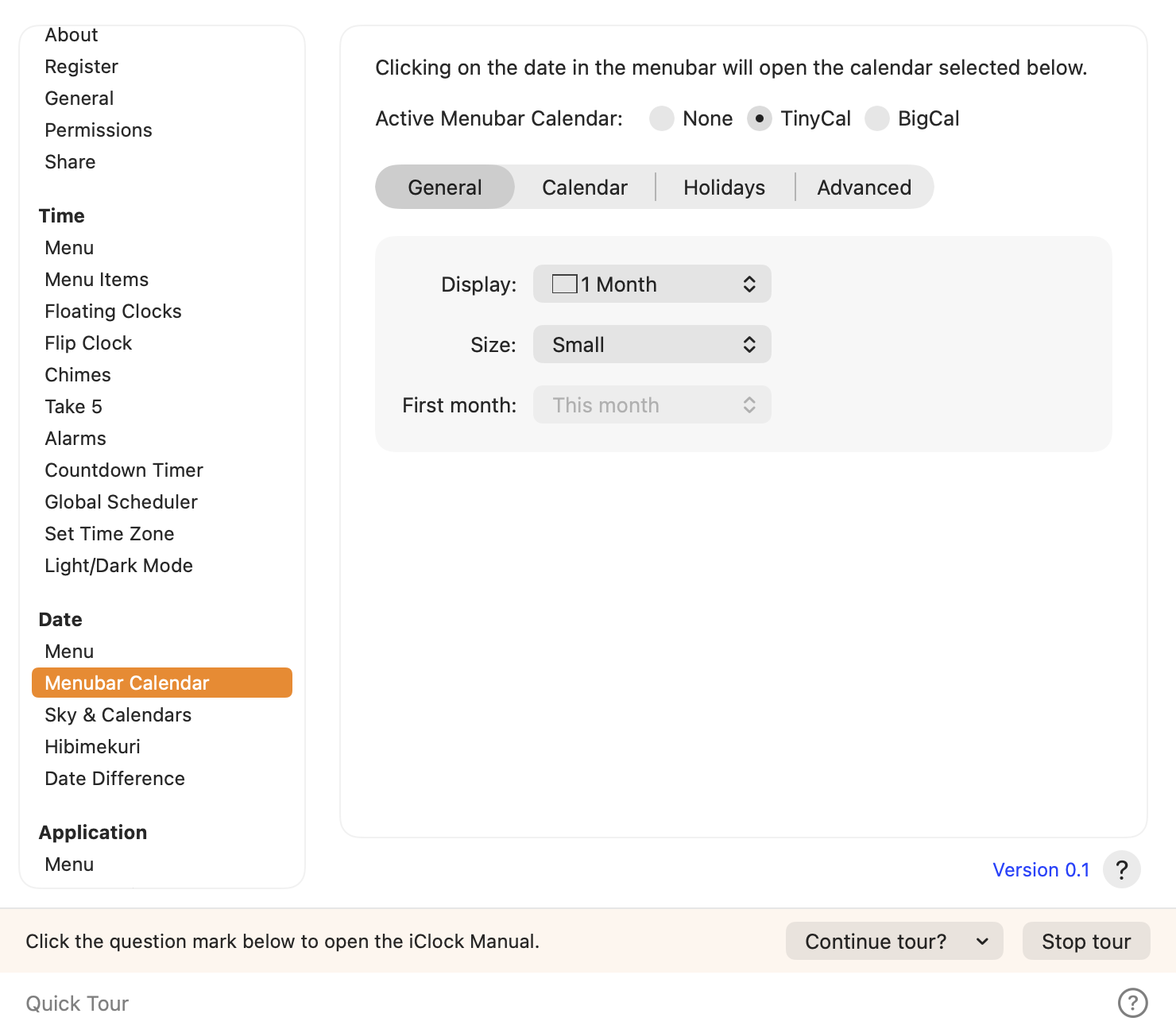
Success looks like this: you can find iClock, open the time menu, and open and close the date calendar. No calendar account or location permission is needed merely to read the clock or month grid.
If the date does nothing, open Preferences… → Menubar Calendar and choose TinyCal. If the menu bar is hidden, move the pointer to the screen’s top edge. On a display with a camera notch, a crowded menu bar can conceal status items; make room or move iClock to a visible position.
How to Change Apple’s Clock#
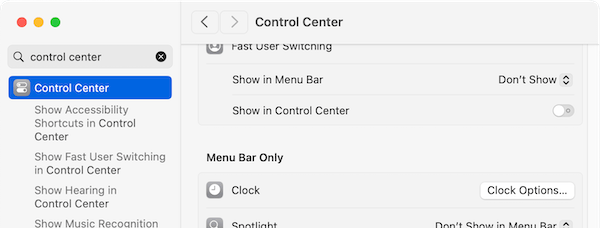
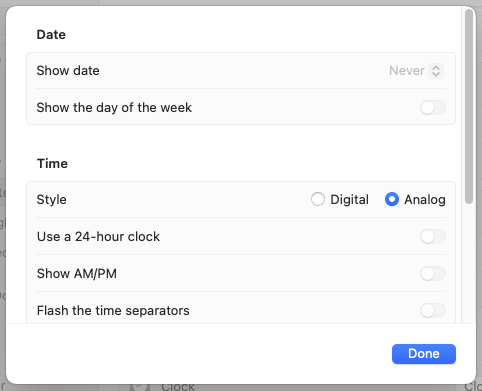
Classic iClock pictures · Apple’s clock settings

Why are there two clocks?
macOS retains Apple’s clock because clicking it opens Notification Center. iClock adds its own time and date. This is normal during first setup. You can keep both digital displays or make Apple’s display a compact analog clock.
On recent macOS releases, open System Settings → Menu Bar → Clock Options. On macOS 14 and 15, look in Control Center → Clock Options. In Clock Options, set Show date to Never, turn off Show the day of the week, and select the Analog time style. The precise wording can follow your system language.
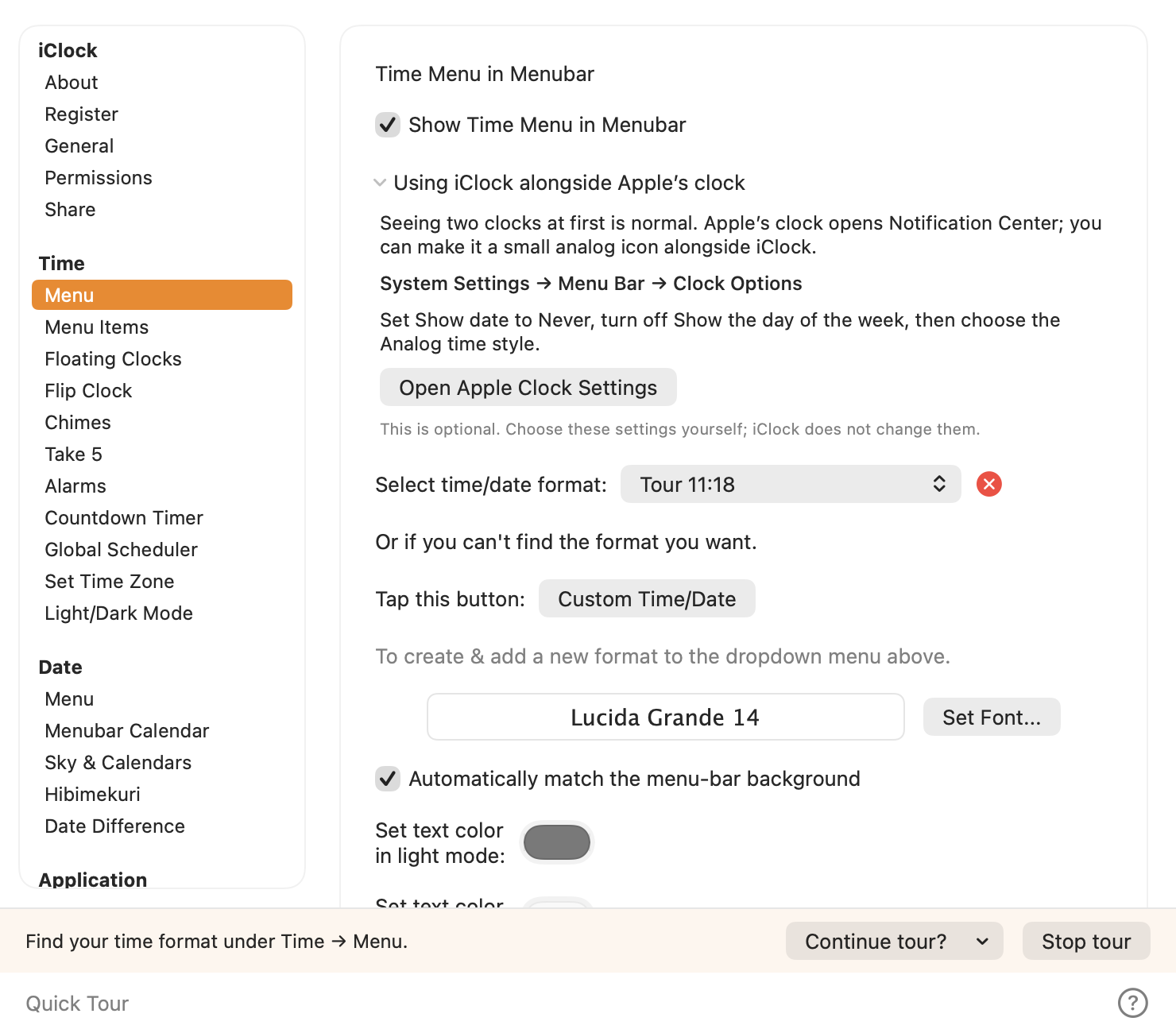
Apple’s remaining little clock still opens Notification Center. iClock supplies the larger readable time and date. In Preferences → Time → Menu, expand Using iClock alongside Apple’s clock. Open Apple Clock Settings takes you to Apple’s settings; follow the printed path if the shortcut changes. See Apple’s clock-format instructions.
Choose Quick Tour at the bottom of Preferences to revisit it. Set Up iClock… in the time menu also starts the tour; look under Tools when the compact menu is enabled.
Move Menu Items#
Hold Command, then drag a movable menu-bar item left or right and release it. Time and date are separate items. The Moon moves with the date. Keep them adjacent if you want the balanced time–Moon–date arrangement.
On a MacBook with a camera notch, a crowded menu bar can hide an item rather than remove it. Try a shorter date format, close an optional menu-bar utility, or move iClock into a visible position. If the menu bar is hidden, move the pointer to the screen’s top edge. Apple’s own clock remains the route to Notification Center.
Turn On ‘Start at login’#
Classic iClock pictures · Start at login
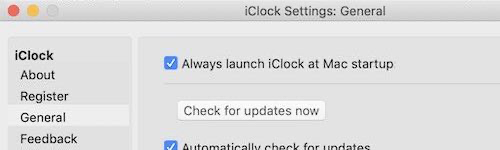
Open the time menu → Preferences… → General and enable the option to launch iClock at startup. If macOS asks you to allow the login item, review System Settings → General → Login Items. This starts the app when you log in; it does not start it before login or while the Mac is powered off.
Keep just the intended Swift copy enabled. If an older copy opens at login, quit it, remove its login entry and enable the new copy. Test with a normal logout/login when convenient before relying on daily prompts.
Permissions#
Classic iClock pictures · macOS permissions
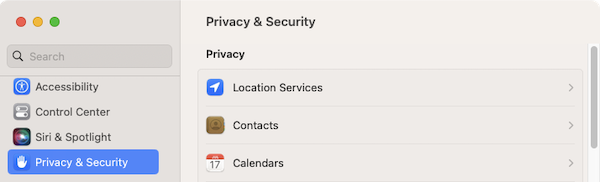
Permission and selection
In Preferences… → Permissions, review Calendar and Reminders separately. Reading event lists requires Calendar full access on current macOS; write-only access cannot supply a readable event list. Reminders requires its own authorization. The app’s request buttons open the normal system permission flow.
If access was denied, review System Settings → Privacy & Security → Calendars or Reminders, enable the intended iClock, then return and refresh. Different preview bundle identities can have separate permission records. Avoid granting access to an old copy by mistake.
Select the calendars you want in the calendar preferences. Hidden calendars are not necessarily disconnected accounts. If a list is empty, check permission, account availability, the active source/filter and the month or date you are viewing.
Notifications, Microphone, Location and Automation have separate purposes. Notifications concern alerts; Microphone concerns recording a sound; Location can support location-aware tools; Automation can apply Mac appearance changes. Reading the time, choosing a city manually or playing an existing audio file does not require all of these permissions.
The classic guide’s instruction to drag an app into an old Calendar privacy panel is retired. Use the Swift app’s request buttons and current macOS controls. A prompt is a choice you make, not a permission the manual grants.
Uninstall#
Quit iClock and remove the application from Applications. Removing the app does not necessarily remove preferences, alarms or Hibimekuri journals. Back up anything you want to keep before removing data. If you use iCloud storage, deleting a cloud data folder can affect other Macs too.
For where things live and what to preserve, continue to Data, privacy, backup and recovery. Avoid deleting every file with “iClock” in its name: the classic and Swift experiments can have separate records.
Overview#
Classic iClock pictures · The original iClock interface
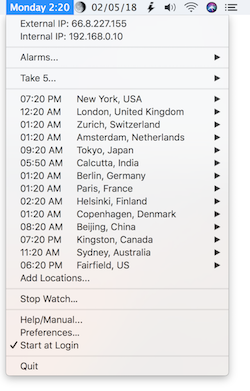
Three useful click targets#
| Target | Ordinary action | Useful detail |
|---|---|---|
| Time | Opens the time menu | Locations, IP addresses, tools, setup and preferences live here. |
| iClock Pro at the top of the time menu | Opens the iClock Pro webpage | Available in both the full and compact menus. |
| Date | Opens the selected menu-bar calendar | Choose TinyCal, BigCal or None in Menubar Calendar preferences. |
| Moon | Opens Sky & Calendars | Its hover summary gives quick Moon information. |
| Full date row in the time menu | Copies that date | The copied value stays on the clipboard for pasting. |
The time and date are separate status items. Hold Command while dragging a movable menu-bar item to reposition it. If you move them apart, the Moon remains with the date. Their default adjacent layout uses a balanced gap on each side of the Moon.
Preferences is the control panel for the whole app. An optional Applications Menu switches among apps. Optional windows—floating clocks, stopwatch, calendars, Sky and Hibimekuri—let you keep a particular kind of time information nearby.
You do not need every tool on. Begin with the two menu-bar displays, add the places you care about, and let the rest earn its place in your day.
A little time poetry from the original guide
Time twists and turns, a relentless river’s flow, A tapestry of paradox, where past and future grow. We chase its tail in circles, yet forward we must press, Each moment slips through fingers, elusive, fleeting caress.
In physics’ realm, it bends, a fabric stretched and torn, By gravity’s firm hand, where black holes are born. Relativity’s dance, where time can slow or sprint, A traveler’s clock ticks different, while still hearts skip a beat.
Humans ponder time, in memories and dreams, Moments lost to longing, or so it always seems. A future hoped for dearly, a past we can’t rewind, In the present we are anchored, yet it’s always hard to find.
We live within the folds of time’s eternal duress, A mystery wrapped in an enigma, its truth we can’t assess. Each tick a paradox, where science meets the soul, Time, the master storyteller, competing with the Whole.
All the world ’tis a stage, where time performs its spell, Casting shadows and illusions, in places we can’t dwell. Echoing whispered secrets, from tomorrow and yesterday, Enchanting our spirits, in a mystical ballet.
Veiled in misty moments, where the seen and unseen blend, Time weaves its ancient stories, from beginning to untold end. A fabric spun from nothing, with threads of light and shade, Here we stand, mere players, in the grand masquerade.
ChatGPT 4.0 with help from Julian, 4/12/24, as credited in the original guide.
Quick Start#
Try this five-minute tour, then keep only the features you enjoy.
- Time: click the menu-bar time and choose the full date row. Paste into a new unsent note; the long date should appear.
- A second place: choose Add Places… in the Time menu. Type Tokyo and press Return. Confirm Tokyo, Japan in Selected city, then choose Done. Open the Time menu to see its local date and time.
- Calendar: click the date text. Choose TinyCal in Menubar Calendar preferences if the date has no action. A month grid is useful even before personal events are connected.
- A small interval: open Stop Watch, Start, wait, Lap and Stop. The digits advance while running and remain fixed after Stop.
- Look up: click the Moon, select your observing city, and inspect its phase and altitude. Return the panel to Now after experimenting with another date.
To undo the tour, remove the demonstration city, Reset the stopwatch and close the extra windows. Your clock keeps running. If a step behaves differently, FAQ has a focused first check for each symptom.
Preferences#
Classic iClock pictures · Opening Preferences
With Compact menu enabled, utilities such as Stop Watch, Countdown Timer, Sky & Calendars and Help/Manual are under Time Menu → Tools. Plan a Meeting… and Preferences… remain in the main Time Menu. Turn the planner header’s Compact menu switch off to restore the fuller menu.
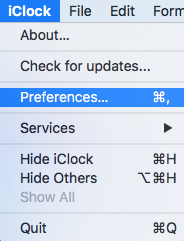
Preferences is the control panel for iClock. Open it near the bottom of the Time Menu; when iClock is active, Command–comma is the familiar Mac route. Select a page in the sidebar. Use the question mark at the bottom right to open the bundled manual. Click the version beside it to open the changelog.
The framework below follows the original guide: iClock settings, Time tools, Date tools and Applications. The names before a colon identify that grouping; use the actual sidebar page name to navigate. Most display changes save as you make them. A feature’s Set button saves an item such as an alarm or countdown.
A map of Preferences#
| Page or group | Use it for |
|---|---|
| About / General / Permissions | Version, startup, Dock visibility, app options and access to system services. |
| Purchase & License, direct edition | Registration and the status of a direct-download license. |
| Time Menu / Date Menu / Custom Time/Date | Menu-bar visibility, typography, colors and formats. |
| Menu Items / Add Places… | Time-menu options and the cities in your active set. Open Add Places from the Time menu. |
| Floating Clocks / Flip Clock | Larger clock presentations and their styling. |
| Menubar Calendar | TinyCal/BigCal selection, calendars, holidays and display options. |
| Sky & Calendars / Hibimekuri | Observing city, sky sections, daily page and related presentation choices. |
| Alarms / Countdown Timer / Stop Watch | Different ways to measure or mark an interval. |
| Chimes / Take 5 / Laptop Alarm | Periodic, break and power-transition prompts. |
| Global Scheduler / Date Difference | Basic compares city times; Pro ranks meeting choices, saves people/groups and compares travel times. |
| Light/Dark Mode / Set Time Zone | Appearance choices and links to relevant Apple settings. |
| Applications Menu / Share | Optional application-menu tools and feedback/sharing routes. |
Some headings repeat Menu under different Time/Date groups. Check the window title and group, not just that short word, before changing the wrong display.
iClock:About#
About identifies the app, its version and its heritage. Record the version/build here before reporting a problem. Check that you are running iClock Pro rather than a classic copy with a familiar icon. The manual revision date records an edit to this book; it is not the app’s build number.
Choose Open-source licenses… in About for the notices for AstroCore, Hibimekuri, GeoNames city data and Sparkle, including Sparkle’s bundled acknowledgements. The standalone About window and the About preferences page open the same collected notices.
iClock:Register#
Open Purchase & License in Preferences to manage your license. Enter the key from your receipt in the app, then choose Activate License. Use Check License to verify a saved activation. Keep your receipt and key private.
iClock:General#
General collects app-wide choices: launch at startup, Dock visibility, update preferences and related app behavior. Hiding the Dock icon also makes the Time Menu your convenient route to Preferences and Quit. Keep that route visible while experimenting with menu settings.
Use the controls for opening setup again when you want the orientation tour. Set Up iClock… in the time menu is another route. The gold arrow can animate; macOS Reduce Motion makes it still.
Reset controls have scopes. Reset Time to Defaults does not mean the same thing as resetting the whole configuration. Back up locations, custom formats and schedules before any reset that would discard them. If you only dislike a color, change the color rather than resetting the entire app.
Time:Menu#
Time Menu and Date Menu preferences
Classic iClock pictures · Time menu preferences
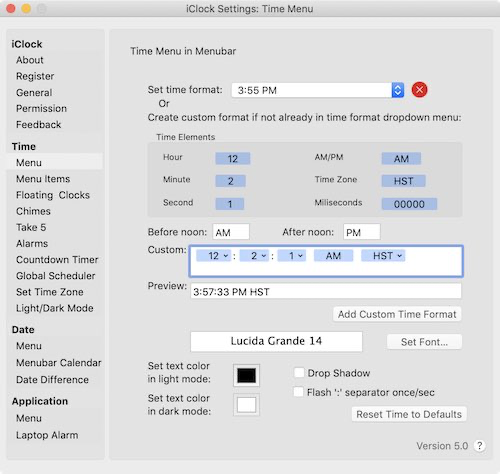
Open Preferences… from the time menu, then choose the appropriate Menu page under the Time or Date heading. Time Menu controls the displayed time, its font and format. Date Menu controls the date format, font, Moon and Moon tooltip. Their individual visibility switches let you simplify the bar.
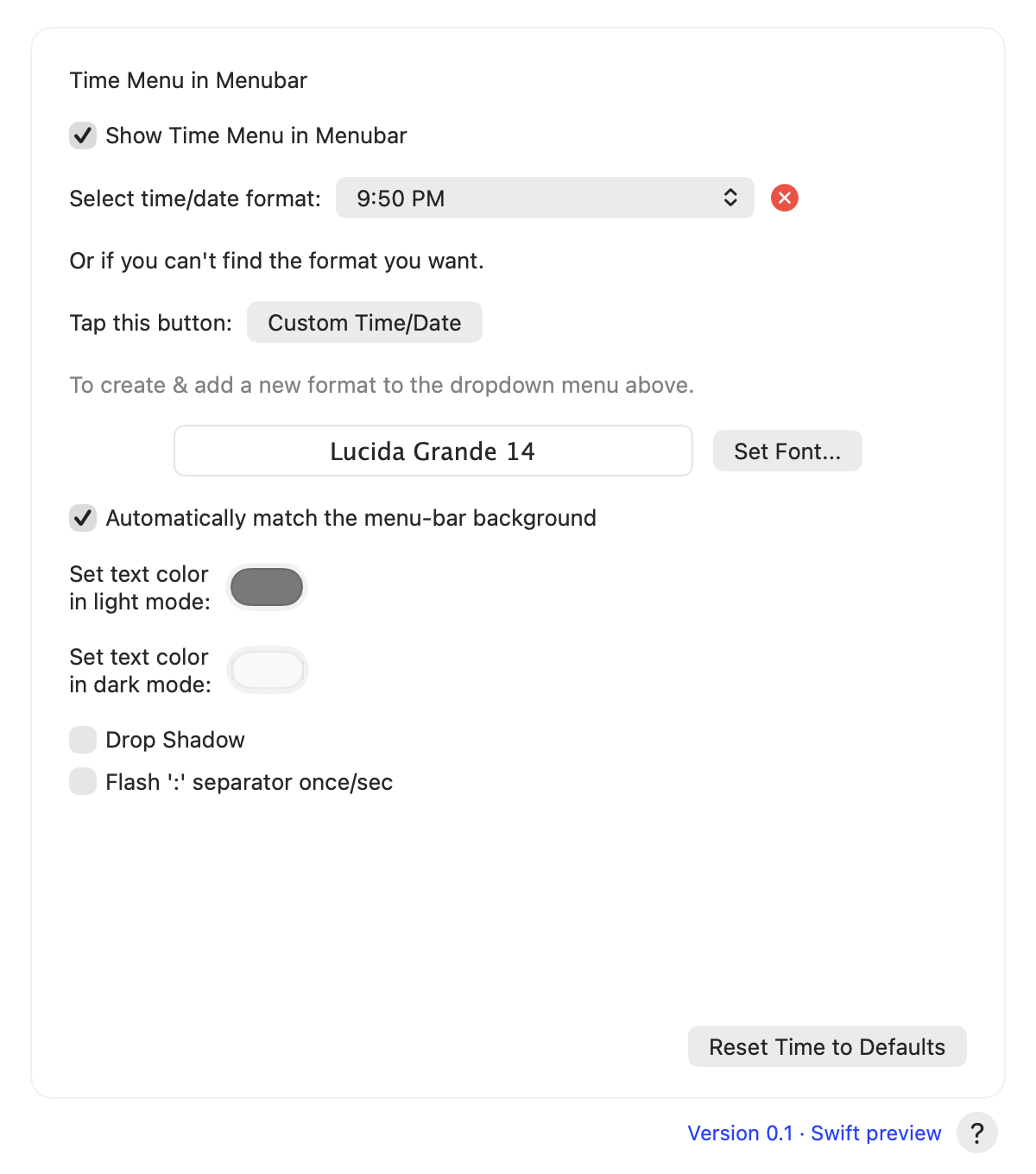
Automatically match the menu-bar background lets macOS keep text readable over light or dark wallpaper, even when the app itself is in a different appearance. The Moon remains a color image. Turn automatic contrast off if you want to choose your own light-mode and dark-mode text colors. Existing customized colors are retained during migration.
Font size changes how much menu-bar space the display needs. A long date and seconds both consume room. If something disappears near a notch, try a shorter format before making the text too small. Drop shadow and the flashing time separator are optional appearance choices.
Select time/date format chooses an existing pattern. Custom Time/Date opens the editor for another pattern, with a preview before it is added to the format list. Set Font… changes typography; Drop Shadow and Flash ':' separator once/sec are independent choices. Show Time Menu in Menubar controls visibility in this Swift version. Keep an accessible route to Preferences when simplifying the display.
Custom formats without surprises
Classic iClock pictures · Custom time formats
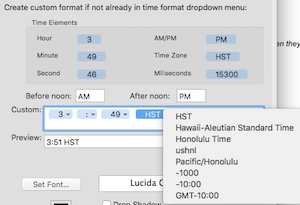
The format lists offer common 12-hour and 24-hour choices. Custom Time/Date provides a place to build and preview additional patterns. A custom pattern describes date components; it is not ordinary prose.
| Pattern | Meaning | Example |
|---|---|---|
HH:mm |
24-hour time | 14:05 |
h:mm a |
12-hour time and AM/PM | 2:05 PM |
HH:mm:ss |
Time with seconds | 14:05:09 |
EEE, MMM d |
Short weekday, month and day | Sat, Oct 24 |
yyyy-MM-dd |
Calendar year, month and day | 2026-10-24 |
Use lowercase yyyy for the calendar year; uppercase YYYY is a week-based year and can differ around New Year. Quote literal words with single quotation marks in a pattern. Month MM and minute mm are different. Output follows the chosen timezone and system locale, so translated names and punctuation can vary.
Try HH:mm:ss, watch the seconds, then return to HH:mm if you prefer a quieter bar. The stopwatch has its own live readout and does not require seconds in the menu clock.
The classic guide’s “blue pills” were format components, not literal words to type into the clock. In this version, work in the Custom Time/Date editor and its preview. Add punctuation or quoted literal text deliberately, then select your saved pattern in the Time or Date Menu page. If a pattern produces an unexpected date near New Year, check yyyy versus YYYY before assuming the clock is wrong.
Time:Menu Items#
Classic iClock pictures · Time menu items
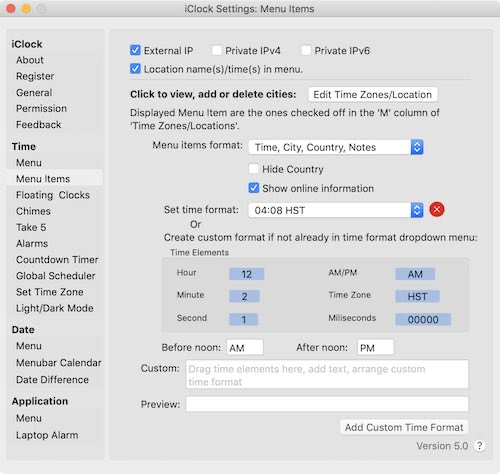
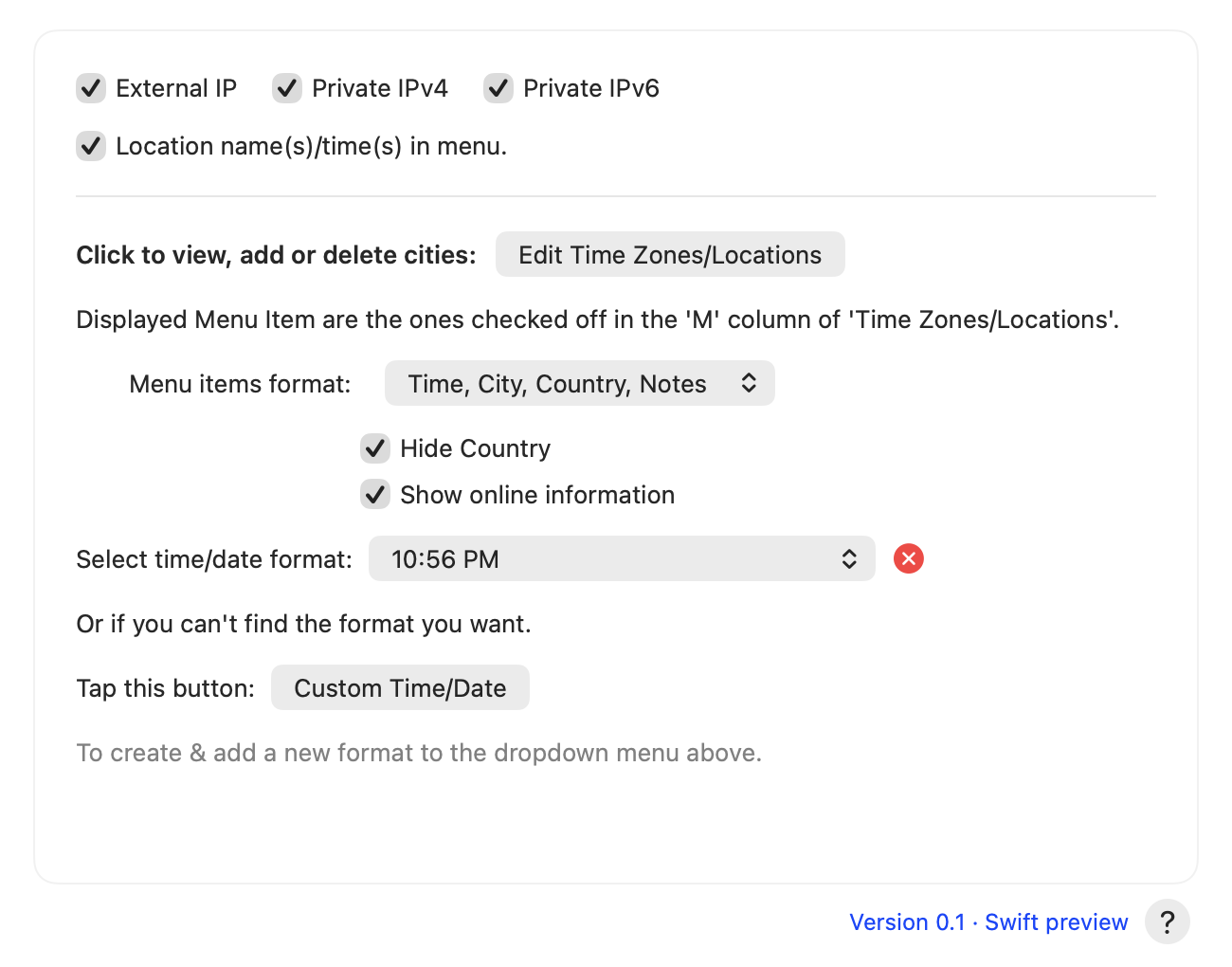
Menu Items controls the contents below the menu-bar time. The long date row copies its displayed date. Location rows can show city, country, local time and notes; format and appearance options affect those rows, separately from the clock above them.
IP Addresses
Open the complete submenu
Open the time menu and point to IP Addresses. iClock lists the external IPv4 address when its lookup succeeds, followed by available IPv4 and IPv6 interface addresses. Select a row to copy that exact address. It stays on the clipboard, ready to paste into a support request or network tool.
The first upgrade to the complete submenu enables both local address families. Later, Preferences… → Menu Items → Private IPv4 / Private IPv6 lets you hide a family you do not need. If you see only External IP, check those options before assuming the other addresses are missing.
What the entries mean
| Entry | Why it can help |
|---|---|
| External IP | The IPv4 address seen by the external lookup service; it can represent a router or VPN exit. |
IPv4 on en0 or another en interface |
An address assigned to a local network interface, often useful for connecting within a home or office. Interface numbering varies. |
| IPv6 | An IPv6 address on that interface. A Mac can have several: globally usable, temporary or link-local addresses. |
utun |
Usually a tunnel interface, often associated with VPN or system networking. |
awdl / llw |
Interfaces used by Apple wireless or peer networking. Their presence does not mean you should configure them. |
A suffix such as %en0 |
The scope of an IPv6 link-local address. Keep it when the destination tool needs it. |
The menu’s Private IPv4 and Private IPv6 labels group addresses found on your Mac’s interfaces; they are not a promise that every address is privately routable. Multiple rows can all be valid. The loopback interface is omitted from this list.
The external IPv4 lookup uses api.ipify.org, so that service sees the connecting public address. Local interface enumeration does not upload your address list. If external lookup fails, the local entries can still be useful. Turning off External IP hides its menu entry; it is not currently a separate network-lookup privacy switch.
Try it: copy a local entry into a new unsent text document. Confirm the pasted value matches the row, including any IPv6 scope suffix. Do not post a full address list publicly merely to test copying.
Time Zones / Locations
Classic iClock pictures · The original location editor

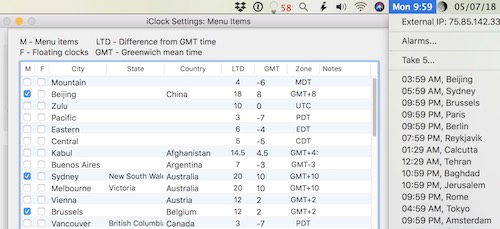
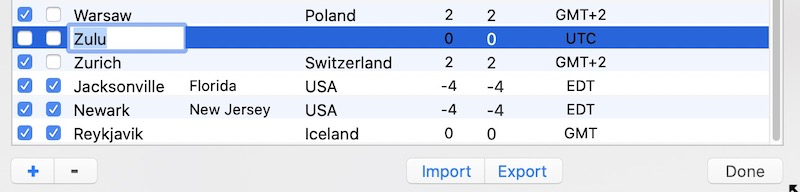
Add a second place
- Choose Add Places… in the time menu. The explanation is above the search field. The Filter controls at the upper right can limit the search to a country and region.
- Type Paris Texas and press Return or click the magnifying glass. You can also choose a matching result. One city opens ready to edit, with its region, time zone and local time.
- Keep the place name, or enter a personal name such as Julio for Buenos Aires. More details… opens the time zone, notes and coordinates. Choose Floating clock if you want one.
- Choose a destination under Add to set, then click Done. The city appears at the top of that set in the Time menu. The search is ready for the next city.
- Under Cities in iClock Menu, switch the City set to see and edit that set’s cities. Edit opens a city’s details. The minus button removes it from the current set.
City sets. The Default set starts with your existing menu cities and Fairfield, Iowa. Choose New Set… from the set menu to create My Middle Eastern friends, My contacts in Russia or another group. Switching the active set changes both the list in Preferences and the Time menu. When you have several sets, City Set in the Time menu switches them directly. Custom sets can be renamed or deleted. Each set can give a city its own personal label.
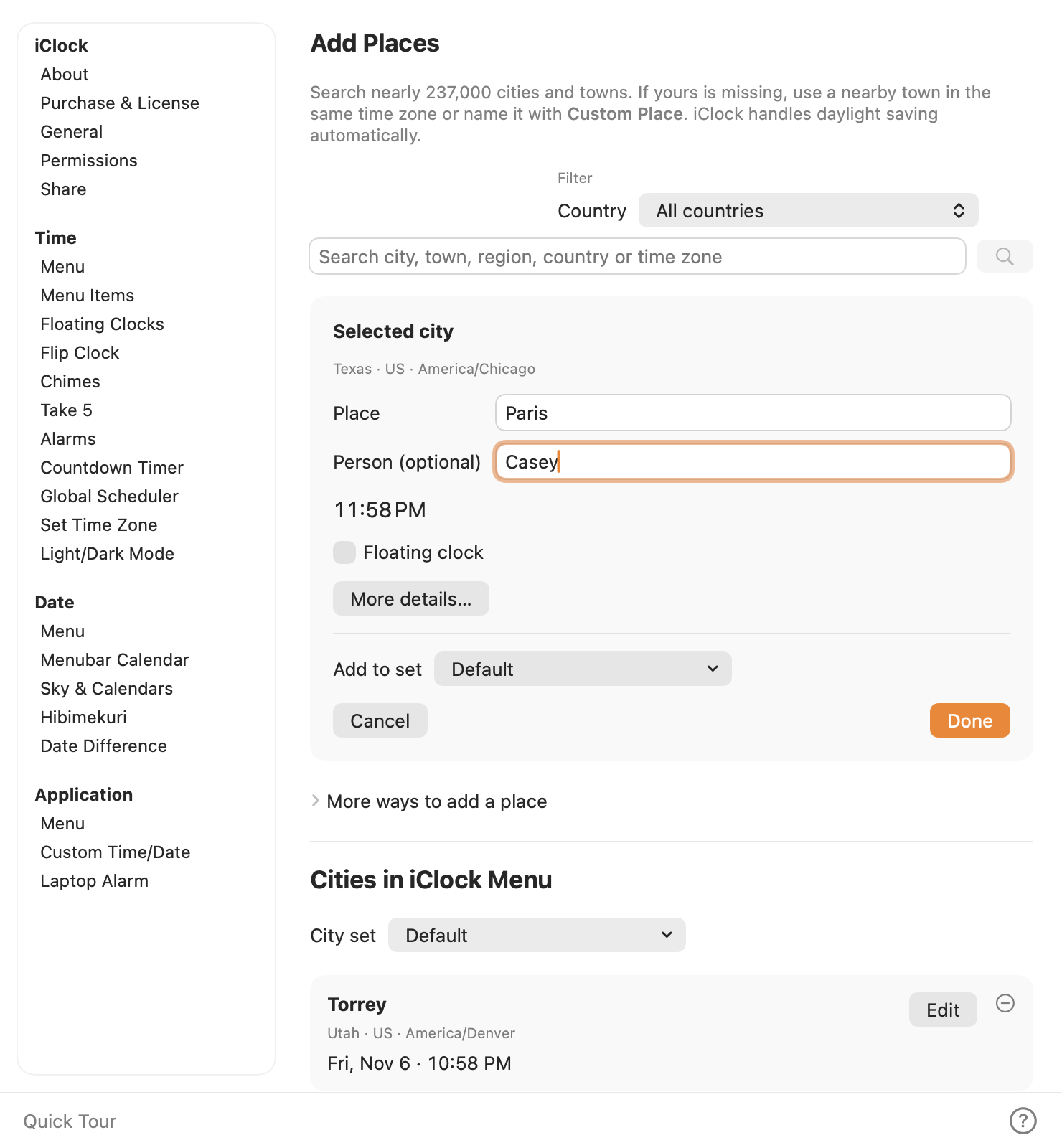
Check the region when several towns share a name. Below the selected city, choose its destination and click Done. The active set’s cities are listed underneath.
A place that is missing. Open More ways to add a place, choose Custom Place…, and give it a place name. In Use the same time as…, type a nearby town, region or named time zone. For a place in Utah, search Utah and choose Mountain Time. Check the local time shown, then click Add Place. Optional details includes region, country code, notes and coordinates. Choose Continue, select the destination set, then click Done. Expand Search Apple Maps for an online lookup.
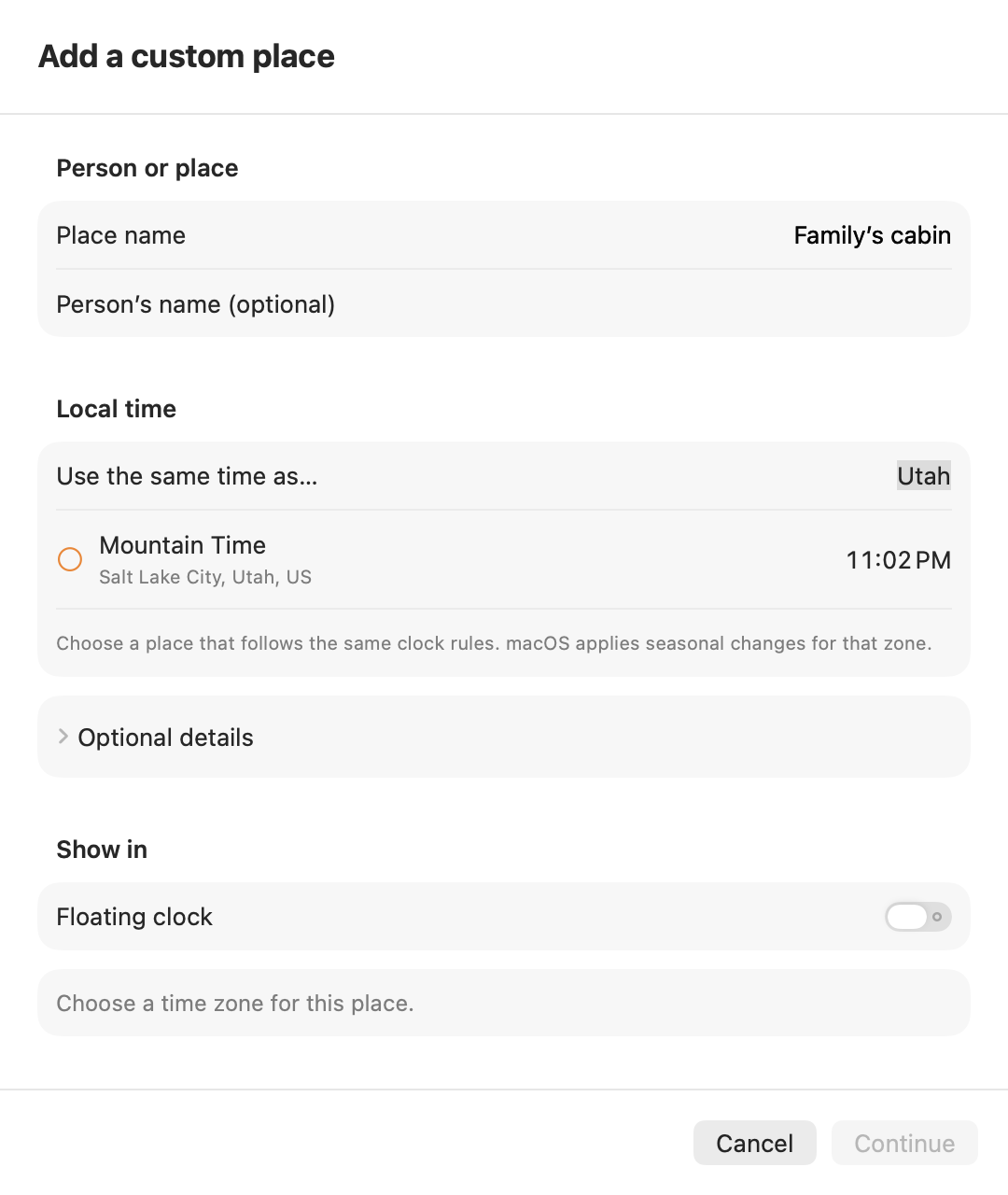
iClock saves the named zone. macOS applies its daylight-saving rules for the date you view. For local sunrise and sunset, enter both coordinates in decimal degrees under Optional details. Use positive numbers for north and east and negative numbers for south and west. After changing the time zone, check and reenter the coordinates.
Worked example: add Tokyo beside Honolulu. Both are real zones, not fixed offsets typed by hand. A Tokyo clock can be on the next calendar day even though the Honolulu clock is still on the previous afternoon. Use the day/date information when arranging a call.
Remove only your demonstration city with its minus button if you are undoing the exercise. Editing its menu name keeps its time zone and coordinates; changing its time zone clears coordinates so an old location cannot supply misleading sunrise/sunset times.
Kailua and Kailua-Kona
The catalog contains Kailua-Kona on Hawaiʻi Island and Kailua (Oʻahu) as separate places. They share a timezone but have different coordinates. Those coordinates matter for sunrise, sunset and sky positions. A saved location named Kailua is not automatically moved to Kona merely because you live there; choose the Kona entry for Kona calculations.
The location choices for the Time Menu and floating clocks are separate. Select the destination display for each city. Reorder locations where the list offers dragging; verify the resulting order in the menu or clocks. Where Import/Export is offered, inspect a small exported example before treating it as a full settings backup. A location file is not an export of alarms, diaries and licenses.
Daylight saving is a date-dependent rule
A named timezone can change offset during the year. London and New York do not always change their clocks on the same weekend. For example, 14:00 in London is 10:00 in New York on 21 March 2026, but 09:00 on 21 June 2026, according to the timezone rules used for these examples.
Keep macOS timezone data current. For a future meeting, check the actual meeting date rather than carrying today’s difference forward. A fixed label such as “five hours behind” is a useful memory aid, not a calendar rule.
Time:Floating Clocks#
Classic iClock pictures · Floating clocks
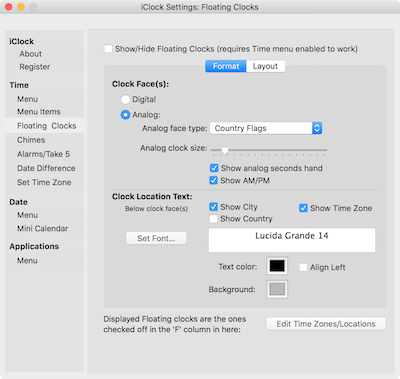
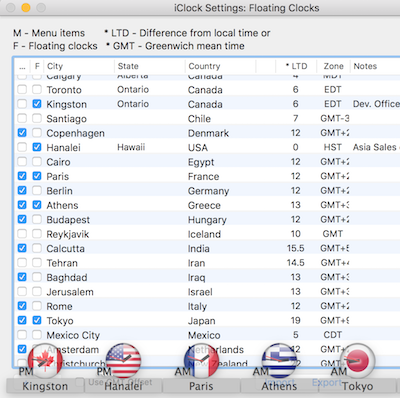
Menu layout and desktop clocks
In Menu Items, choose which location information to show: time, city, country and notes, with a location-specific time format. Hiding country names makes the menu shorter; showing them helps distinguish cities with the same name.
Floating Clocks can display selected cities as digital or analog clocks. Its preferences include clock face, time/date formats, city/timezone/country labels, font, colors, alignment, columns and window layer. Enable the cities you actually want before turning on the display. If no clock appears, check both the overall Floating Clocks switch and the city’s own selection.
Flip Clock offers the original colored face and Flip Clock 2, a dark face with visible hinges. Both animate as the digits change. Use Show flip clock on screen to float the selected face. It does not change the Mac’s system time. Use Set Time Zone to open the relevant Apple settings when the Mac itself has the wrong zone.
For a small world-clock desk: add three cities, select each for Floating Clocks, choose Digital, show city and timezone, and set a compact column layout. Then toggle the clocks from the menu rather than rebuilding the arrangement each time. If an analog second hand or a long label makes the display busy, hide that detail before shrinking every clock.
The layer choice controls whether a window stays in front. A floating clock does not schedule a meeting, and its label does not change the Mac’s system timezone. The separate Flip Clock page offers a larger alternate clock face with its own styling.
Time:Chimes#
Classic iClock pictures · Chime preferences
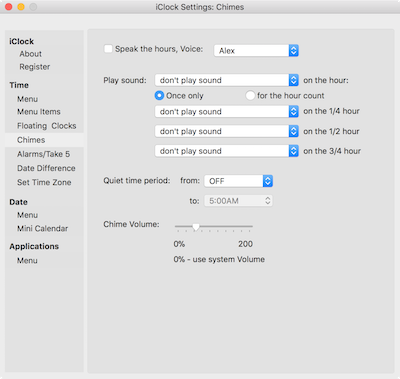
Hear the passage of time
In Chimes, Speak the hours enables speech and its Voice selection. Play chime(s) enables the configured sounds. Review the offered hour/quarter settings, strike behavior and Quiet time choices. Preview a sound before enabling a whole workday of it.
If you hear duplicate announcements, check Apple’s own “Announce the time” setting as well as iClock’s chimes. Each system has its own switch. A quiet interval crossing midnight should be checked with the intended start and end times.
Chimes can announce the hour with speech, play a chosen sound, or mark quarter-hour intervals according to the offered controls. A single strike and an hour-count sequence feel quite different at twelve o’clock; preview the option at a comfortable volume. Quiet time is especially useful for a laptop that moves between work and home.
Time:Take 5#
Classic iClock pictures · Take 5 preferences
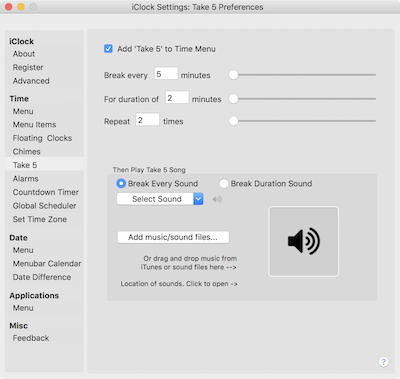
“Take five” means pause for a little while. The original guide also connected the name with the jazz tune Take Five: a much more pleasant idea than staring at a timer until you are allowed to move. iClock does not bundle that recording; use your own suitable sound file if you want music for a break.
Take 5
Take 5 alternates a work interval with a break. Set the work/break durations, sound and Visual Alert, and use Start. Flash alert at start and end adds a visual cue when selected. Stop ends the routine. You can add Take 5 to the time menu.
Try short demonstration intervals before settling on a daily routine. The app’s prompts are reminders; it does not know whether you actually left the desk. Allow the chosen visual alert to finish or use its Stop control if it interrupts a task.
A focused-work example: set a 25-minute work interval and a five-minute break, remove a distraction, and work on one task. When the break begins, step away or change what you are doing. After several rounds, choose a longer pause yourself. Start with short test durations so you learn the two alerts without waiting half an hour.
Choose distinct sounds for break beginning and end if that helps. Visual Alert can appear during the break, stay in front, or be disabled. Flash alert at start and end is a separate cue. A reminder cannot tell whether you actually took a break; choose intervals and activities that suit you.

The original guide’s exercise quotations
“There is no pill that comes close to what exercise can do.”
“Physical activity does not have to be arduously long to be beneficial.”
“Brief bursts of intense exercise are remarkably effective.” “Most people cite ‘lack of time’ as the main reason for not being active.” “Our study shows that an interval-based approach can be more efficient – you can get health and fitness benefits comparable to the traditional approach, in less time.”
Time:Alarms#
Classic iClock pictures · Alarm editor
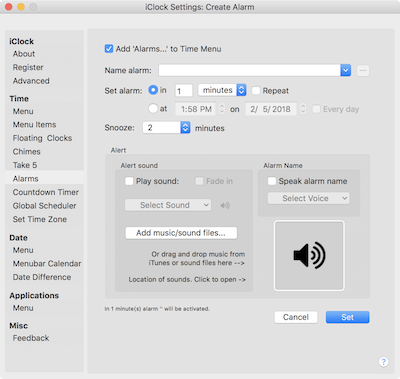
Make a small test alarm
- Open Preferences… → Alarms, or Alarms… from the time menu when enabled.
- Enter an unmistakable name, such as “Tea test.” Choose a short interval or a nearby future time using the available schedule controls.
- Choose sound and speech options at a comfortable volume. Set saves the alarm.
- Keep the Mac awake for the test. Observe the expected alert, then use the available dismiss or snooze control.
- Select the saved test alarm and remove it when finished.
The editor offers interval and calendar-based schedules, with date/time, weekday and repeat controls appropriate to the selected kind. Check the repeat option before Set; a one-time test should not become tomorrow’s surprise.
Sound, speech and snooze
Play sound and Fade in control audible alerts. Speak alarm name uses the selected voice. Add sounds lets you choose additional audio. If recording a sound is offered, Microphone permission applies to recording, not ordinary playback.
Snooze postpones the alert by the chosen number of minutes; it does not rewrite a whole recurring schedule into a different timezone. Check the alarm’s enabled state, schedule and next occurrence when troubleshooting a missed or repeated alert.
Awake, asleep and closed
iClock’s own alarm playback and utility checks require its process to run. macOS notification delivery also depends on permission, notification settings and the scheduled request. A sleeping or powered-off Mac is not an independently guaranteed alarm clock. Test the exact sleep/wake and notification situation you intend to use before trusting it for something critical.
If sound is missing, check the Mac’s output device and volume, the alarm’s selected file, and whether the alert actually became due. Focus or notification settings may affect the visible system notification while the app’s own sound follows its separate options.
Give important alarms names that make sense when spoken aloud. A name such as “Take the cake out” is easier to recognize than “Alarm 3.” Check the next date, repeat setting and enabled state after editing. Removing a saved alarm is different from dismissing the alert that is sounding now; stop the active alert with its offered controls, then remove a practice schedule if you no longer want it.
Time:Countdown Timer#
Classic iClock pictures · Countdown settings
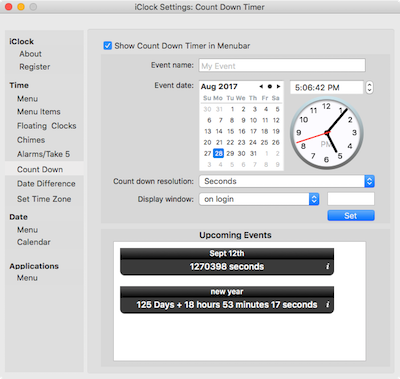
Count toward a moment
Countdown Timer can display the time remaining until a named event. In its preferences, enter the event name and target date/time, choose the resolution and display window, and select sound or fade-in behavior where offered. Set saves the configured event. Review whether you want an entry in the time menu and how early its display or alert should begin.
The compact countdown tools also support timers that can be paused/resumed and removed. Confirm which timer or named event you are editing; the desktop countdown display and a quick duration timer are related tools with different controls.
Worked example: create a named countdown for a practice presentation tomorrow. Check the date and AM/PM before Set, then adjust its displayed resolution. Delete the practice item afterward. A countdown target is an instant; changing a city’s label does not move that target to a new local appointment time.
Live display refresh can differ between surfaces in iClock Pro. The app’s utility scheduler and an on-screen readout are separate; checking a display is not proof that sleep/wake delivery is correct.
The name answers “what are we counting toward?” The target answers “which exact moment?” and the resolution answers “how much detail should I see?” A New Year countdown with a seconds display and a trip countdown with a days display can use the same idea without looking alike. Check the target timezone and date before Set.
Time:Global Scheduler#
Classic iClock pictures · Global Scheduler
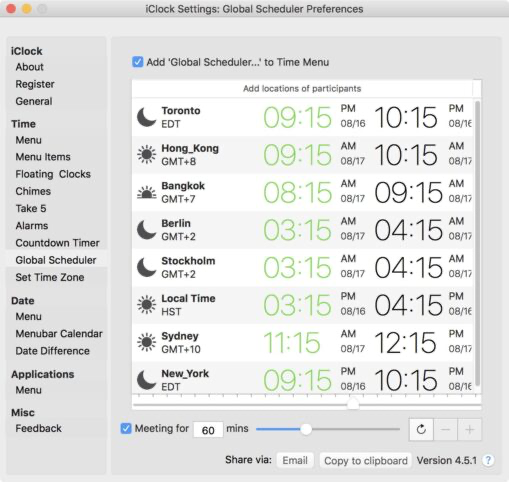
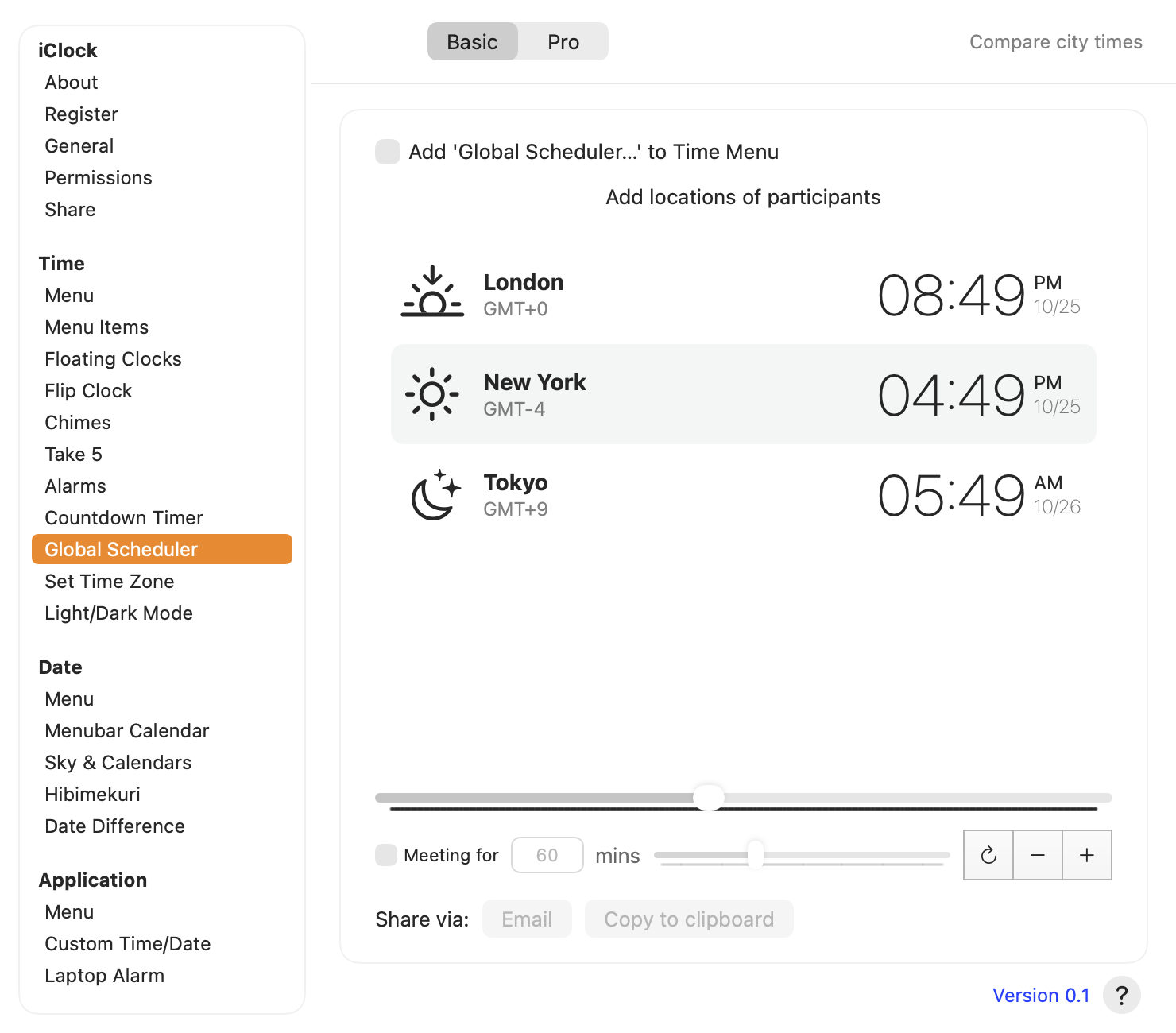
Have you ever tried to arrange a call among people in three timezones without catching someone at dinner or waking someone else up? That was the classic guide’s question. The new Meeting Planner builds on Global Scheduler with saved people, groups, a shared timeline and ranked choices. Choose Basic at the top of Global Scheduler for the original city comparison, or Pro for the full Meeting Planner. Both views live in the same preferences window; these labels describe the views, without adding a purchase requirement.
Compare several places at once
Choose the space you need. Basic starts at the ordinary preferences size. Selecting Pro expands the same window to provide room for people, the timeline and meeting choices, while keeping it within the usable screen. You can resize Preferences yourself; switching back to Basic restores its earlier size, and returning to Pro retains your adjusted Pro size for this app session. Leaving Global Scheduler returns the other preference pages to the ordinary size.
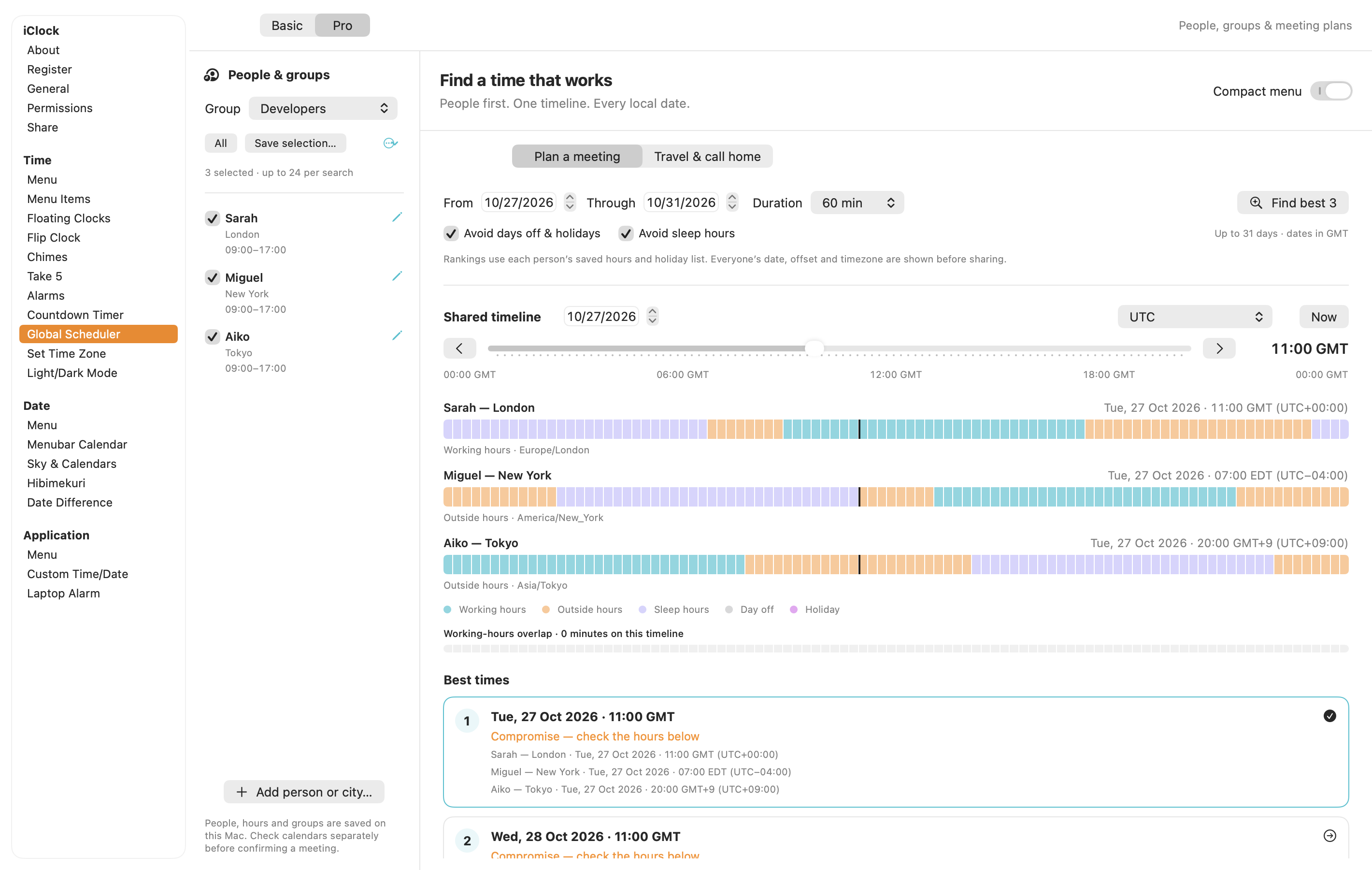
Your first proposal: choose Plan a Meeting… in the Time Menu, or Preferences… → Global Scheduler → Pro.
- Select the people taking part. Existing world-clock and Scheduler locations are copied into the planner once; their original settings stay in place. Use Add person or city… to add someone new. A name is optional: “Sarah — London” and a city-only row both work.
- Use the pencil beside a person to choose their city, preferred working hours, checked working days and sleep hours. Choose a regional holiday list where appropriate and add personal days off. Save keeps these details for future proposals.
- Select the From and Through dates and Duration, then choose Find best 3. Dates belong to the timezone named beneath the controls. Searches cover up to 31 inclusive days and 24 selected participants. Avoid days off & holidays and Avoid sleep hours exclude those times from the search.
- Review the ranked choices. A result marked Within everyone’s working hours fits the full meeting. A Compromise needs closer inspection. Choose a result to move every timeline row to that same moment.
- Give the proposal a title. Copy proposal copies everyone’s full local start and end dates, times, numeric UTC offsets and timezone identifiers. Save Calendar file… saves a tentative
.icsevent that you can open in your calendar app. Review it there and add invitees yourself.
The planner uses the hours and days off you save. It does not read participants’ busy appointments, contact them or book a room. Calendar export does not require Calendar permission and does not send invitations. Confirm the proposal with the people involved before booking.
People and groups. Check a reusable set of people and choose Save selection…. Family, Developers and Customers start as empty groups for you to fill. Choose a saved group in the picker, then adjust the checkboxes for a particular call. The group’s ellipsis menu updates its saved membership or removes the group. All selects everyone. Removing a planner person also removes that person from groups; it leaves their original world-clock location intact. People, hours, groups and travel choices are saved on this Mac with iClock’s preferences.
Explore with the shared timeline. Choose a day and a Timeline timezone, then drag the slider or use the hour arrows. Every row updates together, including local dates across midnight. Working hours, outside hours, sleep, days off and holidays have both colors and text labels. The narrow Shared working-hours overlap strip highlights when everyone is within preferred hours. Now restores the current moment. On a daylight-saving changeover day the timeline spans the actual 23 or 25 hours, so repeated and missing hours are handled as real instants rather than fixed offsets.
Working-day details. Overnight hours are allowed: a Friday 22:00–06:00 shift includes Saturday morning. Equal working start and end means a full day on checked working days. Equal sleep times disable sleep exclusion. Working hours take priority where they overlap sleep. Days off and holidays belong to each participant’s local calendar date, including a holiday crossed during the meeting.
Holiday coverage. The bundled lists cover US federal observed holidays and UK bank holidays for 2025–2028, and Japanese national holidays for 2025–2027. England and Wales, Scotland, and Northern Ireland have separate lists. US federal dates are not a promise that every state or private business is closed. Choose Official source in the person editor to inspect a list. Other regions and years need personal days off; a search’s Holiday coverage disclosure identifies missing coverage. No worldwide holiday coverage is assumed.
A useful compromise is not always equal
Suppose Sarah works in London, Miguel in New York and Aiko in Tokyo. Check all three before finding a time. A morning comfortable for Miguel may be Aiko’s late evening. The ranking first reduces the greatest inconvenience for any person, then the group’s total inconvenience; the best three choices are separated by at least 90 minutes, or by the meeting’s duration if longer.
Fair recurring meetings. Choose 4 weekly · fair rotation, 8 weekly · fair rotation or 12 weekly · fair rotation under Repeat. The chosen first meeting stays fixed. Each later week searches that same local weekday in the timeline timezone and tries to reduce the largest accumulated inconvenience. Times can therefore change from week to week. Expand each week and review everyone’s date and hours before sharing. This is a preview of this series, not a record of who actually attended previous meetings. If a week cannot fit the rules, the series stops there and sharing stays unavailable until you adjust the rules or choose one meeting. Export uses separate calendar events to preserve the rotating times.
If no reasonable overlap appears, try other dates, edit the preferred hours, shorten the call, or uncheck an exclusion to inspect a deliberate compromise. A manual timeline selection can also be a compromise; its labels and copied text show that. An asynchronous update may serve the group better than any call.
Bring context into the decision. Expand Time context for sunrise, sunset, remaining daylight and the next clock change. Daylight needs coordinates supplied by choosing a city. Relevant saved countdown events appear beneath the place cards. Market context currently covers the NYSE core equity session, with dated holiday and early-close coverage for 2026–2027 and a link to the exchange calendar. It is not a live market feed or a worldwide exchange schedule.
Travel & call home. Choose home and destination cities, then arrival and return dates in the destination’s timezone. Use Preview arrival day and the shared timeline to compare both local clocks. Each card identifies the next clock change, including one during the trip. Find call windows ranks 30-minute calls between 09:00 and 21:00 at both ends, on any day of the week; it searches a trip of up to 31 days. Copy a suggestion to share it. The trip does not automatically change macOS’s timezone or your world clocks.
Keep the everyday menu small. The planner header’s Compact menu switch keeps the date, Plan a Meeting…, your selected world clocks, IP Addresses, Tools, Preferences and Quit readily available. Choose Add Places… to find a town or add a custom place. Utilities are grouped under Tools. Choose Copy Local Time in a location’s submenu, or click a row directly when online-information submenus are disabled. Turn Compact menu off to restore the fuller arrangement. The Basic tab in Global Scheduler keeps the original comparison, including its duration, clipboard and prepared-email controls. The optional Global Scheduler… menu shortcut opens Basic; Plan a Meeting… opens Pro.
Time:Stopwatch#
Classic iClock pictures · Stopwatch
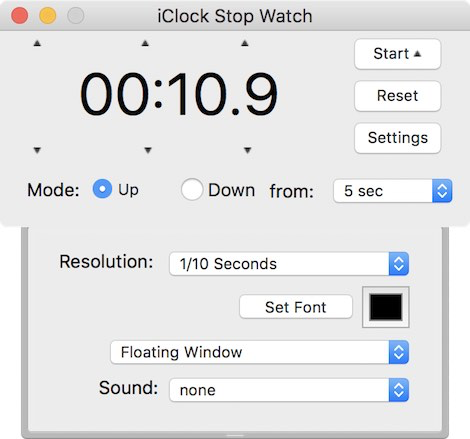
Start, lap, stop and resume
Choose Stop Watch… from the time menu, or open its preferences page. Start begins measuring elapsed time. The running display updates independently of the menu clock and shows hours, minutes, seconds and hundredths. Lap records an intermediate total/split while timing continues. Stop freezes the accumulated value; Start resumes it. Reset clears the value and laps.
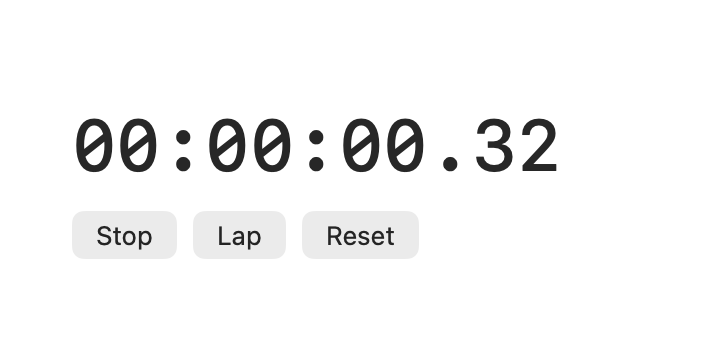
Try it: Start, wait a few seconds, record a Lap, then Stop. Wait again: the stopped value should stay unchanged. Start resumes from that value rather than zero. Reset when finished. Copy is available on surfaces that provide a copy control.
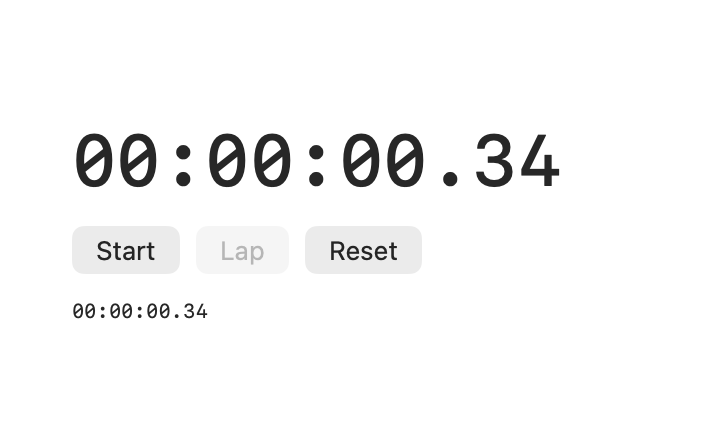
Starting and stopping use the action’s current time, rather than a possibly older minute-tick from the menu display. Display refresh and timing precision are different: the hundredths format does not turn the Mac into a calibrated laboratory timing instrument. This preview stores the active stopwatch in memory; do not treat quitting as a persistent timing session. Changing the system clock while timing can affect wall-clock-based elapsed calculations.
If Start changes to Stop but the number appears frozen, first make sure you reopened the updated Swift build. It is not necessary to turn on seconds in Time Menu preferences. Include the running app’s build and which stopwatch surface you used in a bug report.
Use a stopwatch for “how long has this taken?” Use a countdown for “how long until it ends?” Use an alarm for “tell me at this time.” Those questions look similar until you need Pause, a fixed appointment, or a lap. The classic stopwatch’s count-down settings are not a promise about the Swift stopwatch; use the dedicated countdown tools described above.
Time:Set Timezone#
Set Time Zone opens Apple’s relevant settings. Use it when the Mac’s own time or timezone is wrong. Adding a Tokyo world clock is different: it lets you watch Tokyo while leaving the Mac set to your actual local zone. For travel, confirm automatic timezone settings and the system clock first, then review any local-time alarms you depend on.
Time:Light/Dark Mode#
Classic iClock pictures · Light and dark mode
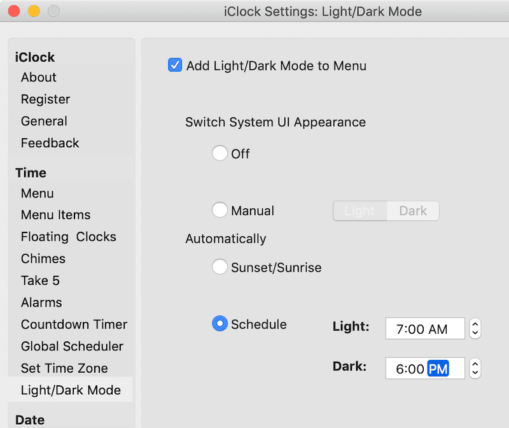
App appearance and Mac appearance
The app’s System/Light/Dark appearance controls its own windows. Light/Dark Mode also offers controls and schedules for the Mac’s appearance, including sunrise/sunset behavior where configured. Changing the Mac’s appearance is a different action and can require Automation permission. Sunrise/sunset scheduling needs a valid location; manually chosen sky cities are a separate preference.
Menu-bar automatic text contrast follows the menu bar’s appearance independently. You should not need to make an entire app dark merely to read its clock over dark wallpaper.
And Apple said, “Let there be light,” and there was light in the Mac OS UI. Apple saw that the light was good, and separated the light from the darkness in Mac 10.14.
Choose manual switching if you prefer direct control. For an automatic schedule, distinguish a fixed clock time from sunrise/sunset: sunrise changes with date and place. After enabling a schedule, check the displayed configuration and how to return to manual control. If the system appearance does not change, review Automation access and the selected location before altering the clock’s own text colors.
Date:Menu#
Classic iClock pictures · Date menu and custom formats
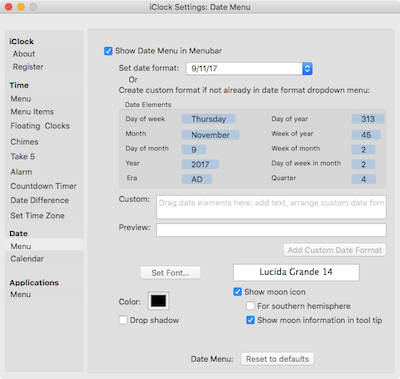
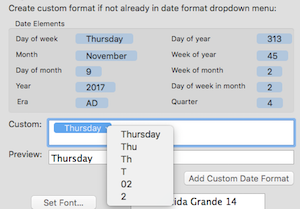
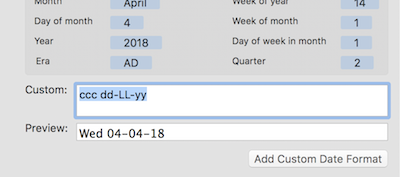
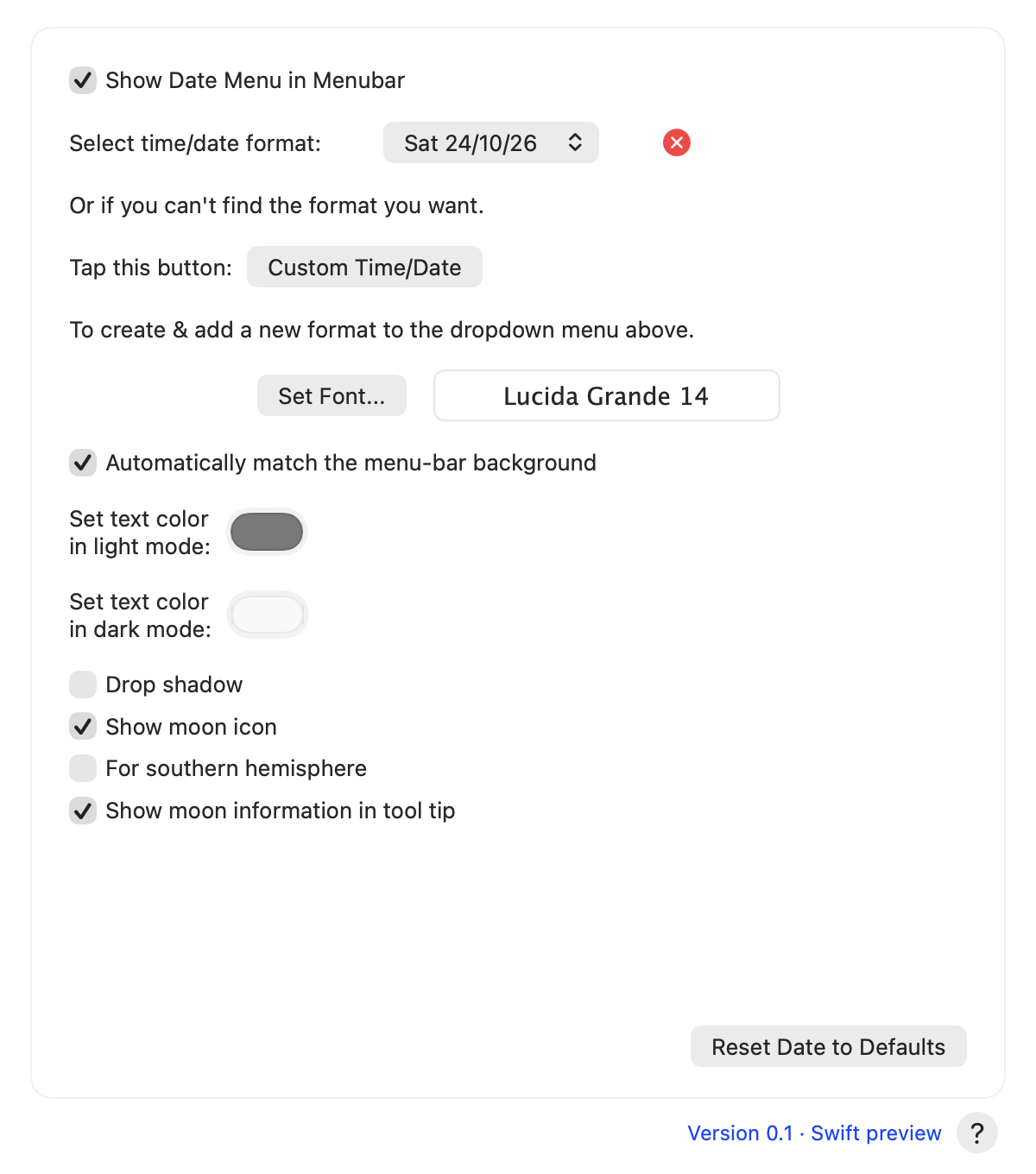
The Date Menu page is the date counterpart to Time Menu. Show Date Menu in Menubar makes the date visible. Choose an existing pattern or use Custom Time/Date to create one. Set Font…, automatic background matching, custom colors and Drop shadow control its appearance. Reset Date to Defaults restores this page’s defaults.
Show moon icon adds the Moon beside the date. For southern hemisphere changes its orientation; it is not a substitute for setting the observing city used for local rise/set calculations. Show moon information in tool tip enables the hover summary. Click the Moon for the fuller panel, or click the date text for the calendar.
Try a clear date first, such as EEE, MMM d, then add a year if you need it. Use yyyy rather than YYYY for a normal calendar year. A very long format can consume menu-bar space, especially on a notched display.
Date:Menu Calendar#
Classic iClock pictures · Choosing a menu calendar
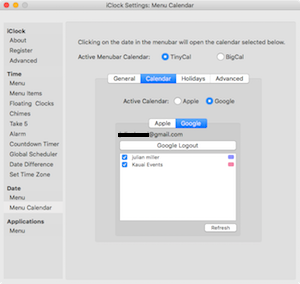
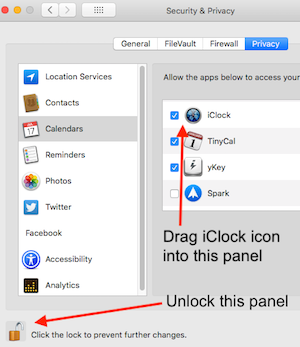
Choose the calendar beneath the date
Open Preferences… → Menubar Calendar. Active Menubar Calendar offers TinyCal, BigCal and None. TinyCal gives you small month panels close to the menu bar. BigCal offers a roomier presentation. None leaves the date without a calendar action; the Moon still has its own Sky action when enabled.
TinyCal preferences are grouped into General, Calendar, Holidays and Advanced. They control the month display, selected data, holiday overlays and additional layout behavior. BigCal has General and Styling. Adjust fonts, colors, week information and month layout where offered, then click the date to inspect the result.
A month grid and calendar event access are different things. You can read dates before granting access to personal events. Colored dates and event details depend on your selections and available data.
The first choice answers which window opens: TinyCal, BigCal or None. Later choices answer which calendars and events it contains. Change one thing at a time, click the date, and inspect the result. Continue to Using TinyCal for an event workflow and the differences from the old screenshots.
Date:Sky & Calendars#
Open the sky
Pause over the Moon for its quick phase summary, or click it to open Sky & Calendars. The Sky tab shows Moon and planet information. The slider/settings button opens the observing preferences. You can follow Now or inspect another date/time using the panel’s controls.
Select an observing city for local rise/set times, altitude and azimuth. The app can suggest a city from saved locations, but check it rather than assuming that a timezone identifies an exact observing spot. You can choose a city manually without giving the app live Location access.
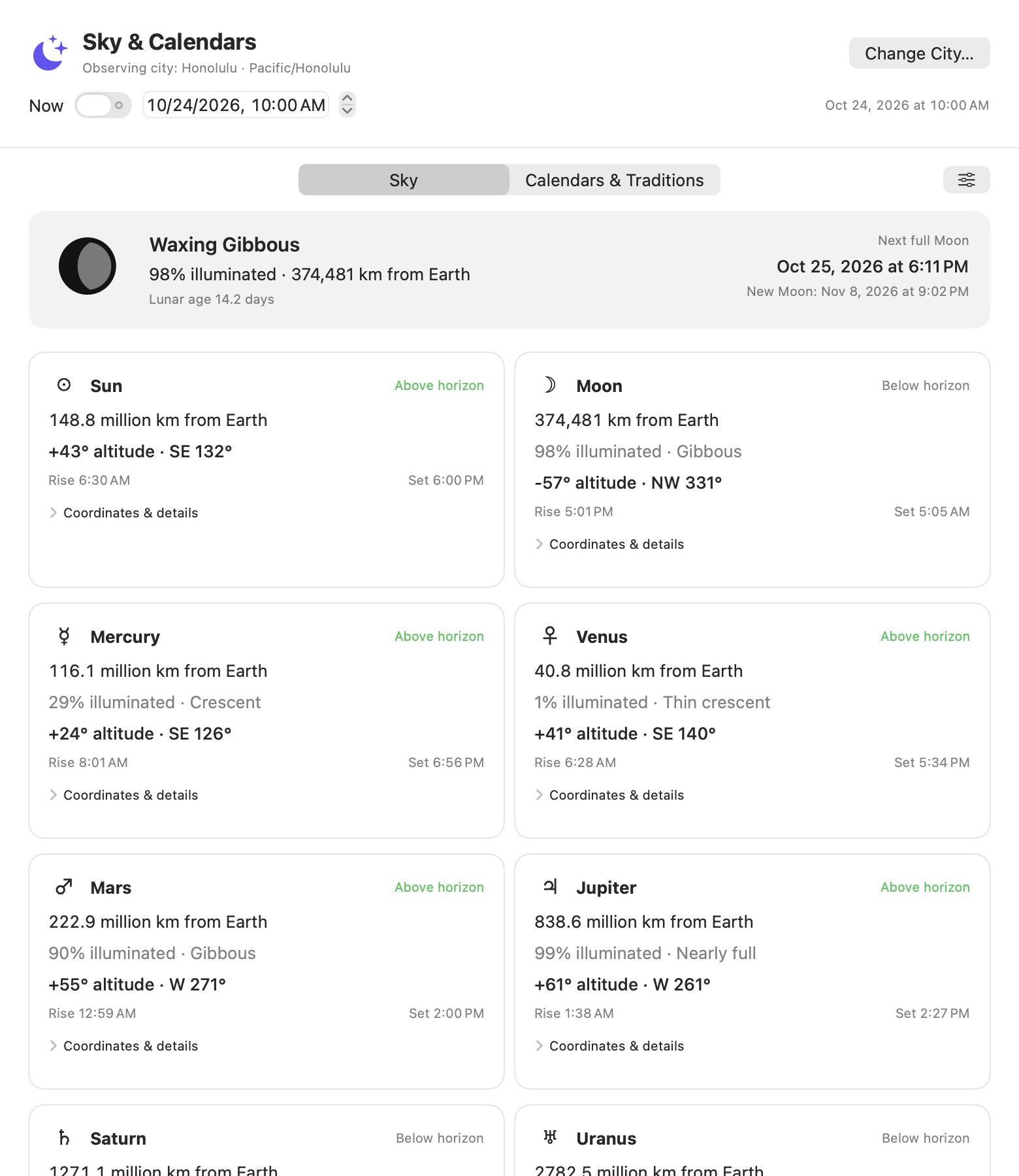
Read the numbers
| Term | What you are looking at |
|---|---|
| Phase / illumination | The lit fraction of the object’s disk as seen from Earth. |
| Moon age | Time since the preceding astronomical new Moon. |
| Distance | The computed Earth–object distance; read the displayed unit. |
| Altitude | Angle above or below the local horizon. Negative means below it. |
| Azimuth | Compass angle around the horizon, measured from north through east. |
| Rise / set | Computed horizon crossings for the observing city and date. |
| Twilight | A stage of darkness defined by the Sun’s angle below the horizon. |
| Tropical zodiac | An optional astrological longitude label, distinct from an astronomical constellation. |
A bright-looking phase diagram does not guarantee naked-eye visibility. Venus can be close and thinly illuminated; a planet below your horizon remains unavailable from that location. Rise/set calculations assume a clear, level horizon and do not know about your building, mountains or clouds. At high latitudes, an event may not occur on the selected day; an unavailable crossing is not necessarily an error.
The calculations run locally through the pinned AstroCore library. They do not stack photographs, control a camera or provide a live telescope connection in this iClock preview.
A small observing lesson: choose your city, note the Moon’s phase and next full Moon, then compare its altitude later that evening using the date/time control. Return to Now afterward so tomorrow’s panel is not still showing your experiment.
Venus in three questions: how much of its disk is illuminated, how far is it from Earth, and is it above your horizon? These are different numbers. A thin crescent can accompany a relatively close Venus, while a positive altitude only says it is above the modeled horizon. Read the unit beside distance; do not compare a Moon distance in kilometers with a planet distance in astronomical units as if the numbers used one scale.
For an evening glance, check your city, select the evening’s time, compare Moon and planet altitude/azimuth, then note twilight. This is a planning aid rather than a weather report. Return to Now so the panel follows the current moment again.
Date:Calendars & Traditions#
Choose the right kind of information
Calendars & Traditions puts different ways of naming dates beside the sky. These entries explain conventions and provide source links. A computed civil date is not automatically a religious deadline or a community’s ceremonial instruction.
The panel includes Hebrew, Islamic civil, Buddhist civil, Chinese lunisolar, Japanese era and Indian national/Saka calendar references, plus the sections below. The selected city controls displayed local times. Hebrew, Islamic and Bahá’í dates use the local sunset boundary when available; otherwise the panel explicitly identifies its civil-day conversion.
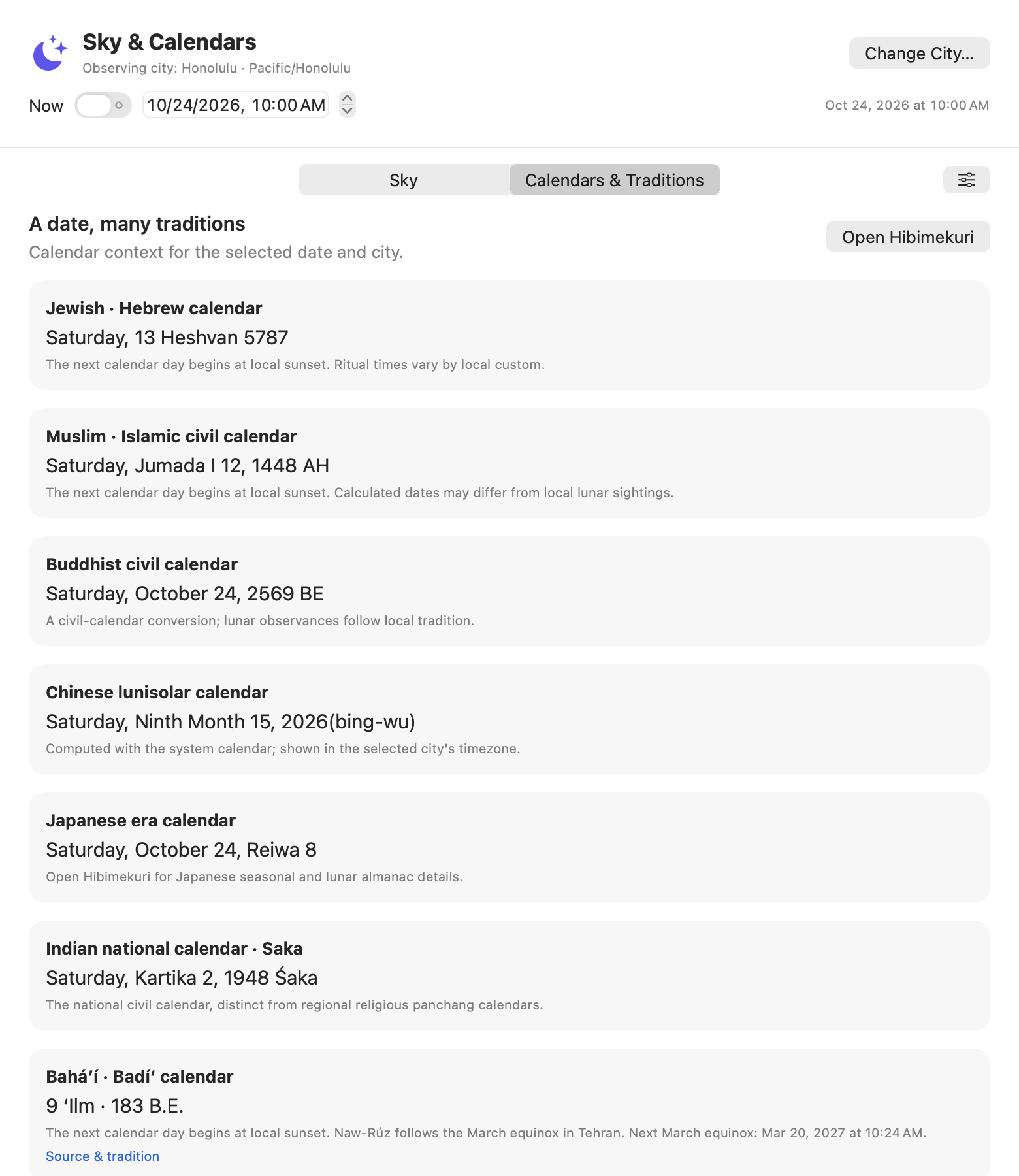
| Section | Useful information and its convention |
|---|---|
| Bahá’í | Badí‘ date using the published year-start table, local sunset boundary and next March equinox. Dated coverage runs from Naw-Rúz 2015 through the end of that published 50-year range. |
| Taoism | Chinese lunisolar date and the next of the 24 solar terms; temple observances differ. Traditional seasonal names reflect China. |
| Ancient Egyptian | The 365-day civil-year structure, Sirius and decans; no invented present-day “ancient Egyptian” date. |
| Maya | Long Count, Tzolk’in and Haab’, using the Goodman–Martínez–Thompson correlation 584283 and the selected civil date. |
| Inca | Next June solstice and the distinction between that astronomical instant and today’s 24 June Inti Raymi celebration. |
| Māori | Astronomical Moon phase and next full Moon, with maramataka context; local night names and practices vary among iwi and hapū. |
| Diné / Navajo | Seasonal sky context and next December solstice; community teachings have their own timing and protocols. |
Use Source & tradition on the newer cards to learn more. The Bahá’í calendar, Smithsonian’s Maya calendar material and Te Wānanga o Aotearoa’s maramataka guide are useful starting points.
The Islamic civil conversion can differ from local lunar sighting. The Indian national calendar is not every regional panchang. A tropical-zodiac label is not a religious affiliation. If an observance matters to your household or community, use that community’s guidance for its actual date and time.
A useful comparison: keep one observing city and one instant selected, then read the Hebrew, Islamic civil and Bahá’í cards around local sunset. A day boundary is part of the calendar convention. Next compare a solar-term card: a seasonal boundary describes the Sun’s position, rather than a numbered day in the same month system.
The Egyptian, Maya and Inca sections provide historical context alongside astronomical markers; Māori and Diné sections point to living community traditions. Treat those distinctions with care. “The Moon is this illuminated” is a calculation; “our community observes tonight this way” requires the relevant community’s calendar and guidance.
Date:Hibimekuri · 日々めくり#
Make a daily ritual
Open Hibimekuri · 日々めくり… from the time menu. Its daily page combines a Japanese-inspired calendar presentation with seasonal/lunar almanac details, quotations and space for personal use. Explore its date navigation before returning to today. It is a place to notice the day, not another deadline you must satisfy.
In Preferences… → Hibimekuri, choose whether it appears in the main time menu, has its own menu-bar icon, or both. Use Open Hibimekuri to visit the page. The feature also has its own settings for language, theme, appearance, quote style, task retention, custom quotes and storage.
Journal, tasks and quotations
Use the journal area for a short daily note and the task controls for items you want to track. Review date selection before writing into another day. Task retention determines how completed/deleted material is kept. Recently deleted tasks can be restored where listed; Empty Deleted Tasks… permanently removes that recovery set, so read its confirmation carefully.
Custom quotes are imported as JSON. Download Sample… supplies the expected format; edit a copy and use Import Quotes…. An attribution field is optional, but a label in a file is not proof that a historical quotation is authentic. Use your own words or check the original source when sharing a quote.
Storage and iCloud
Storage: This Mac means the active files are local. Sync via iCloud uses an iCloud Drive folder for journal entries, tasks and custom quotes when iCloud Drive is available. It does not currently synchronize iClock preferences or Hibimekuri presentation preferences. Turning the switch on is different from verifying that another Mac has received an edit.
Before changing storage, make a backup. On another Mac, use the same iCloud account and inspect whether the expected entries actually arrive. Avoid simultaneous edits to the same journal on several Macs until the preview’s conflict behavior has been checked. iCloud is not a substitute for a separate backup.
Reveal in Finder shows the active data location. Export Data copies the journal and task JSON files into a chosen folder; choose a folder separate from the live data directory. For a fuller backup including custom quotes, copy the complete data folder after edits have saved. Store preferences separately if you need to preserve the whole setup. Do not treat Export Data as a complete export of every iClock setting.
A small daily practice: open today’s page, read the almanac, write one sentence and add one task. Return tomorrow and compare the two dates. Switch language or theme in Hibimekuri’s own settings if that makes the page feel more natural. The two iClock checkboxes control where you open it; its own settings control how the page looks.
The original MIT-licensed Hibimekuri project by ghostlucius supplies the foundation. iClock integrates that daily calendar rather than asking you to run a separate application.
Date:Date Difference Calculator#
Compare two dates
In Date Difference, choose the two dates and the offered units/options. This is useful for “How many days until the trip?” or “How long between these two dates?” Use a small known interval to learn whether your selected option includes an endpoint. A calendar day is not always 24 elapsed hours across a daylight-saving transition.
Add 'Date Difference...' to Time Menu makes the tool easier to reach. It calculates a difference; it does not create an alarm or calendar event by itself.
Use a date-only question for “how many calendar days?” and an elapsed-time question for “how many hours?” Across a clock change those can differ. If you are counting a deadline, write down whether the beginning day or final day is included rather than assuming the calculator’s chosen option matches a contract or invitation.
Applications:Menu#
Classic iClock pictures · Applications menu
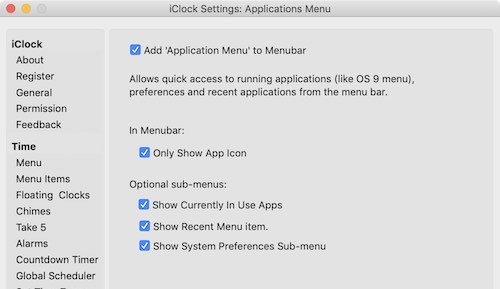
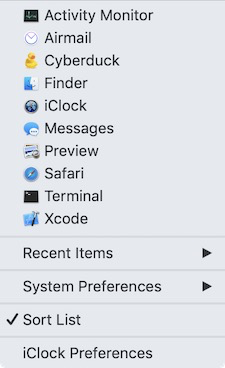
Applications Menu and feedback
The optional Applications Menu can show running/recent applications and related commands according to its preferences. Selecting an application switches to it. Keep its contents concise if the menu bar is already busy.
Share/Feedback offers ways to tell others about iClock or send feedback. Review any composed message yourself. No feature described here sends a message merely because you opened its preferences.
Most format and display choices save as you change them. Reset actions restore defaults for their stated scope; a whole-settings reset is different from removing one city. Back up first when the action could discard a configuration you want to keep.
Enable the Applications Menu if a quick list of running applications is useful. Select an application to bring it forward; use the optional recent-app and system-settings groups where enabled. An icon-only menu takes less space than a name. This tool changes which app you see; it does not quit an app or move its documents merely by selecting its row.
Applications:Laptop Alarm#
Classic iClock pictures · Laptop alarm preferences
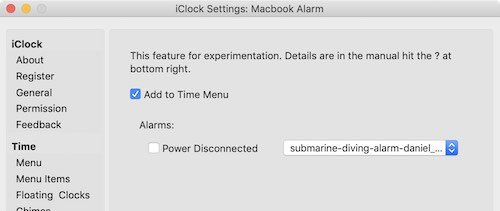
Laptop Alarm
Laptop Alarm offers power alerts for Connected and Disconnected, with chosen sounds. It responds to power-source changes while iClock runs. The preview labels this feature experimental. It is a convenience alert, not a theft detector or a guarantee about the physical power cable.
Enable only the transition you need, test it when convenient, then restore your preferred sound volume. An extra menu entry is optional.
The old guide pictured using this in a café or airport. The useful lesson is still to try a power-transition alert in a quiet, controlled test before enabling a loud sound in public. Learn its stop/disarm route first. It observes a power-source transition while iClock runs; it cannot tell who touched a cable or protect an unattended computer.
Using TinyCal#
TinyCal is the little month-panel calendar beneath the date. Keep its display choice separate from event access: you can show a grid before connecting a personal calendar. This chapter keeps the familiar subjects from the classic guide while updating their behavior for Swift.
Showing Multiple Months#
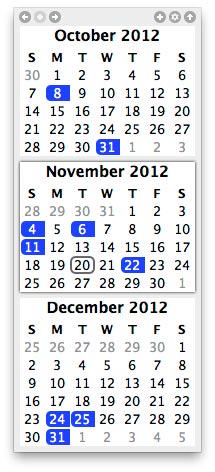
Open Preferences… → Menubar Calendar → TinyCal → General. Display offers one month, two or three months in a tall or wide arrangement, six months in a 3×2 grid, and twelve months in a 4×3 grid. Size offers Small, Medium, Large, Larger and Jumbo. First month can begin with Last month or This month; the twelve-month layout also offers January.
For the familiar three-panel view, choose the tall 3 Months layout and First month: Last month. Click the date and you see the previous, current and next month. Try a larger Size before changing the whole Mac’s display scaling. A twelve-month grid is useful for a broad view, but check that it fits the screen.
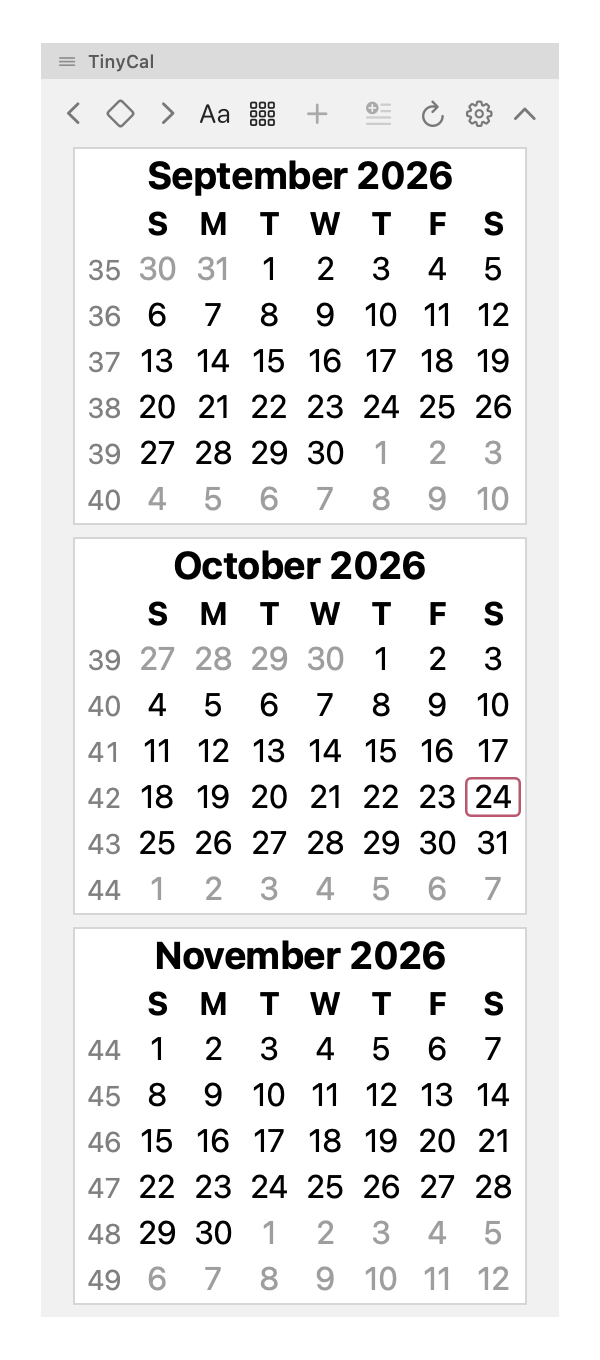
The calendar’s toolbar also offers Size and Months menus, so you can change the display close to the grid. BigCal is the separate choice when you want a roomier presentation.
Google Calendar#
Classic iClock pictures · Calendar events in TinyCal
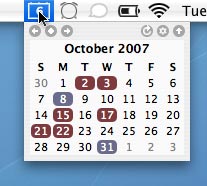
Connect calendars through macOS
This Swift app uses Apple’s EventKit calendar store. Add the accounts you want in System Settings → Internet Accounts or Apple Calendar, enable their calendars, and confirm an event appears in Apple Calendar first. Then grant iClock the needed Calendar permission and select the calendars to display.
Google calendars configured in macOS can appear through the same route. The Google choice in iClock Pro filters system-provided calendars identified as Google; it is not a separate Google sign-in screen. Multiple calendars and accounts remain managed by macOS. A Google calendar with an unusual account name may be easier to find in the full Apple/system list.
There is no separate “paste a Google key here” step for this EventKit route. Your Google account belongs in macOS Internet Accounts, with Calendar enabled. First prove that a known test event appears in Apple Calendar, then look for that calendar in iClock. A Google source filter can be convenient, but a differently named account may be easier to find in the full system list.
The classic guide’s direct Google browser-login instructions describe the old application. They have deliberately been replaced here; configuring a new Google OAuth client is not part of setting up this Swift calendar.
Custom Calendars#
Classic iClock pictures · A Hebrew-calendar example
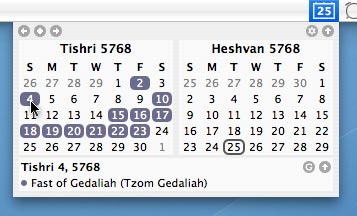
A calendar system names and numbers days; an account calendar holds appointments. A Hebrew or Islamic date label is one kind of choice, while a work or holiday subscription is another. Review the available calendar-system and holiday options in TinyCal, then check the selected day against the convention you intend.
For broader explanations and astronomical context, use Calendars & Traditions. That panel does not replace a community’s authoritative observance calendar or promise that its cards become event overlays in TinyCal.
Tear-Away#
Classic iClock pictures · The original tear-away calendar
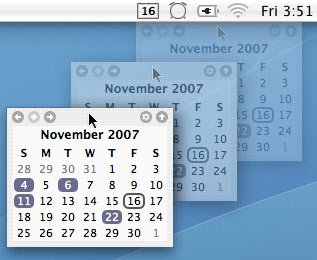
Drag the small TinyCal strip at the top of the calendar away from its menu-bar position. It detaches into a floating panel, so you can put it beside a document and keep it visible while working elsewhere. Drag the strip again to move it.
Use the toolbar’s upward-chevron Close control to dismiss it. The next ordinary opening can return it beneath the date. A detached TinyCal is useful for referring to dates; BigCal provides its own larger window and layer options.
Today’s Events#
Classic iClock pictures · Today’s events indicator

Today is marked in the month grid. Event colors and day details depend on permission, selected calendars, the visible date and the provider’s data. Click a day to inspect its events rather than inferring a complete schedule from a colored square alone.
An empty day can mean “no selected events,” not “the account is disconnected.” Check the calendar list and Apple Calendar before adding another account. A historical TinyCal screenshot’s triangle or badge is not a guarantee that the current Swift menu-bar icon uses the same signal.
Controls#
Classic iClock pictures · TinyCal control legend
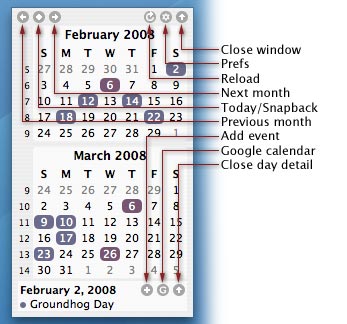
Hover over an icon for its name. The left and right chevrons move by the displayed number of months. Today / Back returns to the current period; when you are already there, it can return to the previous offset. Size changes text/grid scale, and Months changes the arrangement.
The plus button is Add event, and the text-plus button is Quick add. Refresh reloads events, the gear opens Settings, and the upward chevron closes the panel. Creating/editing still requires a writable calendar and the necessary access.
The old direct-Google web button is not a separate Google authentication route here. Remote delivery belongs to macOS and the account provider. Keeping one known test event makes source selection easier to diagnose than checking an unfamiliar holiday date.
Create Event#
Classic iClock pictures · The original event editor
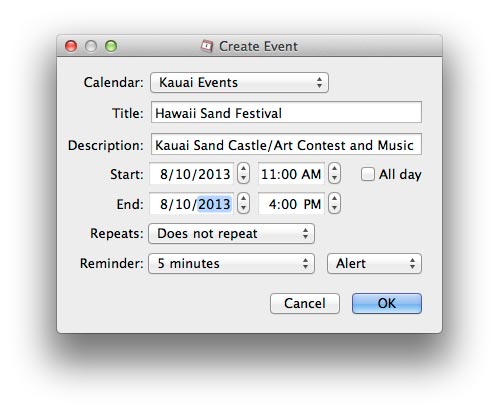
Create or edit a demonstration event
Use a dedicated test calendar for an experiment, not a work appointment you cannot afford to change.
- Confirm that test calendar is writable in Apple Calendar.
- Open iClock’s calendar and select the intended date.
- Use the offered quick/full event editor, choose the test calendar, enter a title and check start/end times.
- Save, then confirm the event in Apple Calendar and in the provider’s calendar after synchronization.
- Remove the test event when finished. Read-only or subscribed calendars cannot accept edits.
Recurring events and provider restrictions deserve extra care. This preview does not establish that every recurrence-editing workflow has been tested against every provider. Use a disposable event to learn a particular account’s behavior.
General Prefs#
Classic iClock pictures · TinyCal general preferences
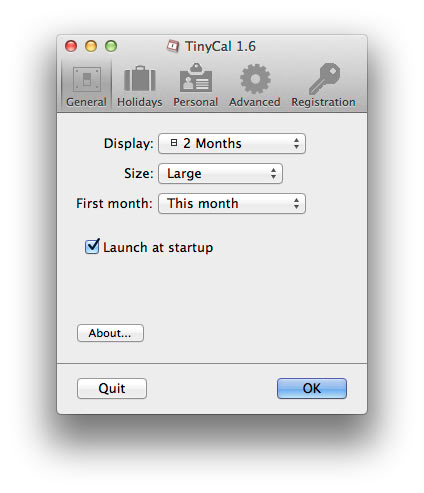

The TinyCal General, Calendar, Holidays and Advanced groups separate display from data. In Advanced, choose the First week day, enable Use custom calendar for Gregorian, Buddhist, Hebrew, Islamic, Islamic Civil or Japanese numbering, and optionally Use secondary calendar for another supported system. Week-number labeling becomes Show ISO 8601 week numbers for the Monday-first Gregorian combination; other configurations use Show week numbers. Toggle/center-calendar hotkeys are grouped here too.
Choose the readable General, Calendar, Holidays and Advanced selectors at the top of TinyCal settings. Calendar has a second row for Apple, Google and None. Holidays has National, Religious, Sports and Other categories; check a country or source to select it. Both rows retain their full labels and can scroll horizontally in an unusually narrow window. Review which source is active and inspect an actual date before assuming an enabled overlay has arrived.
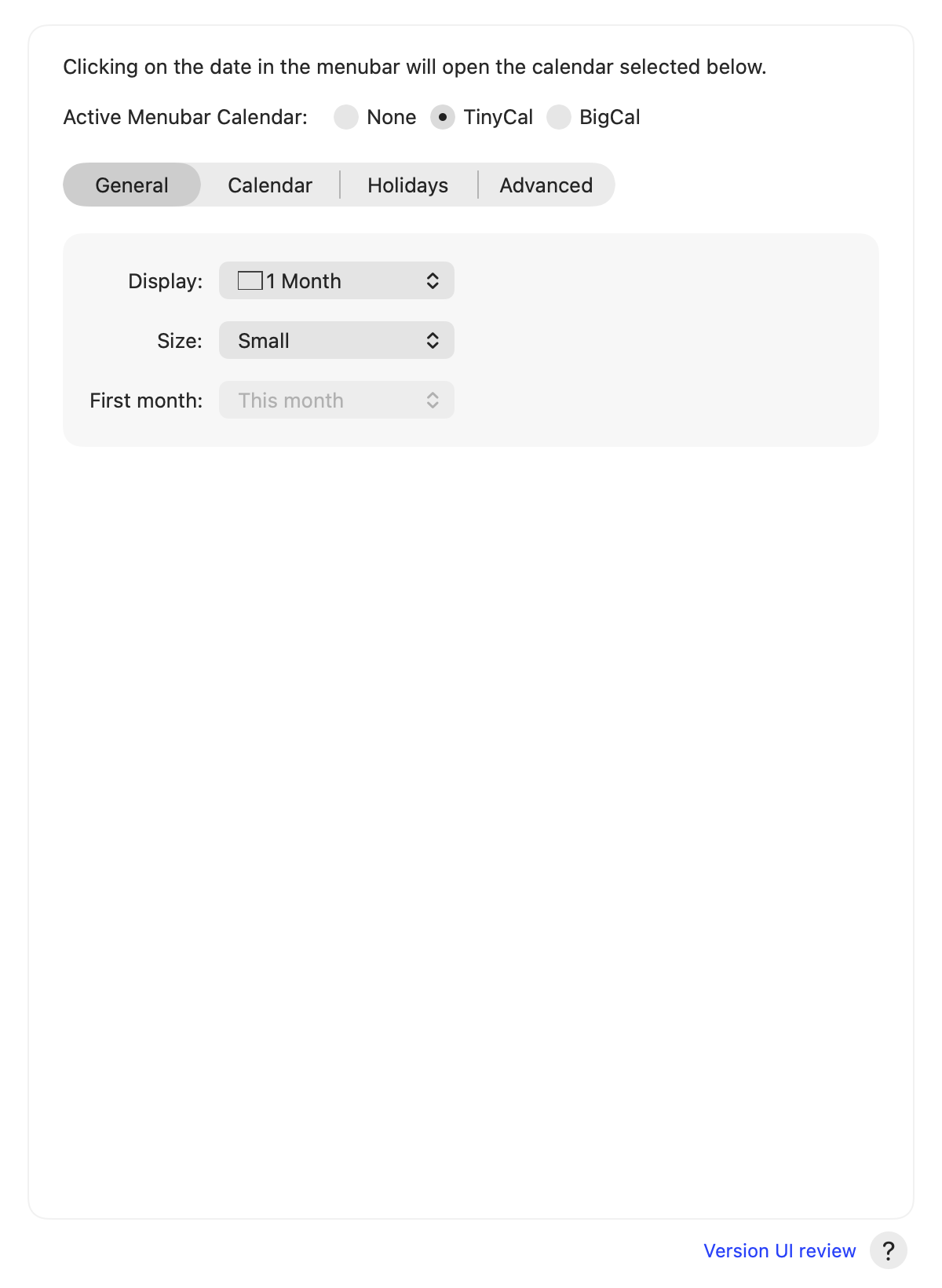
BigCal is a picture calendar. Its settings now occupy one scrolling page: Calendar layout, followed by Picture, fonts and colors. It starts with an original landscape illustration. Choose Choose photo… to use your own photograph, Remove picture for a calendar without an image, or Use starter landscape to restore the illustration. Removing a picture never deletes your original file. Fit, Fill and Stretch affect both the preview and BigCal’s picture. The layout controls set the month count, month-name format, first weekday, window layer and double-click behavior. Font and color controls are on the same page. A change to a clock’s font does not automatically restyle every calendar date.
Use Print to make a paper calendar, or choose the Mac print dialog’s PDF option to save a calendar for a friend. Review the result before sharing it. Resize BigCal itself by dragging a corner.
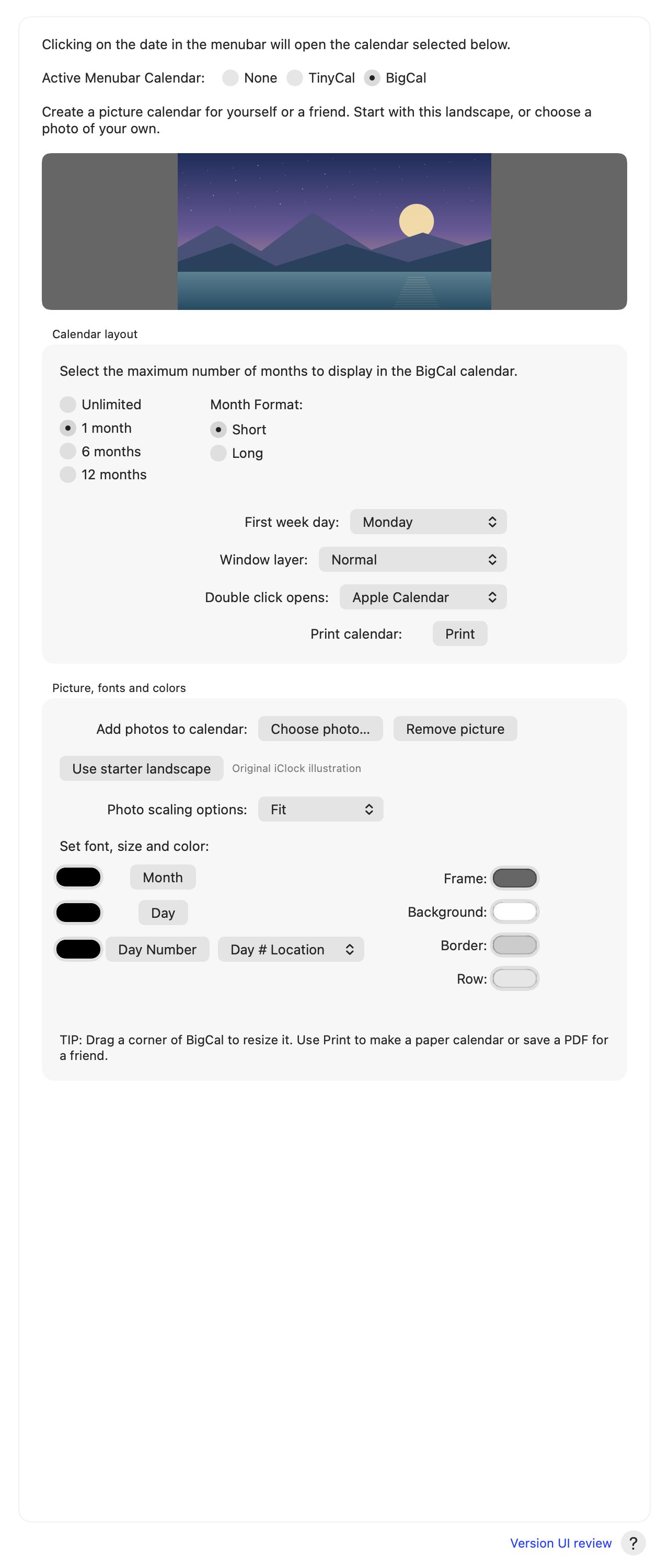
When experimenting, change one option and reopen the date calendar. If the display becomes hard to read, return the changed font/color/layout to a known choice before resetting unrelated preferences.
Events Prefs#
Classic iClock pictures · TinyCal event and account settings
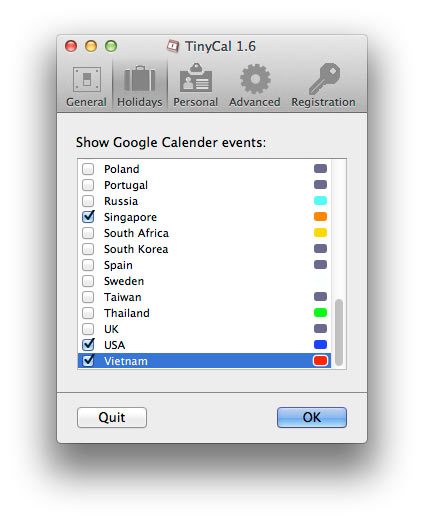
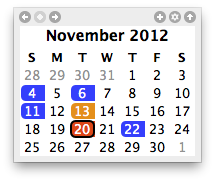
Refresh and synchronization
EventKit changes can update the calendar views, and Refresh reloads data. Remote synchronization is performed by macOS and the account provider. If an event is stale, open Apple Calendar, allow its account to synchronize, then refresh iClock. iClock cannot make an unavailable provider deliver an update instantly.
Holiday selections are optional reference data. Calendar colors, a civil date and a religious observance deadline are different kinds of information; use the appropriate source for an important observance.
Select just the account calendars you need. Several calendars can belong to one account; several accounts can provide calendars with the same name. Check the account/source and color when two “Personal” lists appear. A subscribed or read-only holiday calendar can show events without accepting a new appointment.
Keyboard shortcuts, links and accessibility#
Default keyboard shortcuts#
| Shortcut | Action |
|---|---|
| Option–Shift–Command–W | Opens/toggles stopwatch timing and its window. Check its current state before invoking it again. |
| Shift–Command–F | Toggles floating clocks. |
| Shift–Command–C | Opens/toggles the calendar. |
| Option–Shift–Command–N | Opens the alarm/preferences route. |
These are defaults, not a promise about an imported or edited setup. Review the enabled bindings in your build. A system or another application can compete for a shortcut; menus remain the fallback. TinyCal’s additional toggle/center shortcuts have their own settings.
The iclock: links#
The Swift app recognizes iclock://preferences, iclock://calendar, iclock://alarms, iclock://stopwatch and iclock://appearance, with some aliases. Preferences opens settings; Calendar opens/toggles the calendar; Alarms currently opens the preferences route. Stopwatch toggles timing and opens its window. Appearance cycles the app appearance rather than forcing a specific system mode.
The aliases stopwatchstart, darkmode and lightmode are not idempotent commands: they map to the same toggle/cycle actions. Do not put them in a repeating automation expecting “always start” or “always dark.”
A modest automation recipe: save iclock://preferences as a launcher or bookmark in a tool that can open URLs. Run it once and expect preferences to open. If the wrong edition responds, quit other copies and review which installed app owns the URL scheme. This is a URL launcher, not a dedicated Shortcuts action or an AppleScript dictionary.
iClock actions in Shortcuts#
Open iClock Pro once. In Shortcuts, create a shortcut and search for iClock Pro in the Action Library. Choose an action and use its result in the next step of your shortcut.
| Action | What it does |
|---|---|
| Get Time in a Time Zone | Returns the current local date and time as text, with the time zone identifier. Choose a zone such as Asia/Tokyo, or leave it blank to use this Mac’s time zone. |
| Open Meeting Planner | Opens the Pro view in Global Scheduler. |
| Open Calendar | Opens the TinyCal or BigCal selected in Menubar Calendar settings. Choose one there before running the action. |
| Open Sky & Calendars | Opens the Moon, planets, daylight and calendar traditions panel. |
| Start Stopwatch | Starts or resumes the stopwatch and opens its window. Repeating Start keeps the stopwatch running. |
| Stop Stopwatch | Stops the stopwatch and returns elapsed seconds as a number you can use in another action. |
Try a time check. Add Get Time in a Time Zone, choose Asia/Tokyo, and add Shortcuts’ Show Content action (called Show Result on older versions). Run the shortcut to see Tokyo’s current date and time. Change the zone or use the text in another action.
The actions that open windows use the running iClock’s settings. If Shortcuts asks you to open iClock, open the Swift edition and try again. Quit another iClock copy first if it is already running.
Readability and motion#
Use larger clock fonts where space allows and automatic menu text contrast over wallpaper. macOS Reduce Motion stops the setup arrow’s movement. The manual itself supports search, heading links, keyboard navigation and a print view; diagrams have written alternatives. Click an illustration to enlarge it, then use Close image or Escape to return to your place. Source-rendered interface images supplement the steps and are not the only way to learn a control.
Each original animation starts as a still picture. Choose Tap to play below any of them to play it right where it appears on the page. Click the animation again, click elsewhere or press Esc to return to the still. A printed copy shows the still pictures.
Data, privacy, backup and recovery#
What stays where#
| Information | Current storage or access model |
|---|---|
| iClock display preferences, locations and schedules | Local app preferences; different preview bundle identities can have separate records. |
| Saved alarms and quick countdowns | Local app preference records. |
| Running stopwatch | In-memory session in iClock Pro. |
| Calendar events and Reminders | Apple’s system stores and their configured account providers. |
| Hibimekuri journal/tasks/custom quotes | Local data folder, or its selected iCloud Drive folder. |
| Direct license material | License storage used by the direct edition; keep registration information private. |
| External IPv4 lookup | Network request to ipify. |
| Offline sky calculations | Computed on the Mac; opening a source link uses your browser. |
Calendars, notification permission, microphone recording, Location and Automation are separate choices. You can deny a permission and keep unrelated clock functions. Revoke access through macOS Privacy & Security, then check how the affected feature behaves.
Make a practical backup#
For a journal backup, save/close editing and use Hibimekuri Export Data, then copy the full active data folder if you also need custom quotes. For a complete Mac configuration, use your normal Mac backup and retain the app’s preference data. There is not yet one universal Export Everything button for iClock.
Keep classic-app data and its installer during evaluation. A different bundle identity is useful for an experiment but can mean another settings record, permissions entry and license state. Renaming an app in Finder does not by itself transfer all of those.
If a storage switch or sync looks wrong, stop making competing edits, inspect both locations, and preserve copies before choosing which to restore. Avoid deleting a cloud folder to “force a refresh.” Contact support with the symptoms and version rather than sending your whole diary.
Finding the right preferences: production, App Store and experiment builds can use different bundle identities and preference locations. The classic guide’s old com.plumamazing.iClockPro and Script Software folders are historical records, not universal paths for this Swift app. Use the installed edition’s identity and your Mac backup rather than copying an old path and deleting it.
For Hibimekuri, Reveal in Finder is the direct way to inspect its active data folder. Preserve both local and cloud copies before resolving a discrepancy. Copying one journal JSON file does not preserve global iClock settings, custom sounds or a license receipt.
FAQ#
Classic iClock pictures · Clock settings on older Macs
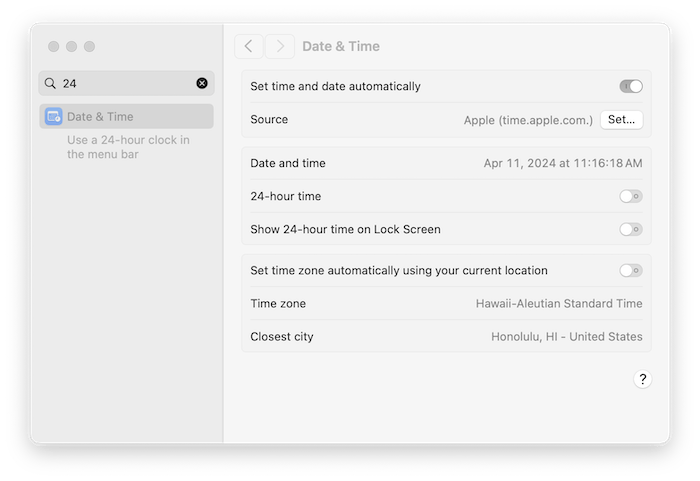
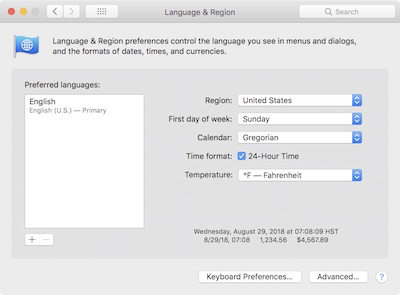
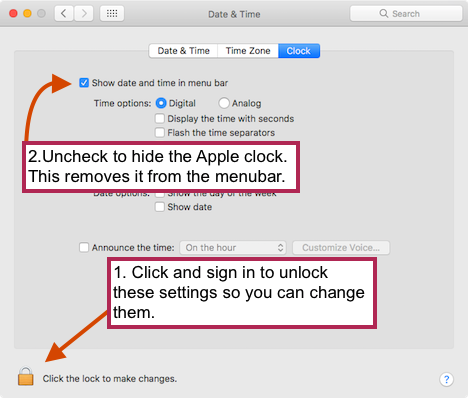
Find the symptom#
| Symptom | First checks |
|---|---|
| Two times and dates | Keep one iClock running; make Apple’s clock compact using Install. |
| The new copy seems unchanged | Quit the existing iClock, then open iClock Pro. Single-instance protection can correctly leave the old process running. |
| Text is dark over dark wallpaper | Enable automatic background matching for Time Menu and Date Menu. |
| Time is visible but date is missing | Check Date Menu visibility, format length and menu-bar space. |
| Clicking the date does nothing | Choose TinyCal or BigCal instead of None. Click the date text rather than the Moon. |
| Calendar has no events | Confirm Apple Calendar has the events; check iClock full access, source/filter, selected calendars and date. |
| Google looks empty | Check macOS Internet Accounts and try the full system/Apple calendar list. |
| Stopwatch number is frozen | Reopen the updated Swift build; Start should animate independently of menu-clock seconds. |
| IP submenu shows only External IP | Enable Private IPv4 and Private IPv6 in Menu Items; no address appears for an interface without an assigned address. |
| Sunrise or Moon position seems wrong | Check city, coordinates, timezone and whether the panel is showing Now or an earlier experiment. |
| Journal entries differ between Macs | Check the storage label, iCloud account, actual delivery and conflicting edits; preserve both copies before recovery. |
| Alarm/chime is silent | Check enabled state, time/date, output device, volume, sound file, quiet times and whether iClock is running. |
| A shortcut does nothing | Check its enabled binding and possible conflicts; use the menu as a fallback. |
The clock changes width as the seconds advance. What helps? Try a fixed-width/monospaced font through Set Font and compare a short seconds format. Longer names and dates need more room even with a fixed-width numeric font.
How do I use 24-hour time? Choose a pattern such as HH:mm in iClock’s own Time Menu page. Changing Apple’s clock style is a separate setting. If an imported pattern still shows AM/PM, select a 24-hour preset or remove a from a suitable custom pattern.
Does iCloud share all my iClock settings? No. Hibimekuri’s current storage option covers journal entries, tasks and custom quotes. Presentation preferences and the rest of iClock’s settings remain local in iClock Pro.
Can I hide Apple’s clock completely? Current macOS keeps its clock/Notification Center control. Make it a compact analog icon using Install. Instructions for a much older Mac’s “Show date and time in menu bar” checkbox are historical.
How do I stop an alarm? Use the active alert’s available stop/dismiss or snooze control. Then inspect the saved schedule if it should not recur. Deleting one schedule and dismissing one sounding alert are different jobs.
My floating clocks are missing or out of order. Check the overall switch, each location’s Floating Clock selection and the list order. Do not reorder unrelated Time Menu entries expecting every window to follow automatically.
Start at login still opens the old app. Inspect macOS Login Items, remove the obsolete entry, and enable startup in the intended Swift copy. Quit other copies before your next test.
Purchase and registration#
Time is money.
— Benjamin Franklin
Never put off till tomorrow the fun you can have today.
Check the edition before paying#
Choose lifetime, monthly or yearly licensing for iClock Pro for Mac. Each license supports three Mac activations while it is valid. View the current terms at the iClock Pro checkout.
Check the selected plan and total at checkout. Classic owners purchase a new iClock Pro license. After purchase, enter the license key from your receipt in Purchase & License.
The direct app includes a 30-day, all-features trial, starting when you first use it. You do not need a store account, payment card or Lemon Squeezy trial. The app records its own trial period. Resetting iClock preferences does not restart that period.
During the trial, all features and preference saving are available. Preferences show the remaining days and explain the upcoming change. iClock also reminds you during the last week and on the last day.
After 30 days: you can continue using iClock. Preference changes apply for the current session, but are not saved for your next launch. Your previously saved preferences are preserved. Entering an accepted license restores saving and saves your current settings. The same rule covers the planner’s saved people/groups, clock and calendar preferences, and Hibimekuri’s appearance and language preferences. Hibimekuri journal entries, tasks and calendar events retain their existing data-saving behavior. Changing the journal’s storage location requires saving to be enabled, so a temporary preference cannot hide entries on the next launch.
In the direct edition, Purchase & License contains Purchase On-Line, Enter Registration and View Registration. Purchase On-Line opens the verified iClock (2026) checkout. New Lemon Squeezy activations must match this iClock product and one of its published purchase options; another Plum app’s key does not unlock it. Classic registrations are not imported as licenses. If an earlier Swift test build saved a license without current verification details, choose Verify Saved License to check whether it belongs to the new product; this does not purchase anything or consume another Mac activation.
Open Purchase & License → Enter Registration, paste only the license key from your receipt, then choose Activate License. No name or email entry is required. After successful verification, iClock can show the purchaser’s name and email returned by the store as read-only details, with a thank-you message. The key field conceals its contents. Confirm the green Activated status and retain your receipt privately. Use the purchase account/support route to recover a missing key; never paste it into a public bug report.
If macOS asks to access your saved license, allow iClock to read it. If access was denied, choose Check License to retry. An existing activation is kept while access is unavailable; iClock does not replace it with a new activation merely because it cannot read the saved key.
Checking and moving a license: choose Check License to recheck this Mac's existing activation. iClock also checks at launch and about once a day while running. A check does not consume a Mac activation. Activating the same valid key again reuses this Mac's existing activation. Before switching to a different key, choose Deactivate License. That releases this Mac; it does not cancel a subscription or request a refund. Failed removal keeps the local license available for retry. If the store confirms removal but macOS cannot finish local cleanup, choose Deactivate License again to retry cleanup.
Working offline: a previously verified lifetime license continues working offline unless it has a known expiry date. Monthly and yearly licenses retain cached access for up to 30 days after a successful check, or until a known earlier expiry. Connect and choose Check License to refresh that answer. An expired, disabled or remotely removed activation stops granting purchased access once the store confirms its status. If the original app trial has also ended, preference edits become session-only; previously saved settings remain. A temporary server or connection failure preserves cached access within those limits.
This guide covers the direct Mac download and its license key. Visit the iClock Pro product page for current availability.
Updating and reporting a build#
Choose Check for Updates… in iClock Pro to check the dedicated Swift update feed. Use About to identify your installed version before reporting an issue.
Use About or the version display in Preferences to record the app version/build. When changing test builds, Quit first so you do not keep testing the older process. This manual’s edit date is not a replacement for that running-build identity.
Recovering a purchase: begin with the receipt and the account used to buy. A direct-download receipt/key and an App Store purchase are different proofs. Previous owners use their separately supplied discount code for a new Swift purchase. Ask support if you need help finding that offer. Cancellation of a subscription, deactivation of a key and a refund request are different actions; use the purchase channel’s corresponding route rather than assuming one control does all three.
The classic guide described trial periods and volume pricing for its own offers. Those details have not been silently transferred into a new Swift offer. The approved product listing and receipt will control the released edition’s terms.
Time is the most valuable thing a man can spend.
Support#
Time cools, time clarifies; no mood can be maintained quite unaltered through the course of hours.
Ask for help without oversharing#
Use Plum Amazing Support. Include the Swift/classic edition, app version/build, macOS version, the steps you took, what you expected and what happened. A cropped image of the affected control helps. Remove registration keys, calendar appointments, diary entries and network/account details that the question does not need.
The original guide by Mark Fleming and Julian Miller provides this book’s framework. Its quotations and stories sit beside instructions for iClock Pro.
We love hearing suggestions and finding out which small part of the day iClock could make easier. Tell us the goal as well as the button that caused trouble: “arrange a call without waking Tokyo” can lead to a better answer than “add another timezone field.”
The original guide closed with a time-related listening suggestion: 99% Invisible’s podcast link. It is retained as an archival recommendation, not an iClock feature. You can also explore Plum Amazing’s other apps, including clipboard and photo tools, through their current product pages.
User Raves#
Time is bestowed relatively equally on all people but people don’t equally apply their time.
“I tried iclock because I was annoyed with not being able to see the date in the bar. When I went to pay for it, I noticed copypaste and decided to try it because I frequently want to do a little fancier copying. I probably won’t use the more advanced options, but I want the simple things to work well. Thanks, Ed.”
— Edward Catmull
“With my line of work, I never know what distant corner of the world my job will take me. iClock’s simple, intuitive interface never lets me down. With a quick glance at the pull-down menu, I can see what time it is where I am….where I’m going…and where I’ve been. With another click, I can check the weather at my next destination. It’s so much more than a digital timepiece for the Mac.”
— Kevin Rafferty
“It’s hard to imagine that so much functionality could be packed into a ‘clock’!”
— Guy Kawasaki
“iClock saves time! Once again I’ve snagged an invaluable tool from Script Software. iClock elegantly offers just the right balance of functionality and features. No digging – no bloat; just a wonderfully simple tool to help manage my clock, my time, my Mac.”
— Rand Miller
“Many thanks. Great app!”
— David Bogart
“The new iClock is excellent and it is very stable. I also like all those links to various sites. I really love being able to easily glance at the bar and see the day and date plus I find the drop-down calendar super useful in that it lists calendar items that are coming up. Excellent!”
— Kerry Dawson
“Best time I ever had!!!!”
— Charles Henry
“I love iClock. It’s not only attractively designed, it’s really useful, too. Besides all its time features, I was delighted when I saw that it restored the drop-down menu for open applications.”
— James Henry Rubin
“The feature that attracted me to iClock was the location time menu. As you know software sales is world wide because of the Internet. When I need to make a service call overseas I need to know what time it is in that country. I have used other products that require running a program to see the times, or software that clutters the desktop with clocks. iClock is simple, non-obtrusive and FAST. Thank you for a very useful yet simple to use program.”
— David Parrish
“iClock is AWESOME! You should really try to get Apple to include it with all their machines! I’m glad I found it. Thanks!”
— John Kingdon
“I couldn’t live without iClock now. I love it because it is so simple, but has so many powerful features. I am constantly amazed at what it can do.”
— Anil K Solanki
“I am a ham radio operator and I just want others to know that iClock 2 offers useful new features for hams. The new 2.0 version supports handy web links along with many other useful features making it a very nice tool for HAM operators. I use iClock for time conversions, a handy quick calendar for looking up date (launches iCal when you want to enter something), Alarms, Stocks and more. An important note is Mark Fleming the author is interested in other links hams might find useful.”
— Steve Hellyer
Time is no more fixed than the stars. Time speeds and bends around planets and suns, is different in the mountains than in the valleys, and is part of the same fabric as space, which curves and swells as does the sea.
Sources and picture credits#
The original iClock guide by Mark Fleming & Julian Miller supplies this book’s framework, quotations, poem, historical testimonials and archival pictures. Current instructions follow iClock Pro and its inspected interface renders.
* Classic wording: A quotation marked with an asterisk uses the wording printed in the original iClock guide. It may differ slightly from the linked source.
Checked quotation references: Franklin’s life/time quotation appears in The Franklin Institute’s Poor Richard collection; Thoreau’s in Walden, “Economy”; Emerson’s in The American Scholar; and Franklin’s money phrase in the Library of Congress scan of Advice to a Young Tradesman. Checked 24 October 2026.
Classic attributions. The linked names follow the original guide. Exact sources or attributions remain unverified for Lincoln, Einstein, Stephen King, Dante, Claude Bouchard, Howard D. Sesso, Martin Gibala, Huxley, Theophrastus, Twain, Julian von Boolean’s quotation in User Raves, and the line credited to Delia Owens’s Where the Crawdads Sing. “Time is a shadow in the mind” is the English gloss for the Latin line credited to King. Dumbledore is a fictional character, and “Book of Jobs” is the original guide’s parody.
User Raves. These testimonials describe classic iClock and reflect the features and versions available when the customers wrote them.
Pictures. The historical pictures and animations come from the original iClock manual. Their captions identify the earlier interface or illustration. The iClock Pro interface pictures use demonstration data. The starter BigCal landscape is original iClock artwork.
Useful current references: Apple’s menu-bar clock guide, Bahá’í calendar, Smithsonian Maya calendar, Te Wānanga o Aotearoa maramataka and the MIT-licensed Hibimekuri source. Follow each tradition’s own sources for observance decisions.
Classic picture gallery#
The 45 classic screenshots are grouped beside the topics they illustrated in the original guide. Follow an entry to open its group, then click a picture to enlarge it. The illustrated manual also includes the original artwork and all three animations.
- First launch and the menu-bar clocks
- Apple’s clock settings
- Start at login
- macOS permissions
- The original iClock interface
- Opening Preferences
- Time menu preferences
- Custom time formats
- Time menu items
- The original location editor
- Floating clocks
- Chime preferences
- Take 5 preferences
- Alarm editor
- Countdown settings
- Global Scheduler
- Stopwatch
- Light and dark mode
- Date menu and custom formats
- Choosing a menu calendar
- Applications menu
- Laptop alarm preferences
- Calendar events in TinyCal
- A Hebrew-calendar example
- The original tear-away calendar
- Today’s events indicator
- TinyCal control legend
- The original event editor
- TinyCal general preferences
- TinyCal event and account settings
- Clock settings on older Macs
Revision history#
| Manual revision | App scope | Changes |
|---|---|---|
| 2026-11-07, installation and settings | 1.0.0 (6) | Added Move to Applications on first launch, made the Settings footer consistent, and made the original manual animations play in place. |
| 2026-11-07, iClock Pro | 1.0.0 (5) | Added named city sets and a one-city Add Places editor. Restored the classic artwork and animations. The manual restores the original placement of illustrations and animations and simplifies quotation credits. |
| 2026-11-06, Add Places | Swift development build 0.1 (1) | Added focused offline search, local-time previews, and named time-zone suggestions for custom places. |
| 2026-11-05, Shortcuts actions | Swift development build 0.1 (1) | Added six native Shortcuts actions for time zones, the planner, calendar, sky panel and stopwatch. |
| 2026-11-02, licensing validation | Swift development build 0.1 (1) | Added periodic license checks, cached expiry/offline rules, reuse of an existing Mac activation and a concealed key field. Real test-store checkout and activation remain separate checks. |
| 2026-10-31, checkout configuration | Swift development build 0.1 (1) | Connected the verified iClock Pro lifetime, monthly and yearly checkout, documented three-Mac licensing and the app-owned trial; classic owners purchase a new iClock Pro license. |
| 2026-10-28, development preparation | Swift development build 0.1 (1) | Restored original artwork and added a historical gallery, the app-owned 30-day trial and session-only preference behavior. Prepared a separate product page, manual URL and update feed. |
| 2026-10-25, Basic/Pro revision | Swift development build 0.1 (1) | Added Basic/Pro tabs to Global Scheduler, automatic window expansion and restored user sizing; changed the opening description to “Contemplate the idea of time”. |
| 2026-10-24, meeting-planner revision | Swift development build 0.1 (1) | Added the Meeting Planner walkthrough: people/groups, ranked choices, shared timeline, fair weekly previews, calendar export, travel and compact menus. Retained the classic framework and older comparison. |
| 2026-10-24, original-framework revision | Swift development build 0.1 (1) | Restored the classic chapter framework, quotations, poem, historical voices and archival pictures; wove in the checked Swift instructions, expanded the preference walkthroughs and added current Scheduler, Date Menu and Menu Items illustrations. Previous preview links are retained. |
| 2026-10-24, first Swift candidate | Swift development build 0.1 | Initial Swift guide with setup, calendar, stopwatch, scheduling, sky, traditions, Hibimekuri and data guidance. |
This guide describes iClock Pro 1.0.0 for Mac.