
Quick
Record names, folder paths, sizes, and dates. Use it when you want an inventory of a drive before shelving it.
 Mac, iPhone & iPad
2, 10 or 100+ backup drives? Dread searching?Now, find that missing file instantly.
DiskCataloger™ turns a shelf of disconnected drives into one searchable catalog. Find photos, projects, files and old backups (even Time Machine) from your Mac. AI-enhanced search tells you exactly which drive to reconnect.
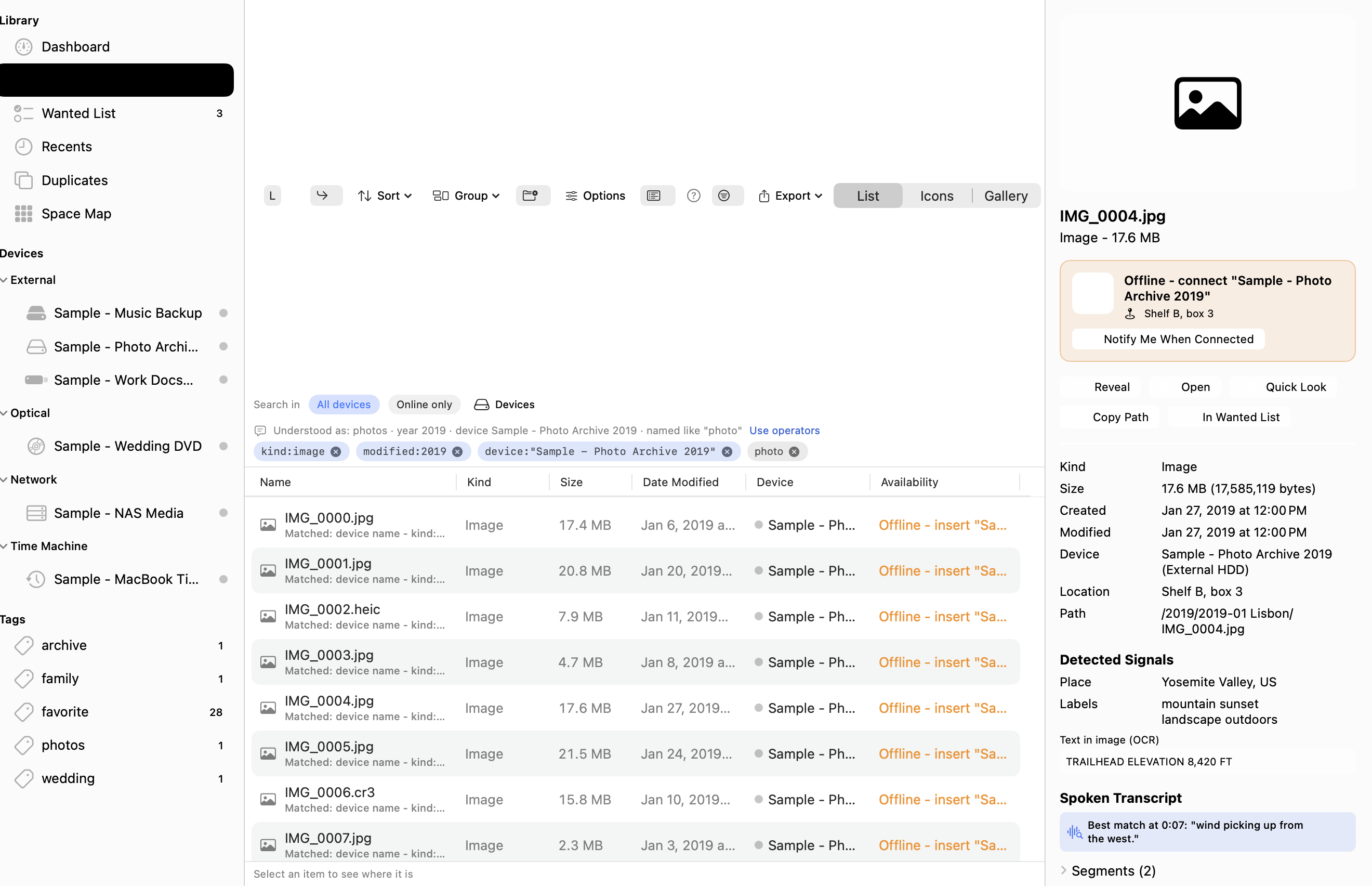
You know the file is somewhere on those drives. Finding it shouldn’t mean clearing your desk, rummaging for cables, and opening volume after volume. Build your disk directory one drive at a time and search it whenever you need it.
Start with one external drive, memory card, or disc. Disk Cataloger recognizes it the next time you connect it.
Scan the drive into a catalog on your Mac. Choose how much detail to keep, from names and folders to thumbnails and file fingerprints.
Give the drive a useful name and a location such as “Shelf B, box 3.” Print a case card, then safely eject the drive.
Search your catalog on your Mac, iPhone, or iPad. Reconnect the drive named in the result to open the original file.
Start with filenames and folders, or keep enough detail to identify a photo, find text in a scan, or check a file for silent corruption months later.
Record names, folder paths, sizes, and dates. Use it when you want an inventory of a drive before shelving it.
The everyday default adds thumbnails, camera and audio metadata, document snippets, and a fast fingerprint for comparing files.
Read text from images and scanned PDFs, optionally transcribe supported audio and video, and record a full SHA-256 fingerprint for later integrity checks.
Pick which details to capture. You can also give a particular drive its own rules, such as excluding temporary files.
You can start with Quick and add detail later. A rescan skips unchanged files unless the new profile calls for more detail. On the Mac, set known drives to scan automatically on connection or on a schedule, with quiet hours and battery controls.
Compare scan profiles in the manualThink of Disk Cataloger as a Finder for offline storage. It keeps an inventory of every drive, disc, network share, and disk image you catalog, along with a searchable record of what’s on each one. The catalog stays on your Mac when you unplug a drive.
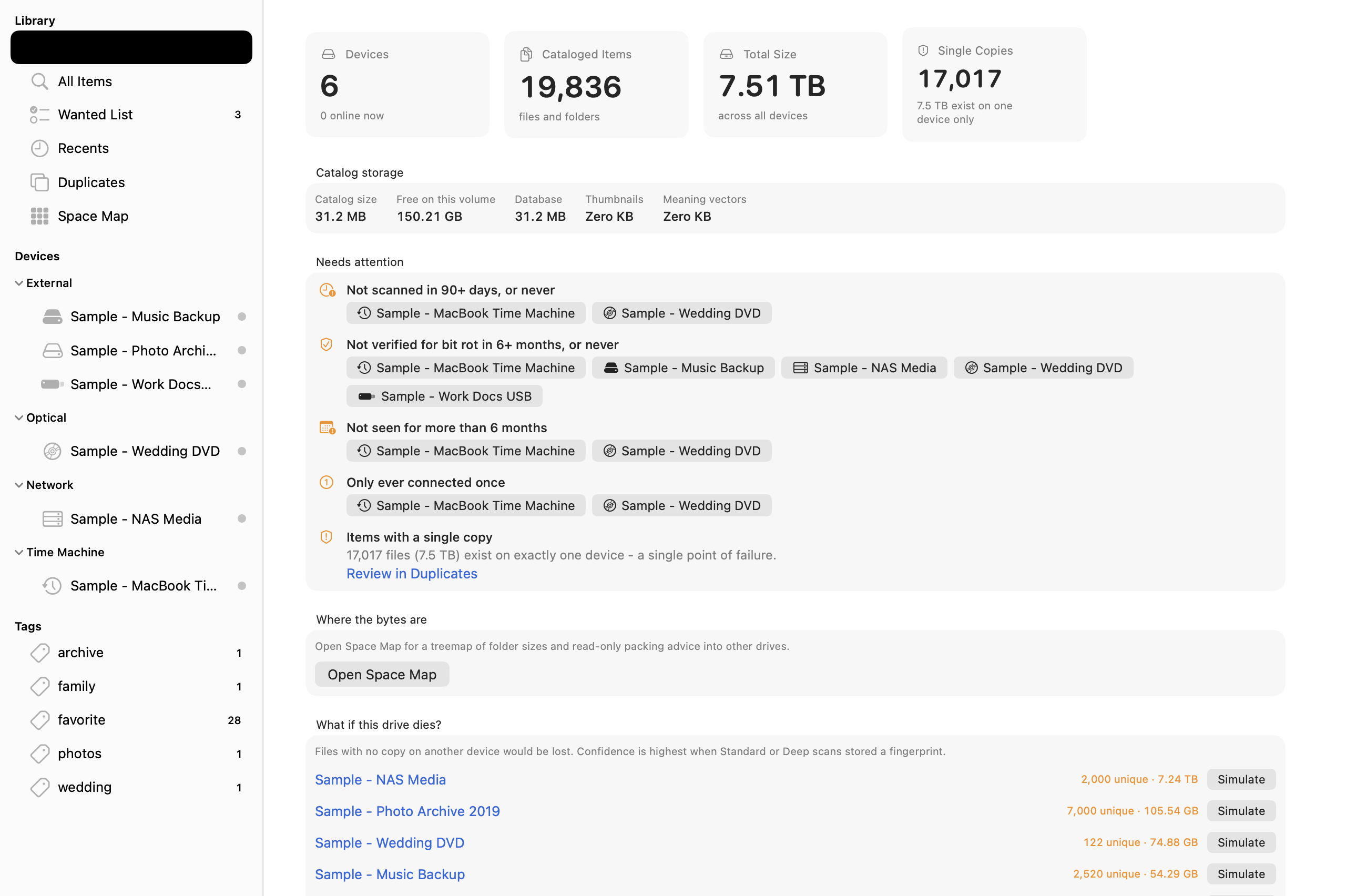
Have several backup drives from different Macs or different years? Catalog readable Time Machine volumes and see snapshot dates and counts for indexed files. Check the catalog to see which backup disk to reconnect.
Try “photos from 2019” or search by filename, date, drive, and file type. Depending on your scan profile, you can also search indexed document text, image text, and spoken words.
When you can describe the file but can’t remember its name, turn on By meaning. Disk Cataloger uses Apple’s built-in Natural Language model to surface related concepts locally, even when your words differ from the indexed text.
DiskCataloger searches an index already on your Mac, so even a large archive can respond quickly while the drives sit unplugged. A plain-English query can combine the clues you remember and show you how it interpreted them.
Try “the lease PDF from 2021.” Disk Cataloger turns what it recognizes into filters for PDF and 2021, then looks for “lease.” Remove a filter if your memory of the date is off. Use a filename or a quoted phrase when you know it exactly.
Try “podcast where they talk about sleep and magnesium.” With meaning search enabled and relevant content indexed, Disk Cataloger ranks conceptual matches alongside keyword hits. On supported files, the Inspector can show the matching transcript and its timestamp.
For a search you use often, save its filters as a Smart Folder. For example, keep a saved search for videos over 2 GB with only one cataloged copy so you can revisit it after each scan.
Read the search guideClick a search result to see its drive, folder path, and shelf location in the Inspector. If the drive is offline, you’ll see a prompt like this:
Offline. Connect “Blue Photo Archive 2019” (Shelf B, box 3).
Choose Notify Me When Connected and Disk Cataloger will alert you when that drive is back. Then you can reveal the file in Finder or copy it.
For several files, use the Wanted List. It checks for copies on connected drives first, then suggests which drives to pull and makes a checklist organized by shelf location.
Read the retrieval guide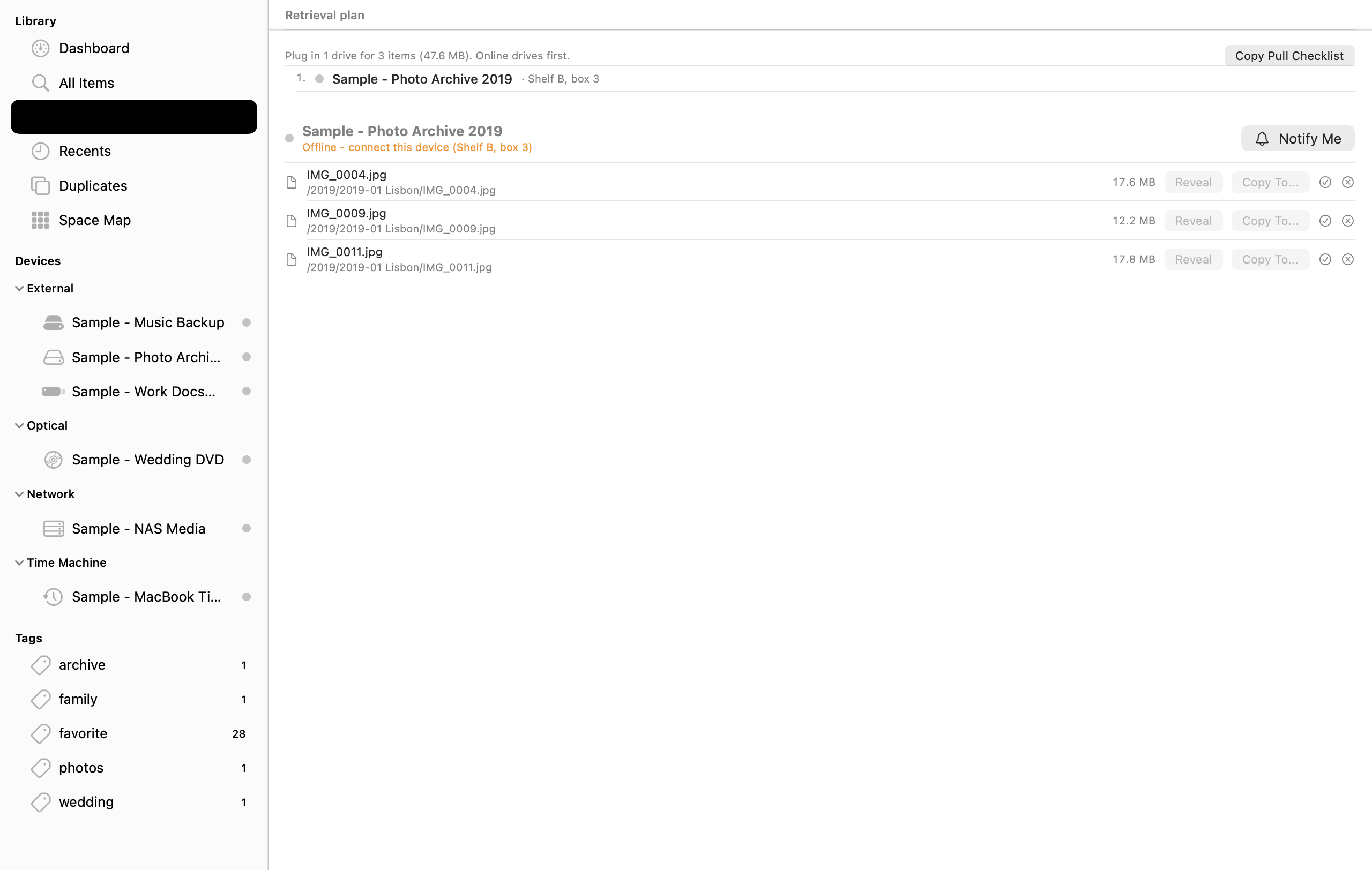
In Device Get Info, give each drive a name, case number, and physical location. You can also record the drive type and add tags, notes, or a photo. The Hardware section shows the serial number when available, along with capacity and other details.
Use the built-in Copy Case Card template to put the drive name, location, capacity, key folders, and scan and verification dates on a printable card. Paste it into a document or label app for drive stickers, index cards, or disc cases.
See how to make a case card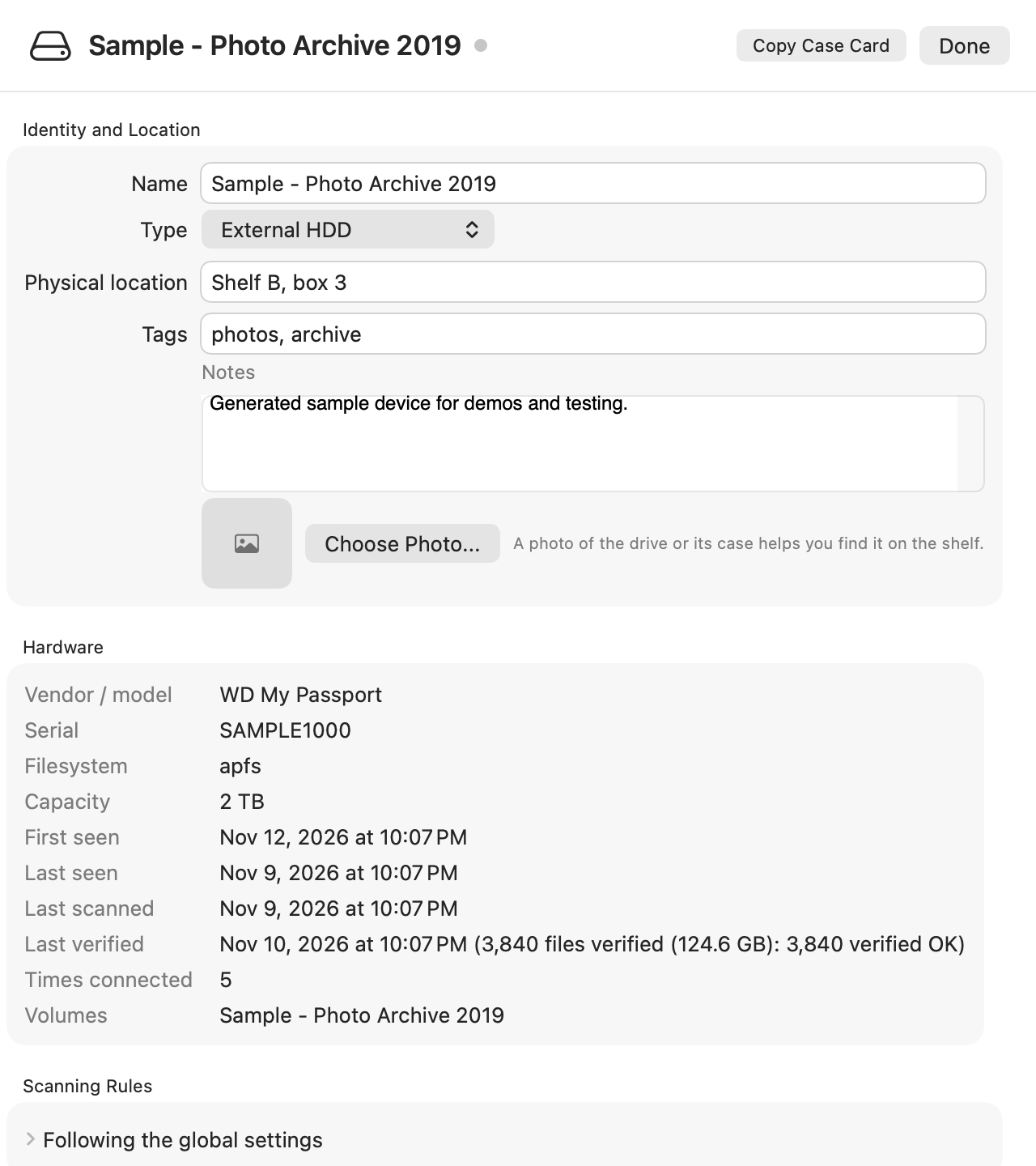
Working from home while the drives are at the office? Search the catalog on your phone, then tell a colleague which drive to fetch, where it’s shelved, and which folder holds the file.
Read the iPhone and iPad guideRequires iOS 17 or later, or iPadOS 17 or later.
Run What if this drive dies? from the Dashboard to see which files would have no remaining copy among your cataloged drives if that disk failed. You can add the unique files to your Wanted List before you start moving anything.
Compare file fingerprints across volumes. See where duplicate copies live and use the dashboard to surface files that appear on only one cataloged drive.
Reconnect a drive and compare its files with the fingerprints stored at scan time. Verify Integrity can distinguish a changed file from one whose fingerprint changed while its size and date stayed the same. Deep scans record a fingerprint of the entire file.
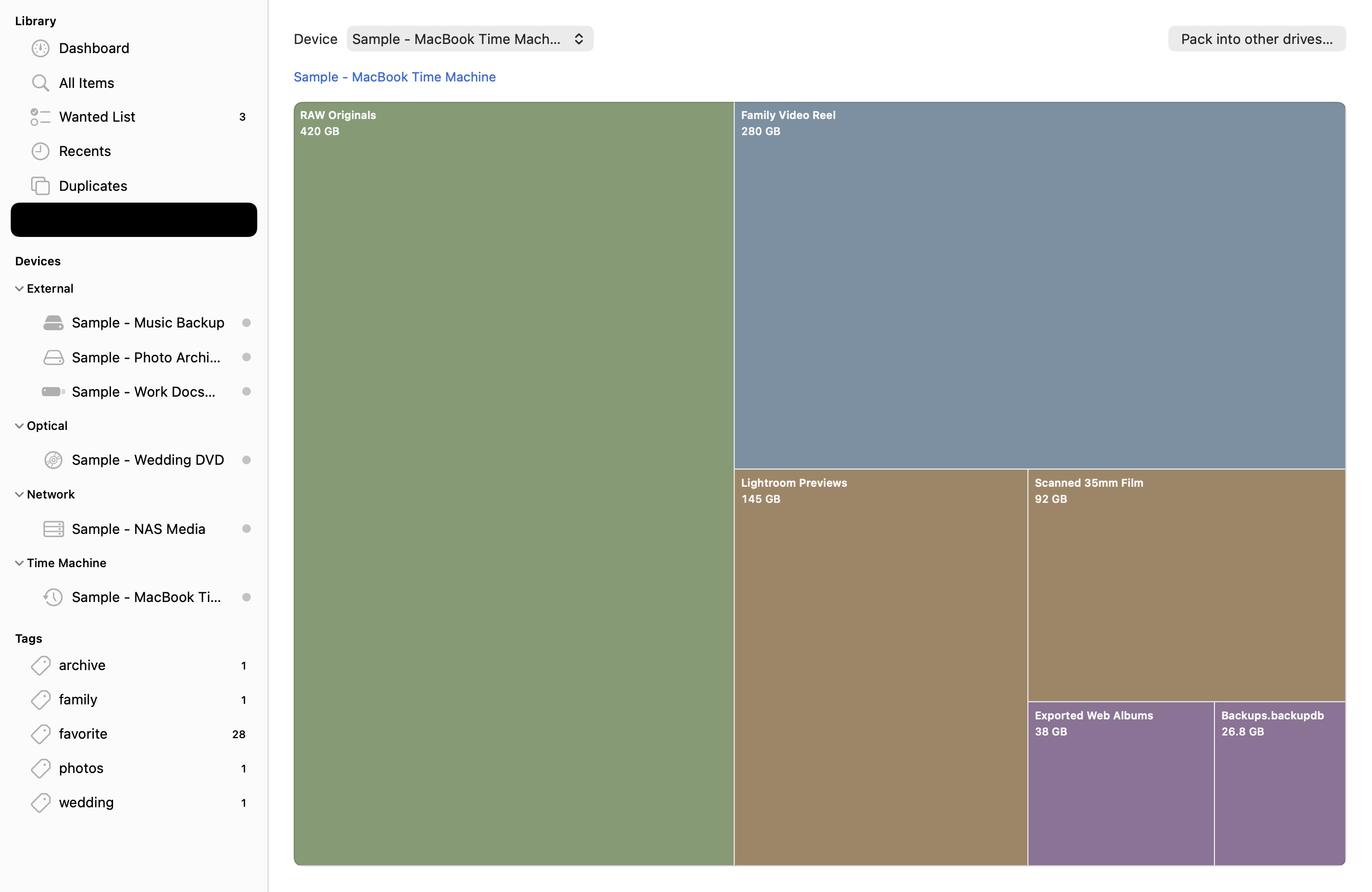
Explore the Space Map to see which folders take up room. The packing and retirement tools help you plan where to move unique files.
Schedule catalog backups, or choose Back Up Catalog Now before changing Macs. A catalog backup preserves the index and optionally its thumbnails. The original files stay on their drives.
Export one drive, the whole catalog, or just your search results. Use CSV for a spreadsheet, standalone searchable HTML for someone who wants to browse the inventory, or JSON and plain text for other tools.
Use DiskCataloger to remember what’s on each volume. Use Volume Manager to connect and reconnect the network shares you work with every day.
Yes. You can browse and search the stored catalog while the drive is offline. Reconnect the drive to open or copy the original file.
Cataloging and integrity checks read the source media. The app stores the index and any captured previews on your Mac and leaves the source files in place.
In the Direct edition, the Drive Is Busy sheet can show which app and open file are blocking eject. Close the file or app, then retry.
macOS 14 Sonoma or later. The manual explains which features and permissions vary by edition.
Plum Amazing Store holiday offer ends in
Holiday offers and license help