A Plum Amazing guide for Mac and iOS
Disk Cataloger
DiskCataloger™ catalogs hard drives, optical discs, disk images, and network shares. Search your archive offline, inspect metadata, verify files for bit rot, and find the drive you need.
App version 1.0 (pre-release) Updated 2026-11-12
How Catalogger works: scan any drive, disc, folder, or network share once (read-only), then search, inspect, verify integrity, and plan retrievals even while your drives sit unplugged on the shelf.
DiskCataloger turns your external hard drives, SSDs, optical discs, SD cards, disk images, and network shares into one searchable catalog. The pre-release app and screenshots use the name Catalogger. Search across unplugged drives in milliseconds, inspect EXIF metadata, OCR text, and spoken transcripts offline, verify drives against silent bit rot, and plan exactly which shelf box to pull when you need your files back.
Read-only by design. Catalogger never creates, modifies, renames, or deletes any file on any volume you scan. No hidden dot-files or index folders are ever written to your drives. Every index, thumbnail, transcript, and backup lives exclusively inside Catalogger's own catalog folder on your Mac.
Choose a starting point:
- New to Catalogger: start with Quick Start: Your First Five Minutes, then explore Workspace Anatomy & Concepts.
- Looking for a specific file right now: jump to Searching Your Archive or Offline Retrieval & the Wanted List.
- Protecting a multi-drive archive: go to Storage Health, Bit-Rot Verification & Space Map or Terminal CLI, MCP & Automation.
1. Overview and Edition Guide#
Most creative professionals, families, and researchers eventually accumulate a closet or drawer full of external drives: photo archives from five years ago, client project SSDs, Time Machine backups, burned DVDs, SD cards, and a network NAS. Finding a single contract, RAW photo, or video clip usually means plugging drives in one by one and waiting for Spotlight or Finder to wake up.
Catalogger solves the unplugged-drive problem. You scan each drive once while it is connected, record a plain-English note about where it lives in the real world (such as "Shelf B, box 3" or "Media cabinet, Case 14"), and unplug it. From that moment on, you can browse its folders, search its filenames and document text, read its camera EXIF or audio tags, search words spoken inside its videos, and test what would be lost if that drive failed - all while the drive sits safely powered off on the shelf.
Four ways to use Catalogger#
DiskCataloger is built around a shared Swift engine (CataloggerCore). The table describes the four ways to use it:
| Feature / Capability | Catalogger Direct (macOS) | Catalogger Mac App Store | Catalogger for iOS (iPhone & iPad) | catalogger CLI & MCP (macOS) |
|---|---|---|---|---|
| Primary role | Full desktop cataloger, scanner, verifier, and organizer | Sandboxed desktop cataloger and scanner | Read-only pocket companion for exported catalogs | Terminal automation, scripts, and AI agent MCP server |
| System requirements | macOS 14.0 Sonoma or later (Apple silicon or Intel) | macOS 14.0 Sonoma or later (Apple silicon or Intel) | iOS 17.0 / iPadOS 17.0 or later (native iOS, not Catalyst) | macOS 14.0+ (bundled with Direct edition) |
| Scan drives, folders, optical discs & shares | Automatic or manual | Prompted via security-scoped bookmarks (Grant Access...) |
Read-only browser (imports backups/catalogs from Mac) | Reads and verifies existing Mac catalog |
Mount & scan disk images (.dmg, .iso, .sparsebundle) |
Yes (read-only -readonly -nobrowse via hdiutil) |
Mount in Finder first, then scan as a connected volume | Browse already-cataloged disk image contents | Yes (via catalog queries) |
| Inspect busy processes blocking Eject | Yes (names open apps and PIDs via lsof, offers Quit/Force Eject) |
Standard macOS unmount error reporting | N/A | N/A |
Global hotkey from any app (Control-Option-Space) |
Yes (with optional Accessibility permission) | In-app Command-K palette |
In-app search bar | N/A |
On-device meaning search (Apple NaturalLanguage) |
Included (no download required) | Included (no download required) | Queries precomputed Apple vectors | Included (meaning: queries) |
Optional stronger meaning model (EmbeddingGemma 2 GGUF) |
Optional user download (llama.cpp helper) |
Not offered in App Store build | Not offered on iOS | Supported when configured in Direct build |
The read-only safety guarantee#
Archival drives often hold irreplaceable family photos, master audio sessions, or legal records. Catalogger enforces a strict read-only contract:
- Zero writes to scanned media: Catalogger never opens any file on a scanned drive for writing, never modifies extended attributes, and never drops
.cataloggeror metadata files onto your disks. - Read-only disk image mounting: When you drop a
.dmg,.iso, or.sparsebundleonto the Direct edition, Catalogger mounts it withhdiutil attach -readonly -nobrowse -nautoopenand detaches it automatically when the scan finishes. - Read-only bit-rot verification: Even when verifying terabytes of files for silent corruption, Catalogger only streams bytes from the volume to compute SHA-256 digests in memory and writes the health summary to its own local SQLite database.
2. Installation, Permissions, and First Launch#
Installing Catalogger on your Mac#
- Direct Edition: When the Direct edition becomes available, download it from the Plum Amazing Store, open the disk image or archive, and drag Catalogger.app into your
/Applicationsfolder. - Mac App Store Edition: When the Mac App Store edition becomes available, install Catalogger from the Mac App Store.
- Launch Catalogger from
/Applications, Spotlight, or Launchpad. On first launch, a brief four-step Welcome to Catalogger tour introduces scanning, physical shelf labels, the Wanted List, and automatic backups. Click Get Started to enter the main workspace.
Understanding macOS privacy permissions#
Catalogger asks only for the permissions needed for the features you actually use, and every operation runs 100% on your Mac:
| Permission | When macOS prompts for it | Where to manage it in System Settings |
|---|---|---|
| Removable Volumes | The first time you scan an external USB/Thunderbolt drive, SD card, or optical disc | Privacy & Security → Files and Folders → Catalogger |
| Network Volumes | The first time you scan an SMB, AFP, or NFS network share | Privacy & Security → Files and Folders → Catalogger |
| Desktop / Documents / Downloads | Only if you explicitly choose File → Add Folder to Catalog... inside those folders | Privacy & Security → Files and Folders → Catalogger |
| Full Disk Access (optional, Direct edition) | Recommended if you want to catalog Time Machine .backupdb / APFS snapshot histories or protected system folders without per-folder prompts |
Privacy & Security → Full Disk Access |
| Speech Recognition (optional) | Only if you turn on Transcribe speech in audio and video (on-device) in Settings → Metadata or in a Deep/Custom scan | Privacy & Security → Speech Recognition |
| Accessibility (optional, Direct edition) | Only if you enable the global Control-Option-Space Command Palette shortcut while working in other apps | Privacy & Security → Accessibility |
Mac App Store sandbox note: In the Mac App Store edition, macOS requires you to confirm folder access once per volume using a standard open panel (Grant Access...). Catalogger saves a read-only security-scoped bookmark so it can rescan that drive automatically whenever you reconnect it.
3. Quick Start: Your First Five Minutes#
You can experience the complete Catalogger workflow in five minutes - either with a real USB drive or SD card on your desk, or with Catalogger's built-in sample archive.
Step 1: Connect a drive (or load the sample archive)#
- With a real drive: Plug in any external hard drive, SSD, USB stick, or SD card. A banner appears at the top of the Catalogger window:
"<Volume Name>" connected - Add to Catalog.... Click Add to Catalog... (or click the drive under Connected on the Dashboard). - Without a drive handy: Open Settings → Advanced (
Command-,) or the Debug menu in development builds and load the Sample Data set, which populates six realistic drives (Sample - Photo Archive 2019,Sample - Music Backup,Sample - MacBook Time Machine,Sample - Wedding DVD,Sample - NAS Media, andSample - Work Docs USB).
Step 2: Name the drive and record its physical shelf location#
When the Add Drive to Catalog sheet opens:
- Give the drive a recognizable Name (for example,
Blue Photo Archive 2019). - Confirm its Device Type (such as
External HDD,External SSD,USB Stick,SD Card, orOptical DVD). - Fill in Physical location with where your hands will find this disk when it is unplugged - for example:
Shelf B, box 3orStudio closet, top bin. - Choose a Scan Profile. Leave it on Standard for a great balance of speed and detail (thumbnails, EXIF/ID3/PDF metadata, document snippets, Archive contents, Vision image labels, and a fast partial fingerprint).
- Click Add & Scan.
Step 3: Watch the live progress and eject the drive#
While scanning, the top banner and sidebar show the live file count, byte total, and current path. You can start browsing and searching immediately while the scan is still running.
When the scan completes:
- Select your drive under Devices in the left sidebar.
- Press Command-E (or click the Eject button next to the drive).
- Once macOS says the drive is safe to disconnect, unplug it and put it back on your shelf. Notice the status dot next to the drive turns from green (Online) to gray (Offline).
Step 4: Find a file while the drive is unplugged#
- Press Command-F to focus the toolbar search field.
- Type a plain-English question or filename, such as:
photos from 2019orContract pdf - Click any result in the list and press Option-Command-I to open the right-hand Inspector.
- Even though the drive is unplugged, you can see the file's thumbnail, exact byte size, creation and modification dates, camera or PDF metadata, full folder path, and an orange callout telling you:
Offline - connect "Blue Photo Archive 2019" (Shelf B, box 3).
Step 5: Add the file to your Wanted List and copy a pull checklist#
- In the Inspector (or by right-clicking the result row), click Add to Wanted.
- Press Command-3 (or click Wanted List in the sidebar).
- At the top of the Wanted List, read the Retrieval plan: Catalogger calculates the minimum number of drives you need to plug in to retrieve every wanted file, automatically checking whether an identical hash copy already exists on another drive that is connected right now.
- Click Copy Pull Checklist to copy a clean Markdown checklist sorted by shelf location, ready to paste into Notes or print before walking to your storage closet.
Try it yourself: Test what happens if a drive fails
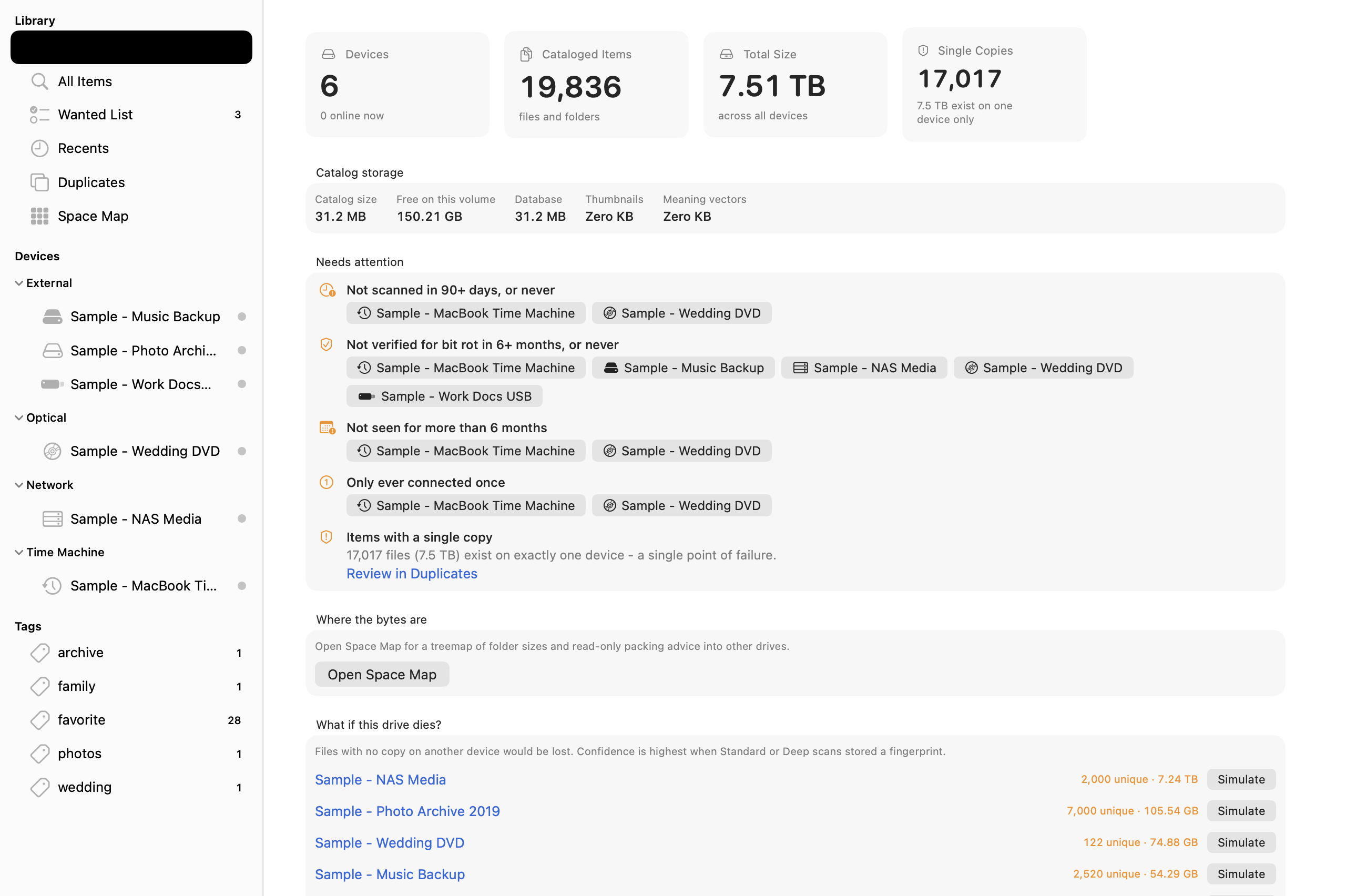
Press Command-1 to open the Dashboard and scroll to What if this drive dies? at the bottom of the page. Click Simulate next to any drive. Catalogger compares every file on that drive against the rest of your archive and shows the exact files that exist nowhere else, grouped by top-level folder, with a one-click Add Unique Files to Wanted List button so you can back them up before the drive ages out.
4. Workspace Anatomy and Core Concepts#
Catalogger's main window is divided into four areas designed to stay fast and uncluttered even when your catalog grows past a million files:
- Left Sidebar (
Command-1throughCommand-6):- Library: Dashboard (
Command-1), All Items (Command-2), Wanted List (Command-3), Recents (Command-4), Duplicates (Command-5), and Space Map (Command-6). - Devices: Grouped automatically by category (External, Optical, Network, Time Machine, Disk Image, Folder) with a live green/gray status dot, scan spinner, and context menu.
- Smart Folders: Saved queries with live new-match badges.
- Tags: User tags and automatically derived metadata tags with item counts.
- Library: Dashboard (
- Top Toolbar & Search Bar:
- Add (
+) menu (Add Folder to Catalog..., Add Disk Image to Catalog..., Scan Connected Drives). - Scan Connected Drives (
Shift-Command-R) button. - Advanced Search (
Option-Command-F) rule builder button. - Inspector (
Option-Command-I) toggle. - Search field (
Command-F) with recent search history and live operator autocomplete.
- Add (
- Center Content Area:
- Displays the selected view: the Dashboard, the Search / Results view (switchable between List, Icons, and Gallery modes, with optional Filter Bar via
Option-Command-L), the Device Browser (switchable between expandable Outline and Finder-style Columns), Wanted List, Duplicates, or Space Map.
- Displays the selected view: the Dashboard, the Search / Results view (switchable between List, Icons, and Gallery modes, with optional Filter Bar via
- Right Inspector (
Option-Command-I):- Shows the selected item's thumbnail, offline shelf location banner, action buttons (Reveal, Open, Quick Look, Copy Path, Add to Wanted), file attributes, Detected Signals (GPS place, Vision labels, copyable OCR text), Spoken Transcript segments, Tags, Note, Metadata groups (EXIF, Audio, Video, PDF), Content Preview, Other Copies, and Visually Similar images.
Core data concepts#
Understanding four terms will help you get the most out of Catalogger:
- Device: Any physical or virtual storage unit you catalog - an external HDD/SSD, USB flash drive, SD card, optical CD/DVD/Blu-ray, Time Machine disk, network share (
smb://,afp://,nfs://), disk image (.dmg/.iso), or standalone folder. - Volume: A mounted partition or APFS volume belonging to a Device. Most drives have one main volume; partitioned drives can have several.
- Scan Profile (
Quick,Standard,Deep,Custom): Controls which signals Catalogger extracts when scanning a drive. Because signals are additive, you can run a Quick scan in seconds today and enrich the same drive with a Deep scan later without losing your notes, tags, or history. - Capture Signals: Each item in the catalog tracks a bitmask of captured signals (
hash,metadata,thumbnail,snippet,content,labels,ocr,place,phash,keyframes,transcript,embedding,archive). You can filter by signal coverage at any time usinghas:ocr,has:transcript,has:gps, ormissing:hash.
5. Adding and Managing Drives, Discs, Disk Images, and Shares#
External hard drives, SSDs, USB sticks, and SD cards#
When you plug in an external drive or memory card, Catalogger's DriveMonitor inspects its hardware properties (volume UUID, DiskArbitration media UUID, IOKit USB/Thunderbolt serial number, vendor, model, and filesystem).
- If the drive is new, click Add to Catalog... in the top banner or on the Dashboard.
- If the drive has been cataloged before, Catalogger recognizes it even if you renamed the volume in Finder or plugged it into a different USB port.
Optical discs (CDs, DVDs, and Blu-ray)#
Optical media often lacks a writable volume UUID. Catalogger computes a deterministic Disc ID from the disc's table of contents, size, and creation timestamp so each burned DVD or audio CD is uniquely recognized when reinserted.
- When adding an optical disc, the Case number field appears automatically in Add Drive and Get Info so you can record binder slots (such as
Binder 2, Sleeve 14) and search them withcase:14.
Folders and disk images (.dmg, .iso, .sparsebundle)#
- Any folder: Choose File → Add Folder to Catalog... (
Shift-Command-O), or drag any folder from Finder directly onto the Catalogger window. - Disk images: Choose File → Add Disk Image to Catalog..., or drag a
.dmg,.iso,.toast, or.sparsebundlefile onto the window. In the Direct edition, Catalogger mounts the image invisibly in read-only mode, catalogs everything inside, and detaches it when finished.
Network shares (SMB, AFP, NFS) and Time Machine#
- Network shares: Mount the share in Finder (
Command-Kin Finder), then select it in Catalogger's Connected section or choose File → Add Folder to Catalog.... Catalogger records the server URL (such assmb://nas.local/media) as a persistent identity key. - Time Machine drives: Catalogger detects Time Machine backup disks (
.backupdband APFS backup roles), records snapshot counts and date ranges per file (snapCount,snapFirst,snapLast), and lists individual snapshots inside Device Get Info.
Device Browser: Outline, Columns, and Removed Items#
Click any drive under Devices in the sidebar to browse its folder hierarchy offline:
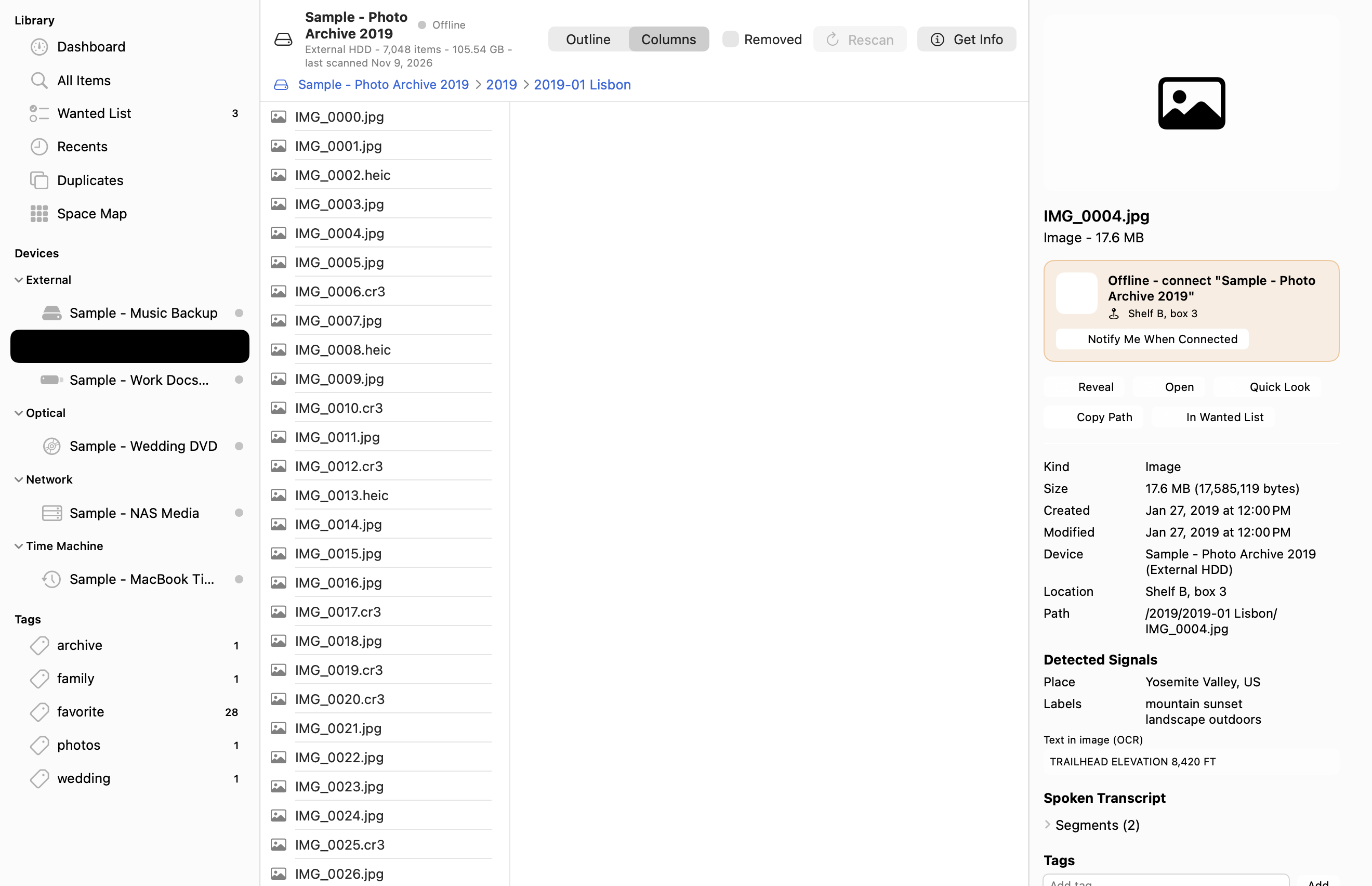
- Outline vs. Columns: Switch between an expandable tree (Outline) and Finder-style Miller columns (Columns) using the segmented control in the header.
- Removed toggle: Turn on Removed in the header to reveal files that existed on an earlier scan of this drive but were deleted or moved before the most recent scan, complete with the date they disappeared.
- Breadcrumb bar: Click any parent folder in the breadcrumb trail below the header to jump up the hierarchy.
Device Get Info and Printable Case Cards#
Click Get Info in a device's header (or right-click the device in the sidebar and choose Get Info) to open the device sheet:
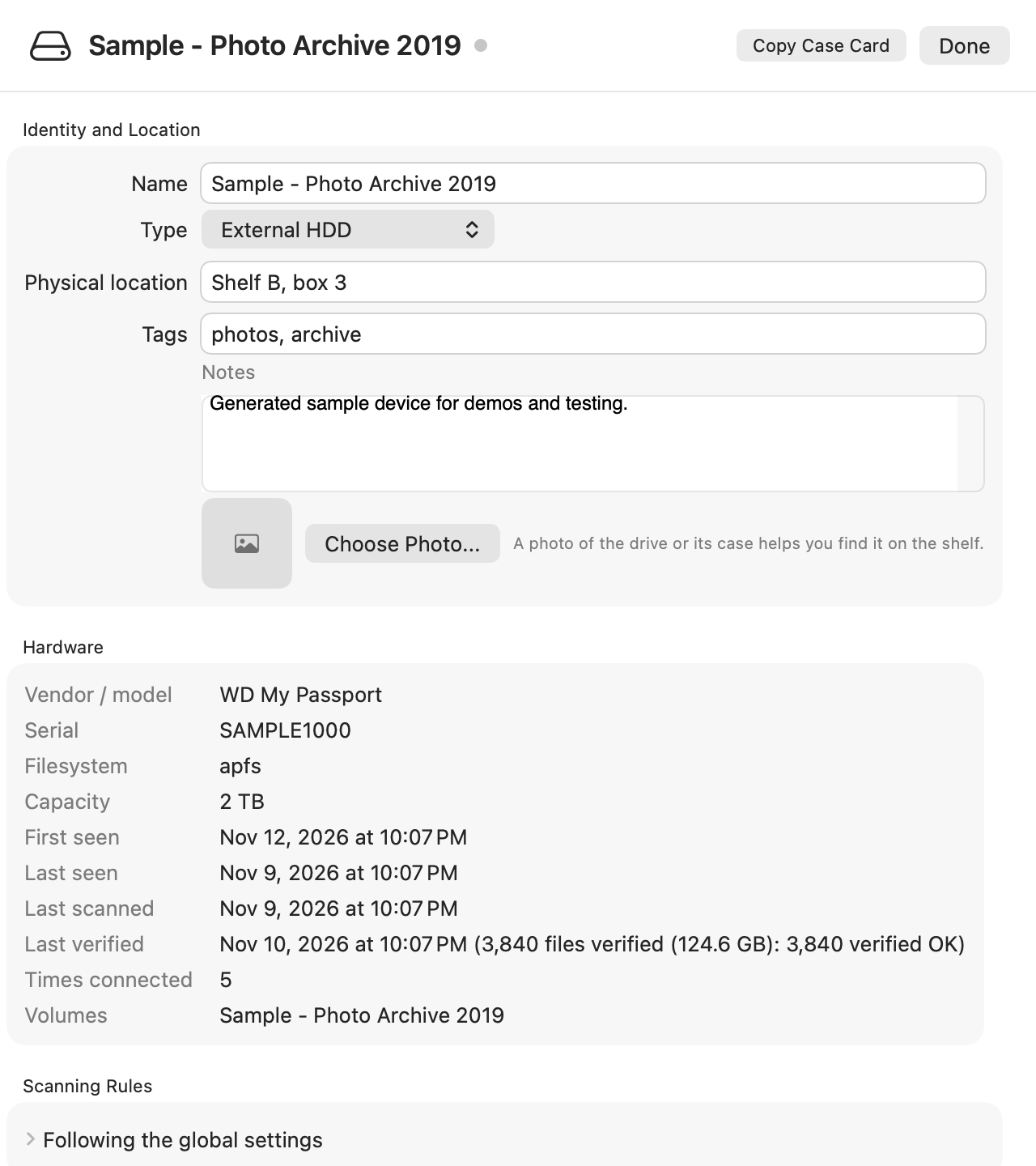
From Get Info, you can:
- Edit the device's Name, Type, Physical location, Case number, Tags, and Notes, or attach a Photo of the physical drive or binder sleeve.
- Review Hardware details (vendor/model, hardware serial, filesystem, capacity, first/last seen, last scanned, and Last verified bit-rot summary).
- Click Copy Case Card in the top-right corner to copy a compact Markdown label card containing the drive's name, location, capacity, top-level folders, last scan/verification dates, and a
catalogger://device/<uuid>deep link - ideal for printing on index cards, Dymo labels, or jewel-case inserts.
6. Scanning, Profiles, and Automatic Schedules#
Comparing the four Scan Profiles#
Every time you scan a drive (or configure default scanning behavior in Settings → Scanning), you can choose one of four profiles:
| Signal / Option | Quick | Standard (Default) | Deep | Custom |
|---|---|---|---|---|
| Speed | Fastest (directory tree only) | Fast everyday default | Thorough archival capture | You choose every toggle |
| File & folder names, sizes, dates, UTIs | Yes | Yes | Yes | Always on |
| Content fingerprint (Hash) | None | Fast partial (p256:: first + last 1 MB + size) |
Full cryptographic sha256: of every byte |
Off, Partial (p256:), or Full (sha256:) |
| EXIF, ID3/Audio, Video & PDF metadata | No | Yes | Yes | Configurable |
| Image, video & PDF thumbnails | No | Yes (320 px HEIC) | Yes (320 px HEIC) | Configurable |
Inside archives (.zip, .tar, .tar.gz, .7z, .rar) |
No | Yes | Yes | Configurable |
Document text (content:) |
No | First 4 KB snippet | Full text up to 64 KB | Off, Snippet, or Full |
Reverse-geocoded GPS place names (place:) |
No | Yes (offline 5,000-city gazetteer) | Yes | Included with metadata |
Vision image labels (label:) |
No | Yes (on-device VNClassifyImageRequest) |
Yes | Configurable |
Perceptual image hash (dHash) for similar photos |
No | Yes | Yes | Configurable |
| Video keyframes (5 perceptual hashes across duration) | No | No | Yes | Configurable |
Text inside images & scanned PDFs (ocr:) |
No | No | Yes (on-device VNRecognizeTextRequest) |
Configurable |
Spoken audio/video transcript (transcript:) |
No | No | Optional (SFSpeechRecognizer, on-device) |
Configurable |
Meaning vectors (meaning:) |
No | Optional | Yes | Configurable |
Incremental scanning and enrichment#
When you rescan a drive (Shift-Command-R or Rescan in the device header):
- Catalogger compares each file's size and modification timestamp against the existing catalog row.
- Unchanged files are skipped immediately unless you are running a deeper profile than before (for example, upgrading a Quick scan to Standard or Deep). When enriching, Catalogger extracts only the missing signals (
writeEnrichment) and merges them into the existing record without touching your tags or notes. - Deleted files are marked as removed (
deleted = 1withremoved_attimestamp) rather than erased, unless you uncheck Keep a history of files removed between scans in Settings → Scanning.
Automatic schedules, quiet hours, and per-device rules#
Open Settings → Scanning and Settings → Devices to automate how connected drives are kept fresh:
- When a known drive is connected: Choose Scan automatically, Ask before scanning, or Do nothing (configurable separately for external drives, network shares, and optical discs).
- Minimum time between auto-scans: Prevents repeated scans when you plug and unplug a drive several times in the same day (default
24 hours). - Scheduled rescan of connected drives: Run Hourly, Daily (at a chosen hour), or Weekly (on a chosen weekday and hour).
- Battery, Low Power Mode, and Quiet Hours: Pause automatic scans when your MacBook is on battery power, in Low Power Mode, or inside your defined quiet hours (for example,
22:00to07:00). - Per-device overrides: In Settings → Devices or inside any drive's Get Info → Scanning Rules, switch a drive from Follow global settings to Custom rules or Ignored to set drive-specific exclude globs (like
*.tmp,node_modules,Cache*), skip depth limits, or scan profiles.
7. Searching Your Archive (Plain English, Operators, and Meaning)#
Catalogger combines an FTS5 full-text index, structured SQLite filters, a deterministic plain-English query rewriter, and on-device vector embeddings so you can search a million cataloged items in milliseconds.
Five ways to start a search#
- Toolbar Search (
Command-F): Type plain English, filenames, or operators from anywhere in the app. - Search Within Results (
Shift-Command-F): Narrows your current search by appending to the existing query. - Filter Bar (
Option-Command-L): Toggle interactive filter pills for Kind, Device, Availability (Online / Offline), Size, and Date Modified. - Advanced Search Builder (
Option-Command-F): Build complex multi-rule queries visually with pop-up menus and save them as Smart Folders in the sidebar. - Command Palette (
Command-KorControl-Option-Space): A fast floating launcher that searches files, jumps to devices, and triggers commands (Scan Connected Drives,Eject,Export,Back Up Catalog Now) from the keyboard.
Plain-English queries and operator chips#
When Understand plain-English queries is enabled (the default in the search options popover), you can type natural phrases just as you would ask a colleague:
| What you type in the search bar | How Catalogger interprets it |
|---|---|
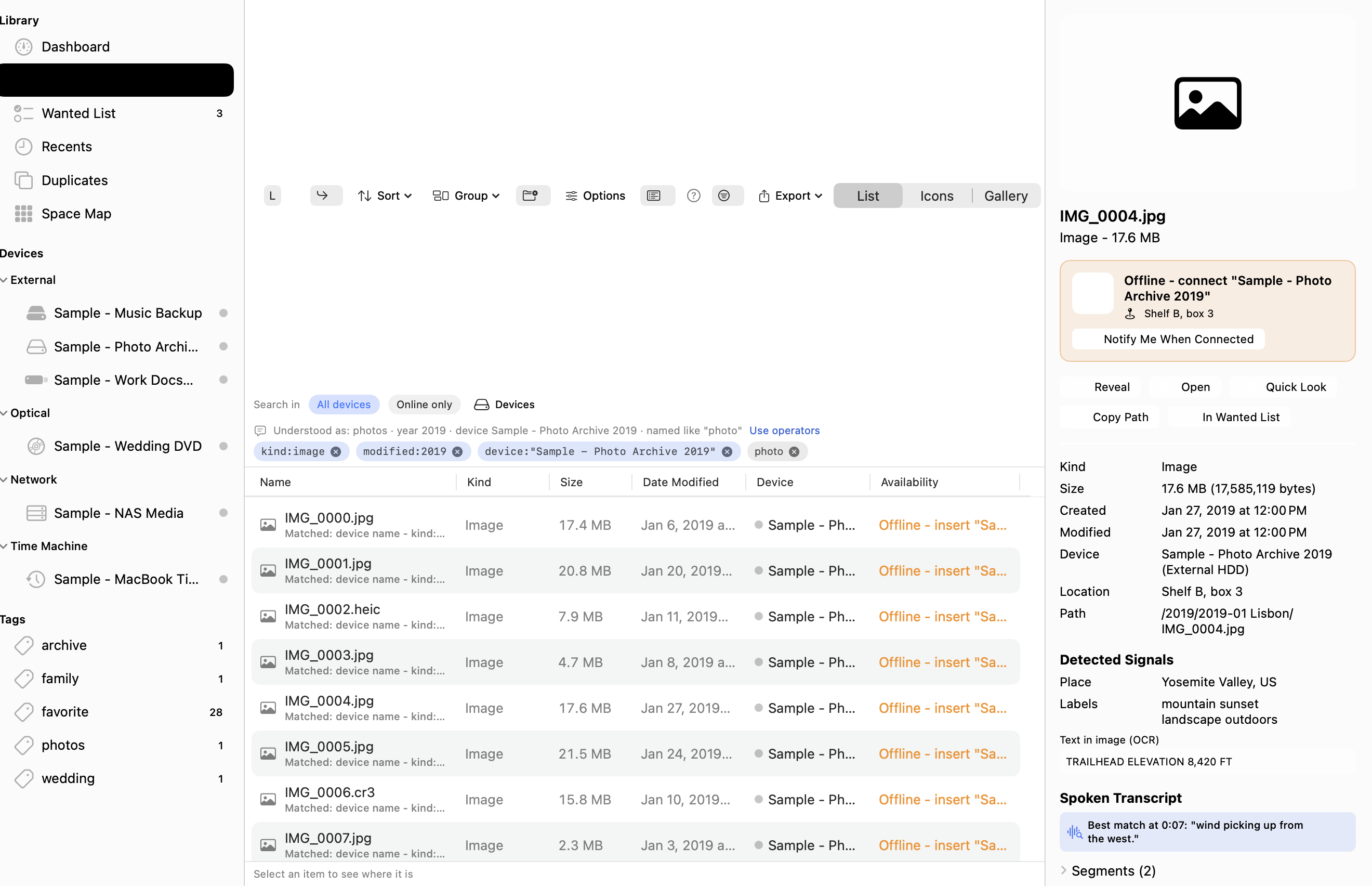
photos from 2019 on Photo Archive |
kind:image modified:2019 device:"Sample - Photo Archive 2019" |
the lease pdf from 2021 |
ext:pdf modified:2021 lease |
videos over 2 GB on only one drive |
kind:video size:>2GB singlecopy:yes |
photos taken in Lisbon without raw |
kind:image place:Lisbon -ext:raw |
podcast where they talk about sleep and magnesium |
kind:audio meaning:"sleep and magnesium" |
Whenever Catalogger rewrites a plain-English phrase, a bar appears directly above the results showing removable operator chips for each interpreted filter. Click × on any chip to remove that constraint, or click Use operators to copy the explicit operator string into the search field.
Exact operator preservation: If you type explicit boolean operators (
OR,AND,NOT), quoted phrases ("exact phrase"), wildcards (IMG_*.cr3), or exclusion prefixes (-2022), Catalogger runs your query verbatim without rewriting it.
Complete Search Operator Reference#
Press Shift-Command-/ (or choose Help → Search Syntax) at any time to open this reference inside the app:
| Category | Operator / Syntax | Examples | What it matches |
|---|---|---|---|
| Boolean & Grouping | AND, OR, NOT, -term, ( ... ) |
(jpg OR heic) -thumb |
Combines or excludes terms; spaces imply AND |
| Exact & Wildcard | "...", *, ? |
"Final Cut", DSC_00??.NEF |
Exact phrase match or shell-style filename glob |
| Text Scopes | name:, path:, ext:, folder:, in: |
name:invoice ext:pdf in:2023 |
Restricts text match to filename, path, extension, or folder |
| Notes & Tags | tag:, tags:, note:, notes: |
tag:favorite note:client |
Matches user/metadata tags or item notes |
| Document & Speech Text | content:, ocr:, transcript:, said: |
content:"indemnify" ocr:8420 said:sunset |
Searches indexed document text, OCR text in images/PDFs, or spoken transcripts |
| Vision & Places | label:, vision:, place: |
label:mountain place:Yosemite |
Matches Apple Vision image classification labels or reverse-geocoded GPS places |
| Meaning (Semantic) | meaning: |
meaning:"contract termination clause" |
Ranks items by conceptual similarity (plus lexical fallback) |
| Kind & Type | kind:, type:, is: |
kind:image, kind:video, is:folder, is:archive |
image, video, audio, document, pdf, archive, code, folder, other |
| Size | size: |
size:>100MB, size:10MB..1GB, size:<50KB |
Filters by byte size (B, KB, MB, GB, TB) |
| Dates & Times | modified:, created:, taken:, removed: |
modified:2024, taken:2019-06..2019-08, modified:>30d |
Year, YYYY-MM, ISO date, date range (..), or relative age (7d, 6m, 2y) |
| Time of Day & Weekday | timeofday:, weekday: |
timeofday:evening weekday:weekend |
morning, afternoon, evening, night; monday..sunday, weekday, weekend |
| Devices & Shelf Location | device:, drive:, location:, case:, online: |
device:"Photo" location:"Shelf B" case:14 online:no |
Filters by device name, physical shelf location, optical case number, or connection state |
| Camera, Audio & PDF | camera:, lens:, iso:, artist:, album:, author:, codec:, duration:, dimensions:, pages: |
camera:Nikon duration:>5m pages:>20 |
Matches extracted EXIF, ID3, video codec/resolution, or PDF page counts |
| Redundancy & Health | duplicate:yes, singlecopy:yes, copies:, hash:, snapshots: |
singlecopy:yes size:>500MB, copies:>2 |
Finds files with only one copy, cross-drive duplicates, or Time Machine snapshot counts |
| Signal Coverage | has:, missing: |
has:ocr, has:transcript, missing:hash |
Filters by captured signal (hash, thumb, meta, content, ocr, labels, gps, place, phash, transcript, embedding, archive) |
Search by Meaning: Apple NaturalLanguage vs. Optional EmbeddingGemma 2#
When you enable By meaning in the search options popover or use the meaning:"..." operator, Catalogger blends hybrid vector similarity (z-scored cosine similarity) with lexical FTS coverage and exact-name tiers.
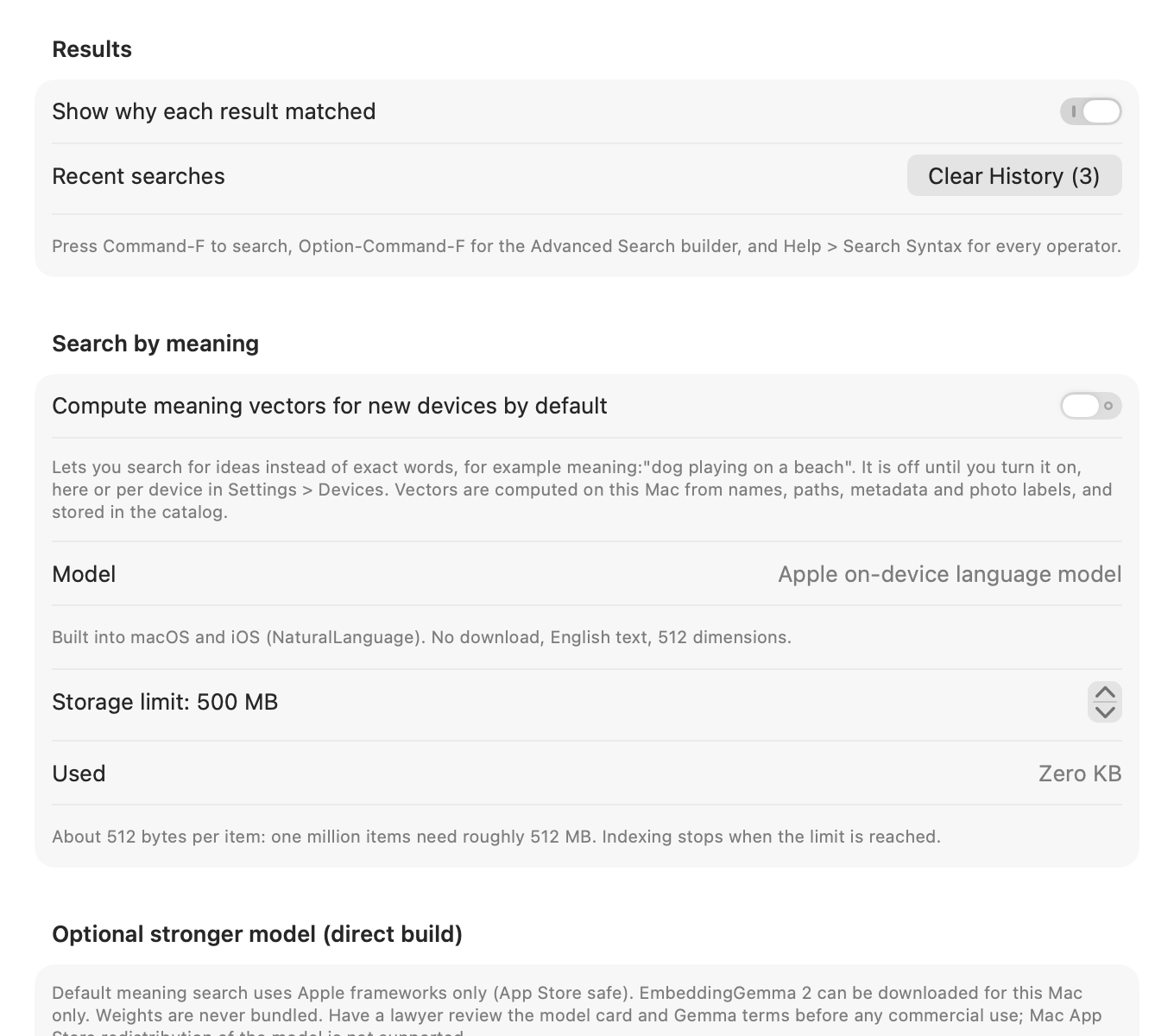
Catalogger supports two 100% local embedding engines in Settings → Search:
- Apple On-Device Language Model (
NLEmbedding, Default in all editions):- Built into macOS and iOS. Requires zero downloads, runs in process, and stores compact 512-dimension float16 vectors (
~512 bytesper item, capped by default at500 MB).
- Built into macOS and iOS. Requires zero downloads, runs in process, and stores compact 512-dimension float16 vectors (
- Optional Stronger Model -
EmbeddingGemma 2(Direct macOS edition only):- For deeper semantic recall across complex descriptions, the Direct edition can use Google's open-weights
ggml-org/embeddinggemma-2-GGUF(embeddinggemma-300M-Q8_0.gguf, 768 dimensions) via a localllama.cpphelper (llama-serverorllama-embedding). - How to set up EmbeddingGemma 2 (Direct edition):
- Install the
llama.cpphelper by runningscripts/setup-llama-helper.sh(orbrew install llama.cpp). - Open Settings → Search and scroll to Optional stronger model (direct build).
- Review and accept the Google Gemma Terms of Use checkbox, then click Download Text Model (314 MB, Q8_0). Catalogger verifies the SHA-256 digest of the downloaded
.gguffile before registering it. - Turn on Prefer EmbeddingGemma 2 for meaning search when ready.
- Install the
- For deeper semantic recall across complex descriptions, the Direct edition can use Google's open-weights
8. Inspecting Items, Deep Signals, Transcripts, and Visually Similar Media#
Select any item in Search, Recents, Duplicates, or the Device Browser and press Option-Command-I to open the Inspector:
- Offline Shelf Callout: When the item's drive is unplugged, an orange card at the top of the Inspector shows the drive name, its physical location (
Shelf B, box 3), and a Notify Me When Connected button. - Detected Signals: Displays reverse-geocoded Place names (
Yosemite Valley, US), Apple Vision Labels (mountain sunset landscape outdoors), and a selectable, copyable box for Text in image (OCR) (TRAILHEAD ELEVATION 8,420 FT). - Spoken Transcript: When an audio or video file has an on-device transcript, Catalogger displays the best-matching timestamped quote for your current search query (
Best match at 0:07: "wind picking up from the west.") and an expandable Segments list showing every time-coded line. - Other Copies Across Your Archive: Lists every other drive and path that holds a byte-identical copy (
hashmatch) of the selected file, with live online/offline status dots and one-click navigation. - Visually Similar Images (
dHash): For photos and video keyframes with a 64-bit perceptual difference hash (dHash), Catalogger finds resized, re-saved, or lightly cropped siblings across your drives (Hamming distance ≤ 10) and lists them directly under Visually Similar. - Context Menu Shortcuts: Right-click any item row to Find All Copies by Hash, Find Similar Name, Add to Wanted List, Notify When Drive Connected, Copy Path, or Export Selection....
9. Offline Retrieval, Wanted List, and Safe Eject#
Planning a shelf walk with the Wanted List (Command-3)#
When you need files from several unplugged drives, add them to your Wanted List instead of hunting for drives one by one:
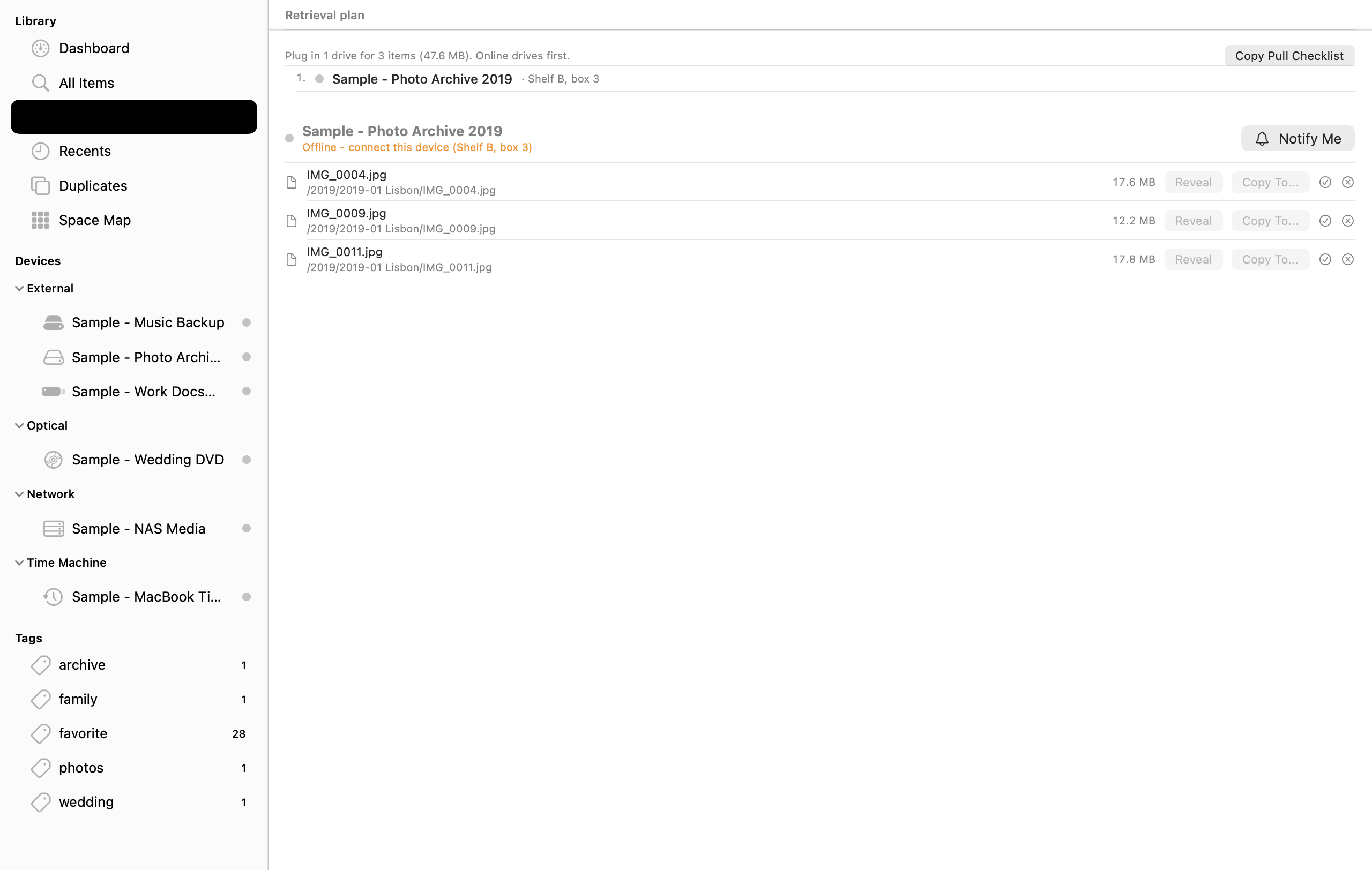
- Open Wanted List (
Command-3) in the sidebar. - Read the Retrieval plan at the top of the view:
- Catalogger uses a greedy set-cover planner (
RetrievalPlan) that checks all byte-identical copies (hash) across your entire catalog. - If a file you queued from an offline archival drive also has a copy on a drive that is connected right now, Catalogger tells you that you can retrieve it immediately without unplugging or fetching anything.
- For remaining offline files, Catalogger ranks the exact drives to fetch in order of how many wanted files each drive satisfies.
- Catalogger uses a greedy set-cover planner (
- Click Copy Pull Checklist to copy a formatted Markdown checklist grouped by drive and physical shelf location (
Shelf B, box 3), listing each file's relative path and byte size. - Click Notify Me next to any offline drive to register a Connection Watch: the next time you plug that drive into your Mac, Catalogger posts a macOS notification (
"Blue Photo Archive 2019 connected - 3 wanted items ready") and shows a banner at the top of the window. - Once the drive is connected, click Copy To... to copy the files into a destination folder on your Mac (with automatic collision-safe renaming if a filename already exists), or Reveal to highlight them in Finder.
Safe Eject and busy-process inspection (Command-E)#
Select any connected drive and press Command-E (or click Eject in the sidebar, toolbar, or Menu Bar Extra):
- If any Catalogger scan is currently reading that drive, Catalogger cancels the scan cleanly and closes its own file descriptors first.
- If macOS refuses to unmount the volume because another application still has a file open, the Direct edition runs
/usr/sbin/lsofon the mount point and opens the Drive Is Busy sheet (EjectBusySheet), showing the exact application name, process ID (PID), app icon, and open file path blocking the eject, with buttons to Quit Application, Retry Eject, or Force Eject.
10. Storage Health, Bit-Rot Verification, Duplicates, and Space Map#
Dashboard health alerts and "What if this drive dies?"#
Press Command-1 to open the Dashboard, your archive's mission control:
- Summary Cards: Total cataloged devices (and how many are online right now), total cataloged files and folders, total storage footprint, and Single Copies (the count and byte total of files that exist on only one device).
- Needs Attention Alerts: Automatically flags drives that have Not been scanned in 90+ days, Not been verified for bit rot in 6+ months (or never), Not been seen for more than 6 months, or Only ever connected once (configurable in Settings → General).
- What if this drive dies? Simulator: Click Simulate beside any drive to see how many files and gigabytes have zero backup on any other cataloged drive, broken down by top-level folder, with a one-click button to queue those unique files onto your Wanted List.
Bit-Rot and Integrity Verification (Verify Integrity)#
Flash media (SSDs, USB sticks, SD cards) left unpowered for months and aging magnetic or optical disks can suffer silent data corruption (bit rot) - bytes flip on disk without changing the file's size or modification timestamp, so normal backup tools never notice the damage.
Catalogger includes a dedicated, read-only Integrity Verifier (IntegrityVerifier) that re-reads files from a mounted drive, recomputes their cryptographic hash (sha256: or partial p256: matching the stored baseline), and classifies every file into one of seven states:
| Verification Status | Meaning |
|---|---|
| Verified OK | On-disk bytes match the cataloged sha256: or p256: fingerprint, and size/modification date are unchanged. |
| Bit Rot (Silent Corruption) | Critical: File size and modification timestamp on disk are unchanged from the scan, but the content hash no longer matches! Catalogger immediately searches your other drives for a healthy intact copy (healthyCopyDevices). |
| Modified Since Scan | File size or modification timestamp changed legitimately since the last scan; rescan the drive to update its baseline. |
| Missing on Disk | The file was present in the catalog but no longer exists at that path on the mounted drive. |
| Unreadable (I/O Error) | macOS returned a read error while streaming the file from the disk (often an early warning of failing sectors). |
| No Hash Baseline | The file was originally cataloged with a Quick scan (no hash stored); run a Standard or Deep rescan to establish a baseline. |
| Skipped (Budget Limit) | Not yet checked because the run reached your --max-files or --max-gb budget limit (resume later with --after). |
How to verify a connected drive in the Mac app:
- Connect the drive to your Mac and open its Device Browser in the sidebar.
- Click Get Info in the header and scroll to Verify Integrity (Bit Rot Check).
- Click Verify Connected Drive. Catalogger streams and verifies the files in read-only mode, displays a live summary badge, lists any damaged or missing files with the names of other drives holding healthy copies, and records the timestamp and summary in the device's Last verified field.
Finding cross-drive duplicates (Command-5)#
Click Duplicates (Command-5) in the sidebar to inspect groups of files that share identical content across your catalog:
- Filter duplicate groups by All duplicates or Across different devices only.
- Sort by Wasted Space (size multiplied by extra copies), File Size, or Copy Count.
- Expand any group to see which drives are online or offline and add specific copies to your Wanted List.
Space Map Treemap and Drive Retirement Advisor (Command-6)#
Click Space Map (Command-6) in the sidebar to see a proportional treemap of where your bytes live on any online or offline drive:
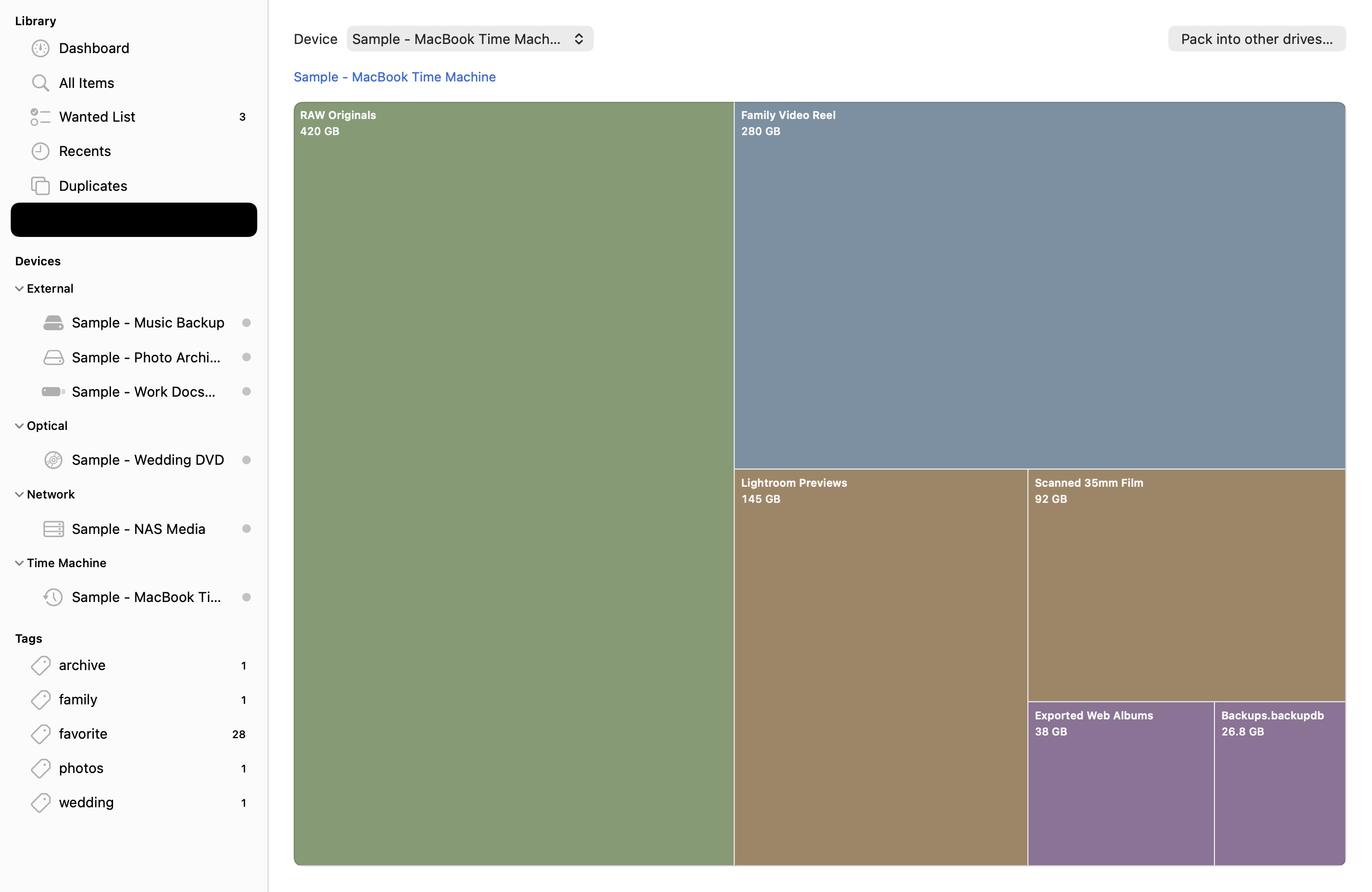
- Drill down & up: Click any folder rectangle (
RAW Originals,Family Video Reel,Lightroom Previews, etc.) to zoom into its subfolders, or click Up / any breadcrumb item to zoom back out. - Pack into other drives...: Click Pack into other drives... in the top-right corner of Space Map to run Catalogger's read-only first-fit decreasing packing planner (
DrivePacking). It shows how the current drive's top-level folders could fit into the free space of your other cataloged drives - without ever moving or writing a single byte on disk. - Drive Retirement & Consolidation Advisor: Want to retire an aging spinning hard drive? Open that drive's Get Info sheet and scroll to Drive Retirement & Consolidation Advisor, then click Analyze Retirement Plan. Catalogger calculates:
- How many files and bytes on this drive are Already Redundant (already backed up by hash on your other drives - zero copying needed!).
- How many files and bytes are Unique to this drive and must be migrated before you retire it.
- Which destination drives have enough free space to absorb those unique folders, plus a one-click Queue All Unique Files to Wanted List button.
11. Backups, Restore, Export, and the iOS Companion App#
Automatic and manual catalog backups#
Your catalog lives inside ~/Library/Application Support/Catalogger (or a custom folder you choose in Settings → General). It consists of two databases (Catalog.store for SwiftData device records and CatalogIndex.sqlite for the FTS5/vector/item index) plus a Thumbnails folder.
Catalogger's BackupEngine creates consistent, hot snapshots while the app is running:
- It runs
VACUUM INTOon both SQLite databases so WAL transactions are cleanly checkpointed into standalone files. - It packages the databases (and optionally thumbnails) and compresses the bundle using Apple's fast native LZFSE compressor (
.catalogbackup/.lzfse), recording a SHA-256 manifest (backup-manifest.json). - It verifies the backup immediately after creation and prunes older backups according to your retention count in Settings → Backup (default: daily backups, keeping the last
10).
To restore a backup: Open Settings → Backup (or choose File → Restore Catalog from Backup...) and pick a backup. Catalogger validates the archive and stages it inside .pending-restore; on the very next launch, BackupEngine.applyPendingRestore atomically swaps the restored catalog into place before any database connection opens.
Exporting your catalog (CSV, JSON, HTML, Plain Text)#
Press Shift-Command-E (or choose File → Export Catalog..., or click Export in the Results toolbar) to export either your entire catalog, a single device, or your current search results:
- CSV: Spreadsheet-friendly table with path, size, dates, kind, device, location, and SHA-256 hash.
- JSON: Structured machine-readable records with metadata dictionaries.
- Standalone HTML: A self-contained, searchable web page you can share with clients or store alongside an archive box.
- Plain Text (
tree): Indented directory listing suitable for printing ordiffing.
Using Catalogger for iOS (iPhone and iPad)#
Catalogger for iOS (CataloggerIOS, iOS 17.0+) is a native iPhone and iPad companion app (not a Mac Catalyst port) that lets you carry your entire drive catalog in your pocket when you are in a storage room, studio closet, or on location:
- On your Mac, create a catalog backup (File → Back Up Catalog Now) or locate
CatalogIndex.sqlite/.lzfsein Settings → Backup → Reveal in Finder. - Send the file to your iPhone or iPad via AirDrop, iCloud Drive, or the Files app.
- Open Catalogger on your iPhone or iPad, tap Import Catalog, and select the file.
- Browse all devices, search with the full operator syntax or plain English, and inspect file metadata and shelf locations completely offline.
12. Terminal CLI, MCP Server, and Automation#
The Direct edition includes the catalogger command-line tool for scripting, cron jobs, search regression testing, and connecting AI assistants over the Model Context Protocol (MCP).
CLI command reference#
Run catalogger from Terminal (by default it opens your live catalog in ~/Library/Application Support/Catalogger in read-only mode, or pass --catalog <folder>):
# Search with any plain-English or operator query
catalogger search "photos from 2019 on Photo Archive" --limit 25
catalogger search "kind:video size:>2GB singlecopy:yes" --json

# Ask where a file or topic lives in plain English
catalogger where "the signed studio lease from 2021"

# List all cataloged drives, shelf locations, and last-verified status
catalogger devices --json

# Simulate single-copy loss risk if a drive fails
catalogger risk "Photo Archive 2019"

# Build a greedy shelf retrieval plan for item IDs
catalogger plan 1042,1045,2091

# Find all byte-identical copies of an item ID or hash
catalogger copies 1042

# Explain how a plain-English query is rewritten into SQL and operators
catalogger explain "large raw photos from last summer not on NAS"

# Verify a mounted drive for silent bit rot (with optional byte budget & resume cursor)
catalogger verify "Photo Archive 2019" "/Volumes/Photo Archive 2019" --max-gb 100 --after 0

# Run the search evaluation benchmark (or a custom JSON test suite)
catalogger eval --verbose
catalogger eval my-queries.json --json
Connecting AI Assistants via Model Context Protocol (catalogger mcp)#
Catalogger includes a built-in MCP server over standard input/output (stdio JSON-RPC 2.0) so AI tools like Claude Desktop, Cursor, or custom local agents can answer questions about your drives without ever touching your files.
Add this entry to your MCP client configuration (for example, ~/Library/Application Support/Claude/claude_desktop_config.json):
{
  "mcpServers": {
    "catalogger": {
      "command": "/Applications/Catalogger.app/Contents/MacOS/catalogger",
      "args": ["mcp"]
    }
  }
}
The MCP server exposes five read-only tools:
catalog_search: Runs any plain-English or operator search and returns matching items with device names and shelf locations.catalog_devices: Lists every cataloged device, capacity, online status, and physical shelf location.catalog_device_risk: Computes the single-copy failure risk report for a specified drive.catalog_retrieval_plan: Computes the minimum set of drives to plug in to retrieve a list of item IDs.catalog_copies: Finds all byte-identical copies of an item across your archive.
13. Preferences and Personalization Reference#
Press Command-, (Catalogger → Settings...) to open the nine-tab Settings window:
| Settings Tab | Key Controls and Defaults |
|---|---|
| General | Open Catalogger at login, Show Catalogger in the menu bar (default: On), Keep running in the menu bar when the window is closed, Hide the Dock icon while no window is open, Dashboard warnings (Warn when a device was not seen for 6 months, Warn when a device was not scanned for 90 days), and Catalog Folder (Move Catalog..., Reveal in Finder, Compact Database). |
| Scanning | Default scan profile (Quick, Standard, Deep, Custom), Keep a history of files removed between scans (default: On), Automatic scanning when known drives connect, Minimum hours between automatic scans (24h), Scheduled rescan (Off, Hourly, Daily, Weekly), Power & Quiet Hours (Pause on battery, Pause in Low Power Mode, quiet hour window), and Global exclude patterns (.DS_Store, .Spotlight-V100, .Trashes, etc.). |
| Devices | Per-device list showing each drive's current rule mode (Global, Custom, or Ignored) and a ** forgetting / privacy** control to strip captured signals (OCR, Vision labels, GPS places, Transcripts, or Meaning vectors) from any device without deleting its file tree. |
| Display | Visible Table Columns (Name is always shown; toggle Kind, Size, Date Modified, Date Created, Device, Location, Path, Dimensions, Duration, Hash), Show file extensions (default: On), Show hidden dot-files (default: Off), Use binary byte units (KiB/MiB/GiB instead of KB/MB/GB), Default Inspector visibility, and Reset Display Preferences. |
| Metadata | Configure thumbnail resolution (160 px to 512 px, default 320 px), maximum file size for full-text indexing (64 MB), archive listing depth, Vision image classification, OCR text recognition, and On-device speech transcription toggle. |
| Search | Show why each result matched, Clear History, Compute meaning vectors for new devices by default, Storage limit (500 MB default), and (in the Direct edition) Optional stronger model (EmbeddingGemma 2) download, SHA-256 verification, and helper path status. |
| Notifications | Toggle notifications for Scan completed, Scan failed, Wanted drive connected, Backup completed, and Stale drive reminders. |
| Backup | Back up automatically (Daily / Weekly), Keep last N backups (10), Include thumbnails in backups, Backup folder location, Back Up Now, and Restore... from any listed snapshot. |
| Advanced | Command-K global shortcut (Control-Option-Space) toggle, Verify Catalog Database Integrity (PRAGMA integrity_check), Rebuild Full-Text Search Index, and sample data controls. |
14. Keyboard Shortcuts and Accessibility#
Complete keyboard shortcut table#
| Action | Shortcut | Menu Location |
|---|---|---|
| Add Folder to Catalog... | Shift-Command-O |
File → Add Folder to Catalog... |
| Scan Connected Drives | Shift-Command-R |
File → Scan Connected Drives |
| Eject Selected Device | Command-E |
File → Eject Selected Device |
| Export Catalog... | Shift-Command-E |
File → Export Catalog... |
| Find in Catalog | Command-F |
Edit → Find in Catalog |
| Search Within Results | Shift-Command-F |
Edit → Search Within Results |
| Advanced Search Builder... | Option-Command-F |
Edit → Advanced Search... |
| Command Palette... | Command-K |
Edit → Command Palette... |
| Global Command Palette (any app, Direct build) | Control-Option-Space |
Settings → Advanced |
| Quick Look Selected Item | Space |
Results / Device Browser |
| Show / Hide Inspector | Option-Command-I |
View → Show/Hide Inspector |
| Show / Hide Filter Bar | Option-Command-L |
View → Show/Hide Filter Bar |
| Go to Dashboard | Command-1 |
View → Dashboard |
| Go to All Items (Search) | Command-2 |
View → All Items |
| Go to Wanted List | Command-3 |
View → Wanted List |
| Go to Recents | Command-4 |
View → Recents |
| Go to Duplicates | Command-5 |
View → Duplicates |
| Go to Space Map | Command-6 |
View → Space Map |
| Open Settings... | Command-, |
Catalogger → Settings... |
| Search Syntax Reference | Shift-Command-/ |
Help → Search Syntax |
Accessibility and VoiceOver support#
- Every status indicator (Online/Offline device dots, scan progress badges, and capacity donut charts) exposes a descriptive VoiceOver accessibility label (such as
"Online","Offline", or"Used 700 GB of 2 TB"). - All primary workflows - searching, filtering, browsing folders, inspecting metadata, queuing Wanted List items, and running commands via Command-K - can be operated entirely from the keyboard without a mouse.
- Respects macOS Increase Contrast, Reduce Motion, and Dynamic Type / Larger Text settings.
15. Purchasing, Editions, and Licensing#
- Official store: Check the Plum Amazing Store for DiskCataloger availability.
- Pre-release: The app is in pre-release review. Purchase links, pricing, and trial details will be available when the app is released.
- Choosing between Direct and Mac App Store:
- Choose the Direct edition from plumamazing.com if you want automatic mounting of unmounted disk images (
.dmg/.iso),lsofopen-file process inspection when a drive refuses to eject, the globalControl-Option-Spacehotkey, thecataloggerTerminal CLI and MCP server, or optionalEmbeddingGemma 2local GGUF meaning search. - Choose the Mac App Store edition if you prefer App Store purchase management, family sharing, and strict macOS App Sandbox isolation with security-scoped volume bookmarks.
- Choose the Direct edition from plumamazing.com if you want automatic mounting of unmounted disk images (
- Third-party model notice (Direct edition only): The optional
EmbeddingGemma 2weights are never bundled inside Catalogger. If you choose to download them in Settings → Search, they are fetched directly from Hugging Face (ggml-org/embeddinggemma-2-GGUF) for local use on your Mac under the Google Gemma Terms of Use.
16. Updates, Migration, and Privacy#
Checking your build and schema migration safety#
- Choose Catalogger → About Catalogger to check your version and build number (
1.0 (1)). - Catalogger stores its SQLite schema version in
PRAGMA user_version(currently schema v5). When you update Catalogger to a newer version,CatalogStore.migrateautomatically upgrades earlier catalog schemas (v1throughv4->v5) in place without requiring you to rescan your drives, while automatic pre-migration backups in Settings → Backup protect your existing catalog.
Privacy architecture#
- 100% local processing: Every filename, document snippet, OCR string, Vision label, GPS place lookup, spoken word transcript, and meaning vector is computed and stored locally on your Mac. Catalogger contains zero analytics SDKs, zero cloud telemetry, and never transmits your catalog or search queries over the network.
- Selective signal forgetting: If you ever want to remove derived AI/metadata signals (such as OCR text, transcripts, GPS places, Vision labels, or meaning vectors) from a cataloged drive without losing its file and folder tree, open Settings → Devices, select the drive, and use Forget Captured Signals....
17. Troubleshooting, Known Limits, and Support#
Common symptoms and fast fixes#
| Symptom | Cause | Solution |
|---|---|---|
| Drive shows "Permission needed" or scan finishes with 0 files | macOS Removable Volumes or Sandbox bookmark access has not been granted for that volume. | In the Mac App Store edition, click Grant Access... on the device banner and select the volume root in the open panel. In the Direct edition, check System Settings → Privacy & Security → Files and Folders → Catalogger (or grant Full Disk Access for Time Machine disks). |
| Eject says the drive is in use | Finder Quick Look, Spotlight (mds_stores), or another app still has an open file handle on the volume. |
In the Direct edition, read the Drive Is Busy sheet to see the exact app and file path, then click Quit Application and Retry Eject. |
Verify Integrity reports "No Hash Baseline" on files |
Those files were originally scanned with the Quick profile, which skips hashing for maximum speed. | Reconnect the drive and run a Standard scan (for fast partial p256: hashes) or Deep scan (for full sha256: hashes) to establish a verification baseline. |
| Plain-English search rewrote a query you wanted searched literally | Plain-English interpretation matched a date, kind, or location word (like may or photos). |
Wrap the word in quotes ("may"), click the × on the interpreted operator chip above the results, or turn off Understand plain-English queries in the search options popover. |
EmbeddingGemma 2 says "Helper not installed" (Direct edition) |
The local llama-server or llama-embedding binary from llama.cpp was not found in /opt/homebrew/bin or Application Support. |
Run scripts/setup-llama-helper.sh or brew install llama.cpp in Terminal, then click Recheck Helper in Settings → Search. |
| Catalog database feels large after deleting many sample or old devices | SQLite retains freed pages for reuse until compacted. | Open Settings → General and click Compact Database (VACUUM), or open Settings → Advanced and click Rebuild Full-Text Search Index. |
Known limits#
- Partial hash (
p256:) vs. Full SHA-256 (sha256:): The Standard scan profile computes a fast partial hash (first 1 MB + last 1 MB + file size) so multi-terabyte drives finish scanning quickly. Partial hashes catch most corruption and identify duplicate media files rapidly, but if silent bit rot occurs in the middle of a multi-gigabyte video file without affecting its first or last megabyte, only a Deep scan baseline (sha256:) is guaranteed to detect it. - Encrypted drives and unmounted FileVault volumes: Catalogger can only scan volumes after you unlock and mount them in macOS Finder or Disk Utility. Catalogger never prompts for or stores volume encryption passwords.
- Spoken transcripts require on-device Speech Recognition models: The first time you enable speech transcription, macOS may download Apple's on-device speech recognition assets in the background.
Getting help and contacting Plum Amazing Support#
If you run into a question not answered here, or want to suggest an improvement:
- Check Settings → Advanced → Verify Catalog Database Integrity to confirm your local SQLite database is healthy.
- Note your macOS version, your Catalogger edition (Direct or Mac App Store), and the version/build shown in Catalogger → About Catalogger.
- Reach out to the team at Plum Amazing Support.
Revision history#
| Date | Manual version | Changes |
|---|---|---|
| 2026-11-12 | 1.0 | Complete Plum Amazing human user manual for Catalogger 1.0: added Quick Start lesson, workspace anatomy, edition comparison (Direct, Mac App Store, iOS 17+ companion, and CLI/MCP), bit-rot integrity verification (Verify Integrity and catalogger verify), hybrid plain-English and meaning search (NaturalLanguage and optional EmbeddingGemma 2), Deep Signal Inspector (places, Vision labels, OCR text, spoken transcripts, perceptual dHash visually similar images), Wanted List shelf pull checklists, Space Map and Drive Retirement Advisor, deterministic search evaluation (catalogger eval), and verified Mac screenshots. |