An island field guide for iPhone, iPad and Mac
Hawaiʻi Earthquakes & VolcanoesMac & iOS
An island field guide to earthquake patterns, volcano observations, and experimental terrain routing on iPhone, iPad, and Mac.
App version 1.0.9 Updated 2026-10-19
A field guide to the earthquakes beneath Hawaiʻi Island, the observations above it, and the questions you can explore between them. This shared guide also covers the iPhone and iPad editions. Start with one earthquake. Then compare depth, time, and terrain without losing track of what the data can and cannot tell you.
This is a guide for the forthcoming version 1.0.9, for iPhone/iPad, Mac App Store, and Plum Amazing Mac. The app source reviewed for this guide uses build 29. This guide may be published before the app update becomes available; it does not announce that the update is already in the stores. Older public builds may have different controls. Check your installed version in Misc → About. The manual's revision date is not an earthquake, survey, or eruption observation date.
Full manual: plumamazing.com/manual/earthquakes-hawaii. In the app, open Misc → Help → General → User Manual (full guide). On Mac, use Help → User Manual (Earthquakes HI)…. These open the same stable address.
Keep the official picture beside the app. Earthquakes HI is an observation and learning tool. Use USGS Hawaiian Volcano Observatory, Hawaiʻi County Civil Defense, and Hawaiʻi Volcanoes National Park for current hazards, closures, and instructions. The Lava flow workspace is experimental terrain routing, not a lava forecast or a property safety assessment.
Table of contents#
- What this app does
- First launch, trial, and full access
- Main navigation (tabs)
- Quakes tab
- Search tab
- Big Island tab
- Volcano tab
- Misc tab — includes Historical earthquake data
- Background behavior (iOS)
- Updates: Mac App Store vs Plum Amazing (direct)
- Tips you might not know
- Hawaiʻi volcanoes — context for readers
- Terminology (quick reference)
- Screenshots for this manual
1. What this app does#
Earthquakes HI brings USGS earthquake catalogs, Hawaiʻi volcano observations, and several ways to look beneath the island into one workspace. The same earthquake can appear as a list entry, a surface epicenter, a hypocenter at depth, or a point in a cross-section. Those are different views of one observation, not separate earthquakes.
The five main tabs are Quakes, Search, Big Island, Volcano, and Misc. The Big Island workspace also includes an experimental Lava flow view: you place a hypothetical breakout on an elevation grid and inspect a downhill route. The earthquake catalog does not choose that breakout for you, and earthquake depth is not an input to the lava-routing calculation.
Requirements and editions#
| Edition | Requirements and useful hardware | Installation and updates |
|---|---|---|
| iPhone / iPad | iOS / iPadOS 17 or later. The map and elevation profile work on that minimum. Optional 3D lava relief needs iOS 18 or later and supported graphics hardware. | Install and update through the iPhone/iPad App Store listing. |
| Mac App Store | macOS 14 or later. Optional 3D lava relief needs macOS 15 or later and supported graphics hardware. | Install and update through the Mac App Store listing. |
| Plum Amazing Mac | macOS 14 or later; the same optional relief requirement applies. Apple Silicon and a large monitor are useful for dense 3D scenes and side-by-side terrain work. | Download from the official Mac product page; updates use Sparkle. |
A larger display gives you more room to compare controls, the map, and the elevation profile. It does not improve the accuracy of the source elevations. A newer GPU can render a view more quickly without changing the route's scientific assumptions.
Internet access is needed for current earthquake feeds, volcano reports, cameras, basemaps, purchasing, and new Local terrain downloads. The three bundled regional terrain grids add about 10 MB of elevation data. Local downloads and imported catalogs need additional storage. A cached map or old report is not evidence of current conditions.
2. First launch, trial, and full access#
Choose the purchase channel first#
The three editions share many views, but their purchases are separate. An iOS purchase, a Mac App Store purchase, and a Plum license are not interchangeable. Restore or activate through the channel in which you bought the app. A coupon is not a license key.
| Channel | Choices in this release | How access is recovered |
|---|---|---|
| iPhone / iPad App Store | Monthly subscription, Yearly subscription, Lifetime one-time purchase | Use the purchasing Apple Account and Restore Purchases. |
| Mac App Store | Monthly subscription, Yearly subscription, Lifetime one-time purchase | Use the purchasing Apple Account and Restore Purchases in this Mac edition. |
| Plum Amazing Mac | Monthly, Yearly, or Lifetime through the Plum checkout | Activate the emailed Lemon Squeezy license key on the Mac. |
The old wording “Daily, Monthly, Lifetime” does not describe these current controls. Yearly is an annual subscription. Lifetime is the one-time access purchase in its own edition. Monthly and Yearly renew according to the store's terms until canceled; cancellation and a refund are different actions.
The app implements a 48-hour app trial, beginning at first launch. This is distinct from any subscription offer Apple may display. The app's trial does not itself enroll you in a paid subscription. The trial record is retained securely across reinstalls, so reinstalling is not a way to restart it. After it expires, full access requires an active purchase or license. Read the actual store confirmation for the price, billing interval, eligibility, and any offer before approving payment.
Install and reach the workspace#
- Choose the correct official listing: iPhone/iPad, Mac App Store, or Plum Mac.
- For Plum Mac, install the downloaded app in Applications. For Apple editions, install from the App Store. Avoid running multiple copies with different purchase channels when diagnosing access.
- Launch the app and allow the initial access check to finish. During the app trial or with paid access, the five main tabs appear.
- Start with Quakes and a region you recognize. Allow the feed to finish loading, then follow the first-success lesson below.
You can examine data without granting notification permission. Enable notifications later if you want them. Loading a file grants access to the file you choose; this workflow does not ask for Full Disk Access.
Apple purchases, restoration, and offer codes#
Open Subscribe or the purchase screen. Select Monthly, Yearly, or the separate Lifetime Access option, and confirm in Apple's purchase sheet. The displayed StoreKit price is localized for your storefront; it is the price to use, rather than an old screenshot, a website price range, or another edition's checkout.
If an option has not loaded, wait for product loading or use the available retry control. Keep an internet connection. If Apple cancels the sheet, the app should remain unpurchased; a canceled attempt is not a failed entitlement. A pending Ask to Buy purchase remains pending until approved. Do not repeatedly purchase while waiting for approval.
To restore, sign in to the Apple Account that made the purchase and choose Restore Purchases. A restore may ask Apple to refresh your purchase history. Routine foreground checks use local entitlements; you do not need to restore on every launch. An expired subscription or refunded purchase may no longer grant access. Canceling renewal normally retains the already-paid period; check Apple's subscription page for its end date.
For an Apple promotion, choose Redeem offer code and use an Apple-issued code whose terms match the app and product. Depending on platform, the app opens Apple's redemption interface or redemption page. Plum Store / Lemon Squeezy discount codes cannot reduce an Apple in-app purchase. Apple does not provide the Plum checkout's general coupon field. If you were given only a Plum code, use it for the eligible Plum Mac checkout or ask support about an Apple offer; do not buy another edition expecting the code to transfer.
Use Apple's subscription management to manage renewals, and Apple purchase support for Apple billing questions. A Lifetime purchase does not have a monthly renewal to cancel.
Plum purchases, activation, and discounts#
Use the official Plum Store or open the matching checkout from the Mac app:
| Plan | Official checkout |
|---|---|
| Monthly | Plum Mac monthly checkout |
| Yearly | Plum Mac yearly checkout |
| Lifetime | Plum Mac lifetime checkout |
- Choose the intended plan. Add an eligible discount in the checkout's discount field and check the reduced total before paying. Code eligibility, expiry, taxes, and currency are determined by the checkout.
- Find the Lemon Squeezy receipt/license email, including the spam folder. The license key is not your coupon code.
- Paste the complete license into the Mac app's license field. A complete key may activate automatically; otherwise choose Activate.
- Wait for a successful activation message and return to the main workspace. If a checkout return did not activate automatically, use the emailed key.
For receipts or subscription changes, use Lemon Squeezy account for your orders/receipts, which opens the customer billing portal. Deactivate releases this Mac's activation and removes its local license state; it does not cancel subscription billing. Deactivate the old Mac when moving a license, then activate on the replacement. The allowed activation count is the limit attached to your actual license; this manual does not assume a fixed device allowance.
An activation-limit message calls for freeing an existing activation or contacting support, not buying repeatedly. If activation fails, retain the exact error, your edition/version, and your order reference for private support. Never post the license key in a screenshot or public forum. Online activation/validation needs a connection. Stored license information is kept locally, but this is not a promise that a subscription can remain valid offline forever.
3. Main navigation (tabs)#
The tab bar sits at the bottom on iPhone and in a top strip on Mac. A larger iPad or Mac window can show a list and detail at the same time.
| Tab | Start here when you want to… |
|---|---|
| Quakes | Read individual earthquakes, compare magnitude/depth, change region and filters, or refresh the catalog. |
| Search | Explore the loaded catalog geographically and search place/title or region names. |
| Big Island | Compare Map, 3Dcloud, Depth, Crosssection, and Lava flow. |
| Volcano | Read observatory reports, view cameras and conditions, and explore volcano history and FAQs. |
| Misc | Open Stats, Notifications, Help, or About. |
The shared toolbar includes the selected Region, Live / Historic status where applicable, subscription status, and the sun/moon appearance control. Changing the viewing region changes the data you inspect; it does not automatically change the separate notification alert region. A Live badge names the source mode. It does not mean a camera, feed, or report has zero delay.
In Big Island, the short buttons Map, 3Dcloud, Depth, Crosssection, and Lava flow use icons above their words. They fit one row at ordinary phone text sizes. At accessibility text sizes, they use a grid so the labels can remain readable. The Big Island chevron menu offers the same destinations with longer names.
To recover your bearings, return to Quakes, choose a known region, and select a recent time range. In 3Dcloud, use Reset View. In Lava flow, use Reset breakout point; those reset different things.
4. Quakes tab#
The list shows earthquakes that match the viewing region, minimum magnitude, time selection, and sort order. A visible list is a window onto the catalog; the number of rows on screen is not the total number of earthquakes.
First success: read one earthquake#
- Open Quakes, select Big Island or Hawaiʻi, and choose 7 Days.
- Refresh if needed: pull down on iPhone/iPad, or use the refresh control. Watch the loading and last-update information.
- Select one earthquake. Find its magnitude, place, event time, and reported depth.
- Open its map and distinguish the surface location from its depth below that location. Use the USGS link for the original event record and, when available, Did You Feel It?.
- Return to the list and change the sort. The same event should still be identifiable by its place/time and identifier.
Expected result: you can answer “where, when, how large, and how deep?” for one catalog event. You have not established a volcanic cause or an eruption forecast.
On a phone, the first fetch can show a small recent preview before the complete feed arrives. Rows are presented in stages so the display remains usable. A count may rise as the feed fills. Wait for loading to finish before comparing totals or interpreting statistics. A long catalog need not create thousands of visible detail views at once; scroll to reveal more rows.
Use the region and minimum-magnitude controls to widen or narrow the result. An empty list often means the current filters are too restrictive. Clear the minimum magnitude, choose a larger region or time range, and confirm whether a historic file is active. Very small or negative magnitudes can be real catalog entries; “zero” is not the same as “no event.”
Mac commonly uses a split view: select in the left list to update the detail on the right. Earthquake values can be revised by USGS. If a detail differs from a prior screenshot, compare event identifiers and update times before assuming it is another quake.
Try it: compare a shallow and a deeper event. A deeper earthquake's hypocenter sits farther below its epicenter in 3D, even if their surface markers look close on the map.
5. Search tab#
Search explores the catalog currently available to the app. It is not an unrestricted search of every earthquake ever recorded by USGS. Load the appropriate live period or historic dataset first; see the historical-data instructions in chapter 8.
Enter part of a place/title, such as a town name, or a recognized region name. A matching region name applies its geographic bounds; other text matches the earthquake's place/title. Clear the text to return to the broader result. Region, magnitude, and time controls can narrow the available catalog further.
On first use, a guided globe voyage introduces the geography. Let it complete before interpreting camera movement as your own map gesture. The globe/map supports panning and zooming; on Mac, a list can sit beside it. Select a result to examine the original event details.
The map emphasizes a bounded set of larger events when a catalog is very dense. Use the list and statistics when you need catalog totals. A map with fewer visible markers is not evidence that earthquakes disappeared.
If nothing appears: clear the search, lower the magnitude threshold, check the region, and inspect the Live/Historic source. For an older file, use All before applying narrower windows. A search of a seven-day feed cannot find an event from years ago.
6. Big Island tab#
- Default: 2D Big Island map with quake markers. Use the five mode buttons to compare surface locations, depth, and terrain.
- Chevron (▼) next to “Big Island” also opens:
- 3D Hypocenter Cloud — volumetric view of hypocenters in space.
- Exaggerated Depth — globe-related depth visualization.
- Cross-Section — vertical slice / spinning-island style view.
- Lava flow · Experimental — a hypothetical downhill terrain route.
Bottom panel (Map and 3D Cloud)#
- Time range: 24 Hours, 7 Days, 30 Days. When a historic file is loaded, an All button appears to show every event in the file.
- Data-source pill: Opens a menu with Live USGS Feeds (24h / 7d / 30d / Notable) and Historic (bundled, since 1900) (Hawaiʻi Mag 3+, World Mag 5+/7+). When you load your own file, the pill shows the filename (e.g.
HistoricalQuakes.json). - Live / Historic badge: Shows which source mode is active.
- Show/hide: tap Tap here to hide settings to close the panel, or Tap here to show settings to reopen it. The grabber and text share a broad target; the arrows remain available. Drag the handle downward to close or upward to reopen.
- 3D rotation: press and drag the island outside the panel. Holding still does not rotate it. The solid settings surface blocks quake selection underneath it on Mac, including blank panel areas.
- Largest quake card (Map): use its X to dismiss it. Restore it with Show largest quake card in the settings panel. This changes the card, not the catalog or earthquake selection.
3D Hypocenter Cloud (Mac and iOS)#
- Platforms: Available on iPhone, iPad, and both Mac builds (App Store Mac and Plum Amazing Mac) via Big Island → 3D Hypocenter Cloud.
- Map floor: The island is a MapKit satellite/hybrid snapshot aligned with the 2D Big Island map (same region framing). Ocean is transparent so you can see hypocenters and depth rods under water when the view is tilted.
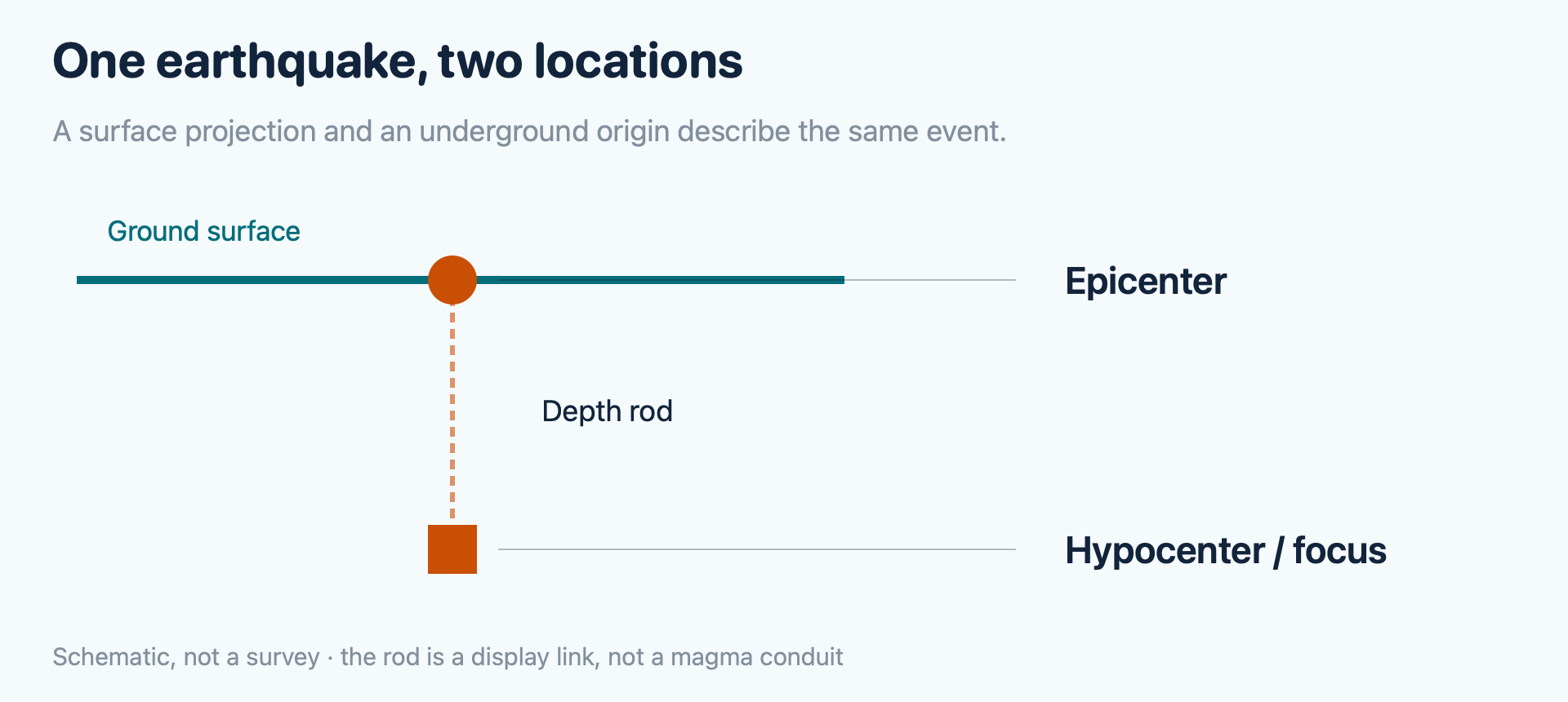
- Epicenter vs hypocenter: Each quake shows a sphere on the surface (epicenter) and a cube at depth (hypocenter), linked by a vertical depth rod.
- Depth rods: In the bottom panel (3D Cloud mode), check or uncheck Depth rods on the same row as Quake Dot Size to show or hide the stems. The setting is remembered.
- Scope: This view shows hypocenters in the Big Island and offshore Kamaʻehuakanaloa area covered by its map floor—even if the Region picker elsewhere says Worldwide. Use Map or List for other regions.
- Rotate: Drag to orbit. Drag up tilts the top of the island toward you; drag left/right spins around the island. World “up” stays locked so the view does not accumulate confusing roll.
- Reset View: Pill button on the bottom panel header (and on the collapsed strip) returns the camera to the default launch orientation after you have rotated or zoomed away. (Mac and iOS.)
- Hover (Mac only): Move the pointer over a quake marker. The callout shows Epicenter or Hypocenter, time, magnitude, and depth; click to pin the callout. The Mac callout stays pinned until you click empty scene space. iPhone/iPad do not have a mouse-hover inspector; use the earthquake list/detail to read an individual event.
- Dot size: Quake Dot Size (Teeny → Large) uses the same scale as the 2D map and Cross-Section—pick one size and it applies across those views.
- Min magnitude: The slider in the bottom panel filters quakes in 3D Cloud the same way as on the 2D map.
- Dense feeds / large historic files: The view automatically clusters nearby events when counts are high so rotation stays smooth.
Cross-Section#
- Slice thickness (± km): Only earthquakes within a perpendicular corridor around the cross-section line are shown. A narrow slice (±5 km) gives a clean picture; a wide slice (±46 km) includes much of the island and can look very dense.
- Cluster badges (×N): When many quakes overlap, the view groups them; the dot color reflects the largest magnitude in that group.
- Vertical columns of dots: With very large datasets, regular vertical stripes are often a binning grid artifact, not real geology. Switch to a smaller time window or a narrower slice to see individual events.
Exaggerated Depth#
- Uses the same decimation/clustering as 3D Cloud for performance during swarms or large imports.
Read the view carefully. Clustering and marker size help you see patterns; a cluster badge is not a new event. Depth exaggeration is a display aid. The surface point and underground cube remain observations in a catalog, not a direct picture of magma. Use a smaller time range, smaller markers, or a narrower cross-section when the scene becomes crowded.
The solid settings panel and its broad disclosure target are shared by the Apple and Plum Mac editions. Hover inspection resumes on the exposed island. Reset View restores the camera, without changing the chosen feed or the earthquake catalog.
Lava flow: experimental terrain routing#
The Lava flow workspace helps you ask a useful, limited question: if a hypothetical breakout begins here, which neighboring ground is steepest downhill in this elevation grid? It is a terrain experiment. The app does not detect a new breakout, decide where an eruption will begin, or predict when lava will reach a road or house.
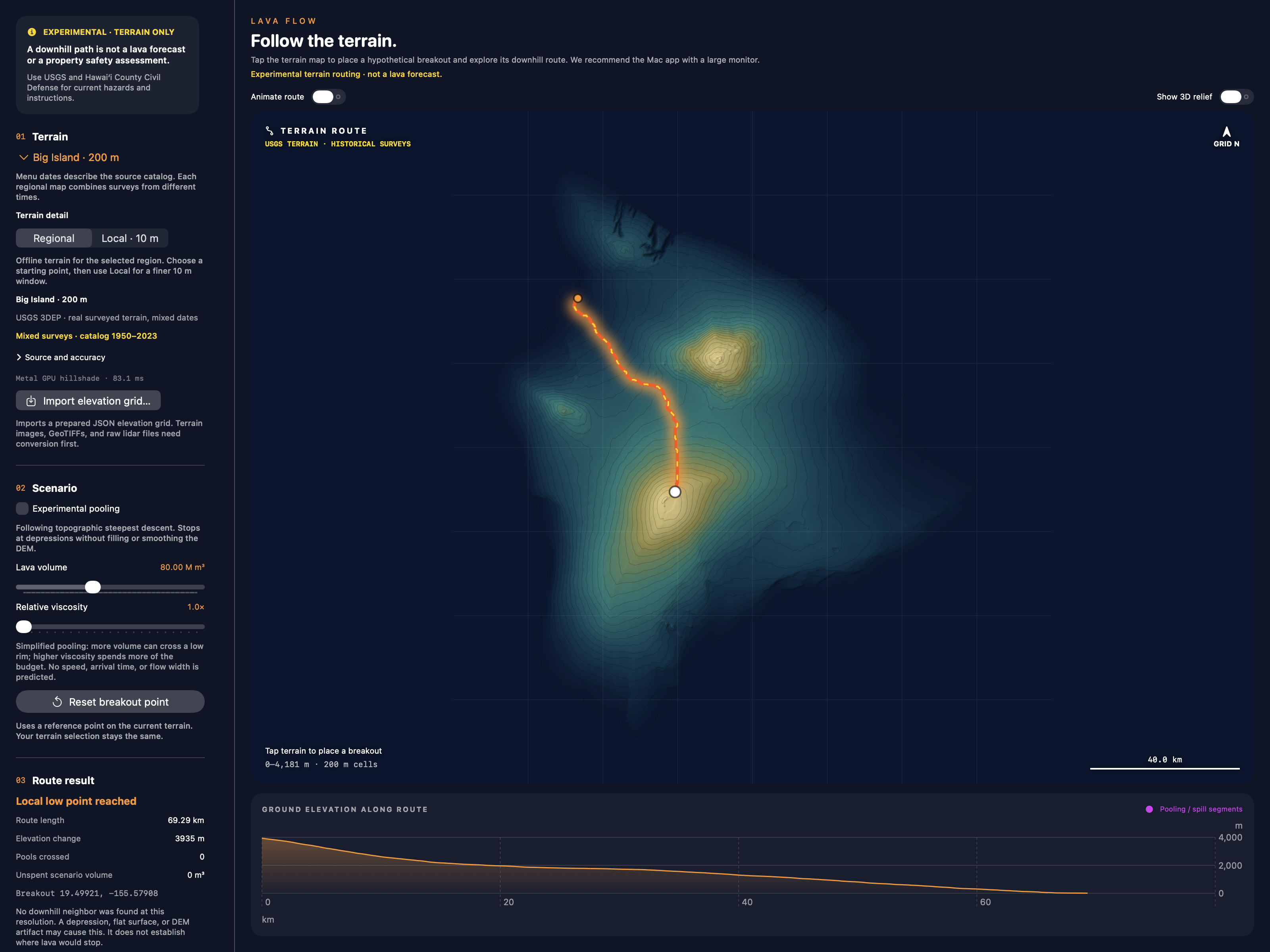
For a first exploration, leave Experimental pooling, Animate route, and Show 3D relief off. This gives you a quiet, inexpensive map and the simplest routing rule. We recommend the Mac app with a large monitor for detailed comparisons; the same basic workflow works on iPhone and iPad.
First route: place a hypothetical breakout#
- Open Big Island → Lava flow. The default Big Island · 200 m terrain is bundled for offline exploration.
- Open Terrain and choose a region. Begin with the island overview; use Kīlauea East Rift · 60 m or Mauna Loa · 120 m to concentrate on that area.
- Read the historical-survey notice. Open Source and accuracy when you need the source dates and collection context.
- Tap or click an inland point on the terrain map. The white start marker identifies the selected grid cell. The route is recalculated in the background.
- Read Route result, including why tracing stopped. Then inspect Ground elevation along route. A route that is only a few cells long can be a valid local low point in the sampled terrain.
- Try another nearby starting point. If the route changes sharply, that sensitivity is part of what you are learning, rather than a reason to treat one line as certain.
Expected result: you have one reproducible route through the chosen grid under the chosen rules. You have not mapped every possible lava path or assessed property safety.
Reset breakout point returns to the reference point on the currently loaded terrain. It does not change the Terrain region or Regional/Local detail selection. Choosing a different region, in contrast, loads that region's grid and reference point. A reference point is a convenient starting example, not a claim that lava is emerging there.
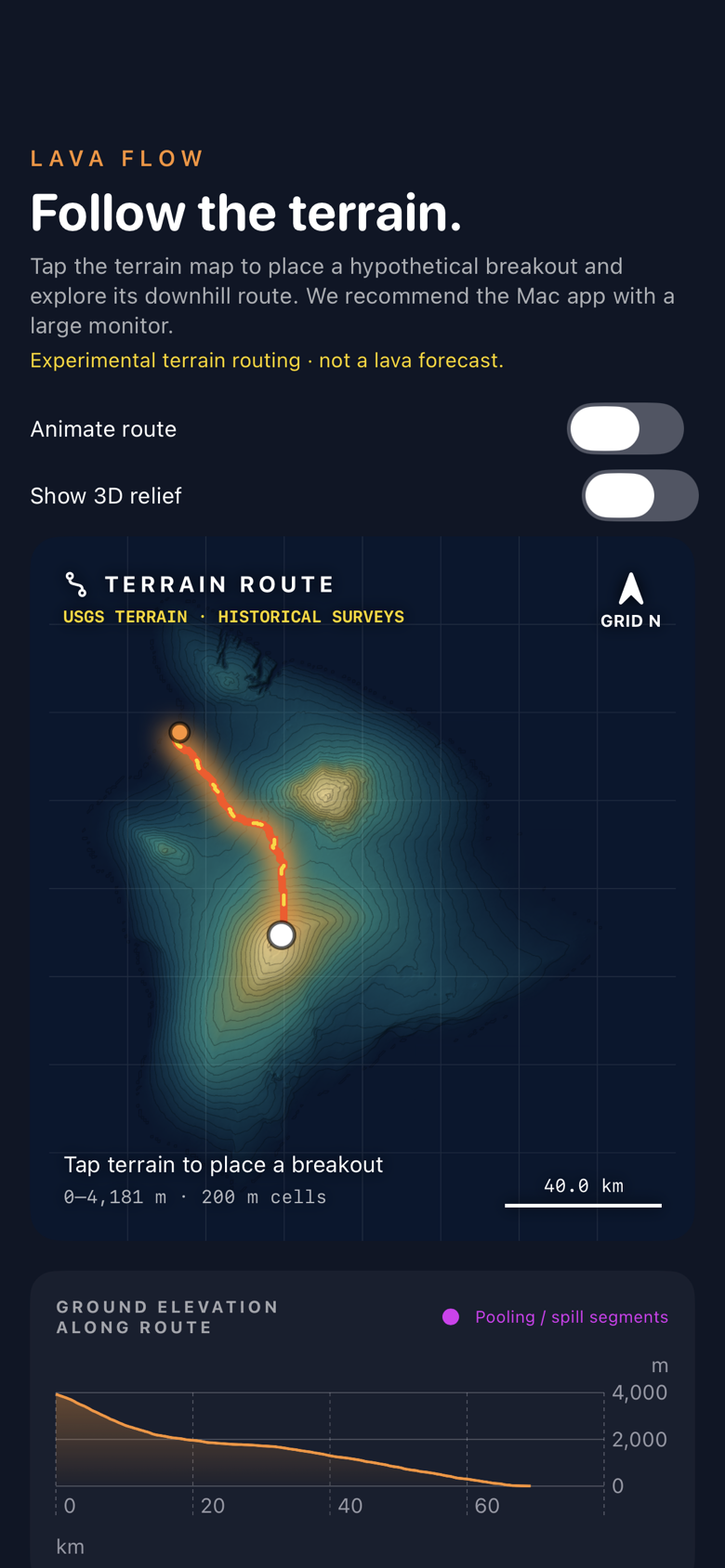
Which terrain should I choose?#
| Terrain choice | What it contains | Best first use | What it cannot establish |
|---|---|---|---|
| Big Island · 200 m | A regional USGS elevation mosaic sampled every 200 m | Understand the island-scale slopes and choose an area | Small channels, road embankments, or individual properties |
| Kīlauea East Rift · 60 m | A denser regional grid around the East Rift | Compare terrain routes within that region | Current eruption deposits or every small barrier |
| Mauna Loa · 120 m | A regional grid around Mauna Loa | Explore broad high-elevation downhill choices | A parcel-scale lava forecast or an actual eruption source |
| Local · 10 m | A requested 10 km window around the selected starting point, downloaded from USGS and cached | Examine whether a finer sampled surface changes a route | A guarantee of 10 m source accuracy, recent acquisition, or downstream coverage outside the window |
| Synthetic East Rift / Mauna Loa demo | Artificial elevations for learning and testing | Learn the controls or compare pooling rules | Real topography, measured ridges, or a historical lava footprint |
| Imported elevation grid | Numeric elevations and metadata supplied by you | Explore a prepared, documented DEM | Automatic verification of its dates, vertical datum, or suitability |
Regional is the faster, offline starting choice. To request Local · 10 m, first choose a breakout on the regional map, then switch detail. The download centers a finer window around that point. Up to three local windows are cached for reuse; Refresh local terrain requests the window again. If a download fails, check the connection and return to Regional to continue with bundled terrain.
A local route may end quickly because the local window is small. The app does not automatically continue it through an unlimited set of neighboring tiles. An edge is a coverage limit, not a predicted place where lava would stop. Choosing another region/window changes the available topography as well as its sampling.
Are these lidar maps? What do the dates mean?#
A digital elevation model (DEM) is a numeric height grid. The colors, contours, and relief are drawings made from those numbers. A photograph of a terrain map does not contain the same usable elevation information.
The bundled real terrain comes from the USGS 3D Elevation Program (3DEP) elevation service. Its mosaic combines source products, including lidar-derived and other historical elevation sources. The app resamples the service into the displayed regional grids. It should not be described as one new lidar flight covering the whole island.
The terrain menu shows source-catalog year ranges. In this dataset, the Big Island and Mauna Loa catalog ranges span 1950–2023; the East Rift catalog spans 1954–2023. These are overlapping candidate-source collection periods. They are not a survey date assigned to every pixel, and the newest year is not the age of the entire surface. Synthetic choices explicitly say no survey.
Open Source and accuracy for the retained source information. Distinguish three different dates:
| Date or label | Meaning |
|---|---|
| Survey / catalog period | When candidate source elevations were collected; sources can differ across the mosaic. |
| Retrieval / download time | When the app or terrain-preparation process obtained data from the service. Downloading today does not mean the ground was measured today. |
| Scenario / export time | When you saved an experiment. It does not date the terrain or validate the route. |
New lava deposits, crater collapse, excavation, and other surface changes can make an old DEM misleading. A finer output spacing does not restore changes missing from the original survey. USGS 3DEP describes the elevation program; eruption-specific surface releases require separate date, coverage, and datum checks before they can support a stronger claim.
Read the map, the profile, and the relief together#
The terrain map is north-up. A projected dataset labels its arrow GRID N: grid north can differ slightly from true geographic north. The scale bar gives a horizontal distance, and the footer reports the elevation range and cell size. The breakout coordinate is shown under Route result; extra decimal places in that label do not make a 200 m grid accurate to a meter.
The orange route connects sampled grid-cell centers. The white marker is its start and the orange endpoint is where this trace ends. The bright line and glow are a drawing style, not the width of an inundated area. Areas away from the line have not been declared safe.
The profile plots ground elevation against distance along the route. Route length sums horizontal grid steps, including diagonal distances; it is not a travel time or a surveyed walking distance. If experimental pooling crosses a rim, the ground profile can rise. Purple pooling/spill information marks that experimental part of the calculation; it does not report measured lava depth.
Show 3D relief opens a rotatable terrain mesh on supported OS/hardware. On a narrow screen it replaces the tap-to-place map; turn it off to choose another breakout. A sufficiently wide Mac workspace can show map and relief together. Relief is vertically exaggerated for readability. Its apparent slope is not a measured lava velocity, and a visually simplified mesh does not reduce the full grid used by the route calculation.
Animate route moves dashes and a white direction marker along the map route. The loop is a direction cue, not a clock for lava. It defaults off, pauses when the scene is inactive, and is disabled with an explanation when Reduce Motion prevents animation. On a narrow screen, animation is unavailable while only 3D relief is visible. A point with no downhill route has nothing to animate; choose another point.
What the downhill algorithm actually does#
The basic method is deterministic D8 routing: one choice among eight neighboring cells at each step. It does not split into several branches or assign a probability to each possible path.
- Convert the selected latitude/longitude to a grid cell.
- Compare that cell's elevation with each valid neighbor: north, northeast, east, southeast, south, southwest, west, northwest.
- Divide the elevation drop by the horizontal distance to the neighbor. A diagonal step is longer than a straight step.
- Choose the largest positive drop per meter, then repeat from that cell.
- Stop at a low/flat point, an outlet, a coverage boundary, or a calculation safeguard. Pooling adds the separate rule below.
The lowest neighboring elevation is not always the steepest direction. In an illustrative 10 m grid, dropping 8 m to the north gives 8/10 = 0.8. Dropping 10 m diagonally gives 10/14.14 ≈ 0.71. The northern step wins even though the diagonal neighbor is lower.
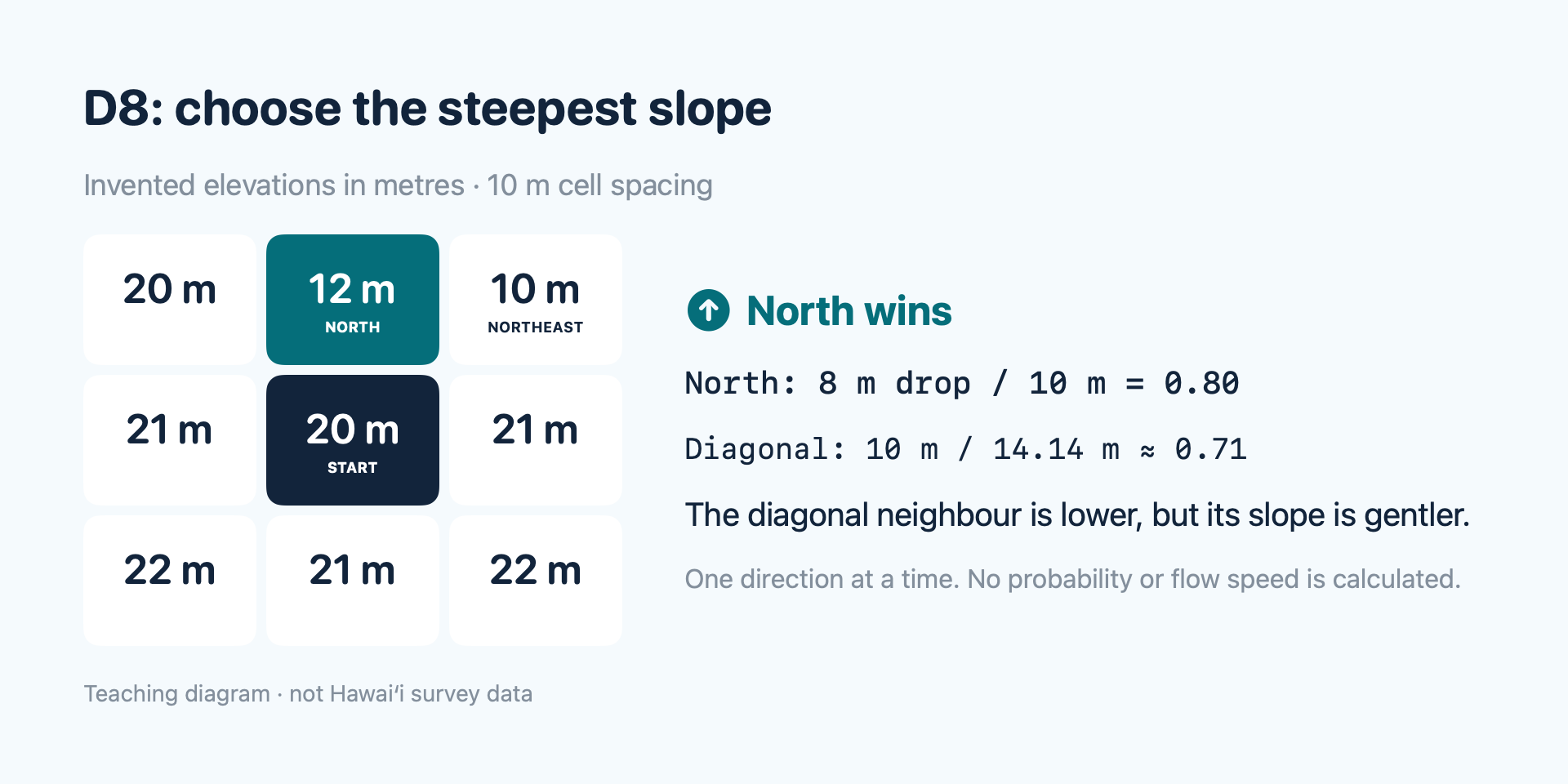
Equal slopes use a fixed neighbor order, beginning with north. Flat surfaces are not silently tilted or smoothed to force a route. Missing cells remain unknown; they are not filled in as if they were ground, and the route cannot cut diagonally across a missing-data corner. These choices make results repeatable while also exposing the grid's limitations.
Why a route can zigzag: the algorithm has eight allowed directions. It is not following a continuous fluid surface at arbitrary angles. Different grid spacing, a one-cell source shift, or an unresolved ridge can change the line. Repeatability is a software strength, not proof of real-world accuracy.
Experimental pooling, volume, and relative viscosity#
With Experimental pooling off, the engine follows downhill terrain and stops at depressions or flats. The dimmed volume/viscosity settings do not drive a physical flow model. The app sends zero pooling budget in this mode.
Turn pooling on only to explore an additional assumption: a connected depression might fill until a low escape crest can be crossed. The search finds a low connecting spill route and counts the area/height needed to fill the connected basin below that crest. It does not simply jump over one low ridge cell.
| Control | Current range / behavior | How to interpret it |
|---|---|---|
| Lava volume | 0–200 million m³, in steps of 1 million m³; the remembered starting setting is 80 million m³ | A scenario budget charged at pooling/spill events. It is not a measured eruption volume or a constant discharge rate. |
| Relative viscosity | 1.0×–12.0×, in 0.5× steps | A dimensionless penalty on the geometric fill volume. It is not a laboratory viscosity in Pa·s. |
| Pooling baseline | Fixed at 5,000 m³ per accepted pooling event | A model threshold/charge, not a measured physical constant for Hawaiian lava. |
| Unspent scenario volume | The remaining budget after accepted pools | It does not mean this much real lava remains underground. Downhill tracing does not continuously consume volume. |
The rule is:
charged budget = 5,000 m³ + geometric fill volume × relative viscosity
The initial budget must exceed the baseline before searching for a spill. The accepted charge must fit the remaining budget. Each accepted basin subtracts its charge; a later basin may stop the route.
Illustrative arithmetic, not a field estimate: one 10 m × 10 m cell needing 2 m of fill represents 200 m³. The scenario charge is 5,200 m³ at 1× or 5,400 m³ at 2×. This small numerical example explains the formula; the app's million-m³ slider steps are much larger, and real basins generally contain many cells.
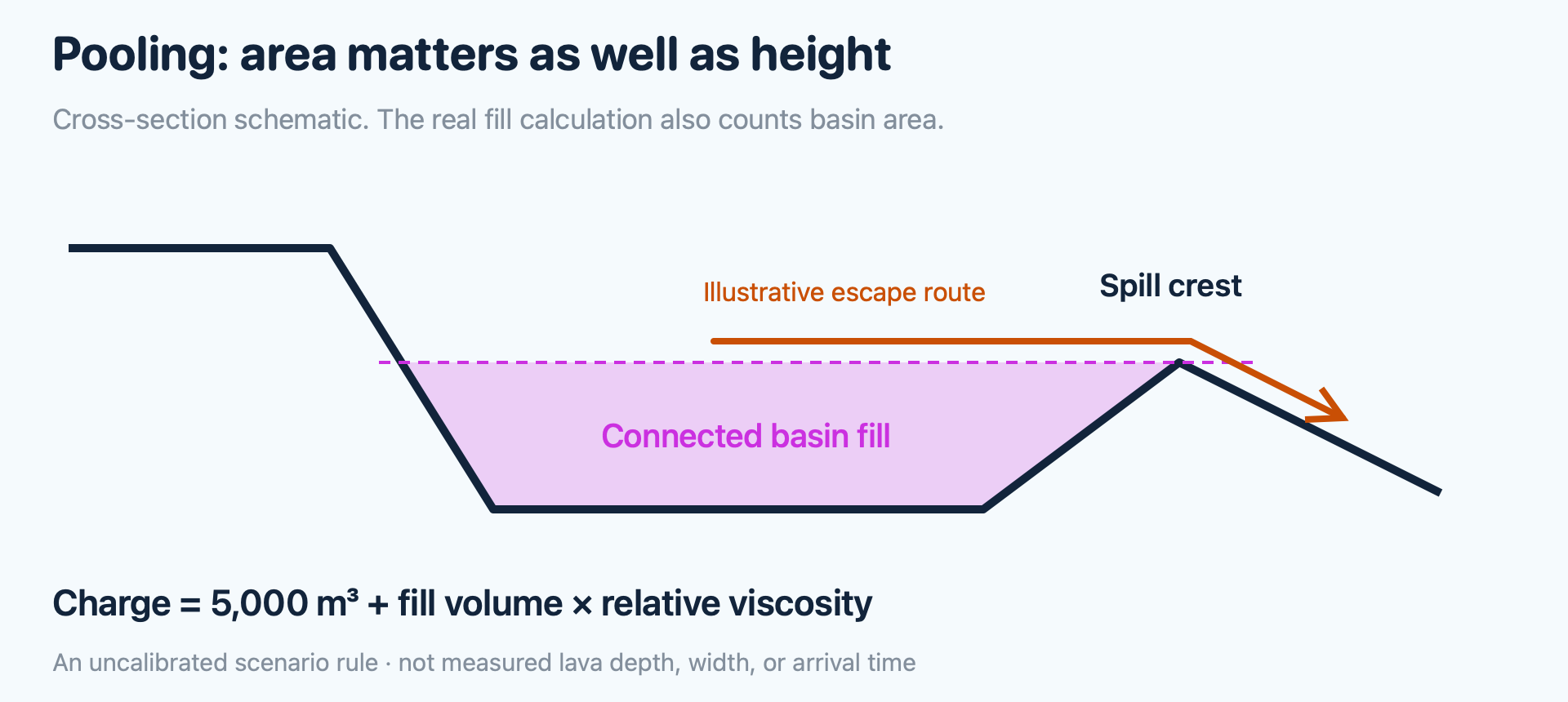
Try it carefully: choose a clearly labeled synthetic demo, keep the same breakout, and compare pooling off with pooling on. Then change only one parameter at a time. More budget can permit another basin crossing; a higher viscosity penalty spends more at the same basin. A longer route is not automatically a better or more accurate result. Turn pooling off again to recover the basic downhill interpretation.
Every stopping message matters#
| Message | What it means | Useful next step |
|---|---|---|
| Terrain edge reached | The route reached the grid boundary. | Examine a wider grid or another window. Do not interpret the endpoint as a lava stop or a coastline. |
| Designated outlet reached | An outlet explicitly marked in the input grid was reached. | Check the input author's definition of that outlet. |
| Local low point reached | No eligible downhill neighbor exists at this resolution. | Inspect the profile, try a nearby cell or finer source, and consider flats/depressions or DEM artifacts. |
| Volume below spill threshold | The chosen scenario budget cannot pay the calculated basin charge. | Compare parameters only if you intend the experimental pooling assumption. This is not a real containment forecast. |
| Missing terrain encountered | The trace/search reached unknown coverage. | Obtain valid terrain coverage. The app does not treat the gap as a wall or bridge across it. |
| Calculation limit reached | A path/work limit ended the computation. | Treat the result as partial. Try a smaller task or simpler scenario; a stop is not a hazard boundary. |
| Routing stopped | A repeated-route safeguard stopped an incomplete trace. | Change the source/parameters, retain the export for a bug report, and avoid interpreting the partial endpoint physically. |
The default safeguards cap a trace at 40,000 path cells and one million work cells. Computed in … ms measures software work, not lava travel time. Cells checked is computational effort, not the number of earthquakes or a measure of forecast confidence. Cancel calculation stops outstanding work; choosing another point replaces an older calculation so a stale result cannot overwrite the newer scenario.
Import an elevation grid, export a scenario#
Import elevation grid… reads a prepared TerrainDataset JSON file. It needs numeric elevations in meters, cell dimensions in meters, geographic bounds, and appropriate metadata. The current import is limited to one million cells and a file no larger than 64 MB. The grid must have at least two rows and two columns, valid dimensions, and finite elevations; missing ground uses a separate validity mask.
This is different from importing earthquake GeoJSON in Help. A .json extension alone does not make the contents compatible. Terrain screenshots, relief-map images, GeoTIFFs, and raw LAS/LAZ lidar point clouds require conversion before import. The app does not extract reliable heights from a picture or convert arbitrary coordinate systems for you. Prepare a consistent north-up grid, check its horizontal/vertical reference and units, and preserve missing-data coverage.
An advanced input can carry a supported WGS84/UTM grid definition; a simple north-up geographic grid uses bounds plus metric cell spacing. Row zero is north, values run across each row, and coordinates identify cell centers inside outer-edge bounds. Do not mix degrees with meter cell spacing or silently combine incompatible vertical datums.
Choose Export scenario… to save a JSON record containing the terrain, selected coordinate, parameters actually used, route, pooling records, and limitations. Choose the destination in the system file/share interface and retain the file with notes about your experiment. Exports can be large because they include the elevation grid.
Important file limitation: the current Import elevation grid command accepts the terrain dataset itself; it does not reopen the complete exported scenario wrapper. There is no in-app scenario replay browser in this release. Keep an export for records, technical analysis, or support. To reproduce an experiment through the UI, retain the source grid and record its coordinate, detail, and parameters. Do not promise a one-click round trip between these two commands.
Strengths, weaknesses, and an honest comparison#
| Useful strength | Boundary of that strength |
|---|---|
| Repeatable route for identical data and settings | A deterministic answer can still be wrong about actual lava. |
| Real, attributed USGS regional elevations, available offline | Historical, resampled terrain can omit recent deposits and small features. |
| Optional finer Local window and retained source catalog | Finer requested pixels do not guarantee finer source accuracy or recency. |
| Background calculation, bounded work, cached terrain shading | Limits can produce a partial route. Device speed does not validate the physics. |
| GPU shading and optional native 3D visualization | Rendering precision and visual detail are separate from full-precision routing. |
| Explicit masks, stop reasons, profile, and scenario export | They expose assumptions; they do not estimate uncertainty probabilities. |
| Basin-area accounting in experimental pooling | The penalty rule is uncalibrated and not a fluid-dynamics solver. |
This implementation does not model effusion rate, cooling, crust formation, channel or tube formation, flow thickness/width, changing viscosity, new vents, erosion, moving topography, branching flows, or the time evolution of an eruption. It does not provide a fastest-speed range in mph, an arrival time, an evacuation deadline, or an inundation map. Lava moving inside a channel and the advancing front are different speeds; a generic published speed should not be applied to this route.
For homeowners and county readers: use this workspace to understand terrain, notice sensitivity, and prepare better questions. Do not use one line to decide that a home is safe, that a road will remain open, or that there is time to wait. A line crossing a place also does not establish that place will be reached. Compare official hazard maps, dated eruption-specific topography, observed flow extents, and HVO/Civil Defense instructions. Expert validation against historical and current events is required before making a stronger scientific claim.
A useful comparison changes one thing at a time: keep the same grid and source while testing pooling; keep the same geographic source while comparing Regional and Local; keep the source dates beside both results. Record why each route stopped. That produces an understandable experiment instead of a more impressive-looking line.
7. Volcano tab#
The Volcano tab separates different kinds of evidence. A webcam frame, an observatory report, a weather observation, and a historical episode are not interchangeable indicators of current eruption activity.
| Area | What to use it for | What to check before interpreting it |
|---|---|---|
| Now | Current report summary, activity indicators, episode tracker, and activity log | Report publication time, source link, extraction notes, and stale/error notices |
| HVO News | Observatory messages and updates | Issued date and the original HVO text |
| Live Cams | Camera views and their surrounding geography | Camera name, image timestamp, viewing direction, weather, and outages |
| Air | Available air/gas context | Station/observation time and the provider's own units and warnings |
| Weather | Conditions that help interpret visibility and plume direction | Observation time/location; conditions can differ across the island |
| History / FAQ | Context, timelines, and longer explanations | A historical event or educational answer is not today's alert |
Some sections may sit in a horizontally scrolling row on a phone. Scroll the row to reveal the remaining destinations. Availability depends on the upstream provider; an unavailable panel is not evidence that volcanic activity stopped.
Read a report without mixing its time frames#
- Open Now and find the latest report's issued time.
- Read the eruption status and the words around each measurement. “Paused” refers to present activity; a fountain height may describe the completed episode.
- Follow the original USGS/HVO report link when a derived summary is important to your decision. The app extracts information from text; it is not the author of the observatory's assessment.
- If refresh fails and the previous successful report remains visible, read the failure/stale notice and its date. Pull to refresh again when connected.
The Episode Tracker builds a local history from reports the app has seen. It is not a complete official archive. A new installation or a rebuilt tracker can contain only a few records; a missing row does not mean that episode never happened. “Start not reported” or “end time not reported” means the app does not have a confirmed clock for that event.
A dated example: the October 18, 2026 HVO update says episode 55 began October 17 at 3:19 a.m. HST and ended at 9:03 a.m. HST. Its maximum fountain height was 720 ft. The eruption was then paused; episode 56 was mentioned in forecast discussion. The completed episode belongs under Ended, while the current eruption can say Paused. A future episode number is not an observed fountain. This example teaches the distinction and is not a permanent current-status statement. Original USGS update page.
Forecast mentions do not create observed episode records in this release, and fountain measurements remain attached to the episode they describe. Report publication time is different from an episode's start/end time. Missing clocks are not filled with midnight or “now.” Older derived tracker entries are rebuilt rather than relabeled by guessing a number.
Cameras and conditions#
Choose the camera whose view covers your area of interest. Use the available image/live view controls and inspect the timestamp before calling it live. A still, GIF, or night fallback can be useful without being a continuous video stream. A dark or obscured image may reflect darkness, cloud, vog, a blocked lens, or an endpoint outage.
If one source fails, try another available camera and the original provider link. Check Weather when you are interpreting haze or plume direction. A camera cannot establish the safety of a place outside its frame, and a clear-looking image does not rule out gas hazards.
History and FAQ are good places to slow down and understand a term before comparing new observations. Wide Mac windows keep long text in a readable column rather than stretching every paragraph across the monitor.
8. Misc tab#
The segmented control opens Stats, Notifications, Help, or About. About identifies the installed version and edition; Help contains the full manual link and the separate earthquake-data import tools.
Statistics: compare the same catalog#
Stats summarizes the loaded, filtered earthquake catalog, not just the rows currently drawn on your phone. Keep the region, magnitude cutoff, source, and time coverage the same when comparing two runs.
| Statistic | Meaning | A common misreading to avoid |
|---|---|---|
| Recent time-window counts | Events inside the displayed duration relative to the current reference time | Counts change when the feed is incomplete or filters change. |
| Average / maximum magnitude | Summary of the earthquakes in that particular window | An empty window has no measured maximum; it is not a magnitude-zero event. |
| Peak one-hour activity | The busiest rolling one-hour window in the available catalog | It is not necessarily the current hour or an official swarm. |
| Peak 24-hour activity | The busiest rolling 24-hour window in the available catalog | A rolling day differs from a midnight-to-midnight calendar day. |
| Largest magnitude during the peak day | Largest event inside that busiest window | It can differ from the largest quake anywhere in the full dataset. |
| Median depth | The middle reported depth in the selected catalog | It does not locate one magma chamber or describe measurement uncertainty. |
| Dataset dates | Earliest and latest event times in the data | They are not simply the first and last rows after arbitrary sorting. |
For historic data, time-window summaries anchor to the file's newest earthquake. They do not pretend the old events happened today. The calculations omit future-dated events from recent-activity windows and include nonpositive magnitudes when they are valid catalog values.
Swarms need interpretation. A count alert or a peak window is not a catalog of independently identified swarms. The app does not derive “swarms per year,” the largest annual swarm, or an eruption probability from a seven-day feed. A fixed threshold such as 300 events/day cannot establish that an eruption is imminent. USGS distinguishes swarms from mainshock/aftershock sequences and assesses unrest together with deformation and other observations. USGS: aftershocks and swarms.
Try it: note the busiest day and its largest magnitude, then change only the minimum magnitude. Explain why the count changed before comparing it with an earlier screenshot.
Notifications and alert regions#
Notifications are optional local alerts based on the data the app fetches. They are not a substitute for official emergency warnings or a guaranteed continuous monitoring service.
- Open Misc → Notifications and grant system notification permission if you want alerts.
- Choose the alert region, which is separate from the region you browse in Quakes/Map.
- Configure the available magnitude, proximity, swarm-count, and volcano-related switches/thresholds. Hawaii-related volcano controls depend on an eligible Hawaiʻi alert region.
- Use the available test-notification control to check delivery. Then review the app's notification permissions, sounds, Focus, and notification-summary settings in the OS.
Proximity uses the configured alert geography; do not assume it follows your live GPS position. A count-based swarm notification says a configured threshold was met, not that HVO declared a new swarm or predicted an eruption. A test banner verifies notification delivery, not the scientific validity or timeliness of a future alert.
If alerts do not arrive, check permission and Focus first, then confirm the alert region and threshold. Make sure the app can fetch fresh data. Do not reinstall to reset the trial or notification history as a first troubleshooting step.
Historical earthquake data (Help → General)#
The app supports three kinds of non-live earthquake data, plus a clear way to switch back to live USGS feeds.
1. Live USGS feeds (default)#
- 24 Hours, 7 Days, 30 Days fetch directly from USGS.
- Notable (live, last 30 days) is the USGS “significant” feed—globally notable events from the last 30 days (does not auto-refresh like the rolling feeds).
- Choose these from the data-source pill menu under Live USGS Feeds, or tap the time-range buttons when already in live mode.
2. Bundled historic datasets (since 1900)#
Ship inside the app as SQLite databases—no download required:
| Dataset | Contents |
|---|---|
| Hawaiʻi Mag 3+ since 1900 | Major Hawaiʻi earthquakes back to 1900 |
| World Mag 5+ since 1900 | Significant worldwide events, magnitude 5+ |
| World Mag 7+ since 1900 | Major worldwide events, magnitude 7+ |
Choose one from the data-source pill → Historic (bundled, since 1900). Help → General shows a green checkmark next to each dataset that is present in your build.
“Since 1900” describes the historical reach, not a guarantee of completeness through today. A bundled file is a snapshot. Compare its newest event and magnitude coverage before comparing its counts with a live catalog.
3. Plum Amazing curated download (~8 MB)#
- Help → General → Download & Load fetches
HistoricalQuakes.jsonfrom Plum Amazing’s CDN (Cloudflare). - First tap: downloads ~8 MB with a progress bar, caches the file locally, then loads it.
- Later taps: reuse the cached download without downloading it again, unless the cache was cleared. Reading/parsing a large file still takes time.
- View in Browser opens the same URL if you prefer to download manually and use Load from File… instead.
URL: https://downloads.plumamazing.com/bin/earthquakeshi/media/HistoricalQuakes.json
4. Your own files (Load from File)#
- Help → General → Load from File… accepts USGS GeoJSON (
.json,.geojson) or converted SQLite (.sqlite,.db). - A progress sheet shows downloading (if applicable), reading megabytes, parsing, and final quake count.
- Wrong file types are rejected up front with a clear message.
- For very large raw JSON files, convert to SQLite first (see the
pip install ijson && python scripts/geojson_to_sqlite.pyhint in Help).
After a historic file or dataset is loaded#
- The Live / Historic badge shows Historic.
- The data-source pill shows the filename (e.g.
HistoricalQuakes.json) or bundled dataset name—not “Live.” - All appears in the time-range row: shows every quake in the loaded data (selected automatically on load).
- 24h / 7d / 30d filter relative to the file’s newest event, not relative to today—so a 1900–2024 file still makes sense under “last 30 days of file.”
- Tapping 24h/7d/30d does not replace your file with live USGS data (that was a bug fixed in 1.0.7).
- Switch back to live: data-source pill → Live USGS Feeds → pick 24 Hours, 7 Days, or 30 Days.
Using historic data in simulations#
These are earthquake catalogs. They do not supply topography to Lava flow, and earthquake depths do not become terrain elevations. Use Import elevation grid… in Lava flow for the separate terrain format.
- Map, 3D Hypocenter Cloud, Exaggerated Depth, and Cross-Section all respect loaded historic data.
- 3D Cloud still shows only the Big Island / Hawaiʻi subset even if the file is worldwide—use Map or List with Region set appropriately for global events.
- Large imports use clustering so views stay responsive (see §6).
9. Background behavior (iOS)#
iOS/iPadOS decides when background refresh runs. Battery state, connectivity, Background App Refresh settings, and system scheduling can delay or prevent it. Leaving the app installed is not a promise of immediate detection of every earthquake or eruption change.
For a deliberate observation session, open the app, refresh the desired feed/report, and check its timestamps. Notifications can appear in the foreground as well as when the app is not open, subject to permission and OS settings. Turning on a notification switch cannot override Focus or guarantee that a background fetch occurred.
Connectivity and privacy in practice#
- Current catalogs and reports request data from their providers; maps and cameras also contact their respective services. A failed connection can leave an old report visible with a warning, or leave a requested view unavailable.
- Bundled regional terrain can be explored offline. A new Local · 10 m request sends the selected terrain area to the USGS service. It is centered on your hypothetical point, not automatically on your GPS location.
- Imported files are read from the location you select. Export scenario… saves to the destination you choose; sharing that file can reveal the selected coordinate and the full terrain grid.
- Apple billing uses the Apple Account/store. Plum activation contacts the license provider and keeps license state in the Mac's Keychain. Do not share keys, receipt details, or personal screenshots in public.
- The app's privacy information and your platform's permission controls provide the applicable policy and settings. Do not grant unrelated system permissions to troubleshoot an ordinary file or network error.
A fast GPU, a Live badge, and a recent download date do not make stale source measurements current.
10. Updates: Mac App Store vs Plum Amazing (direct)#
Use the channel in which the app was installed. Keeping the same display name or bundle family does not transfer billing between editions; see chapter 2 for recovery.
Mac App Store build#
Install updates through the App Store app. The app may notify you that a newer store version is available and link to its listing; it does not use Sparkle to install a Mac App Store update. The installed name is Hawaii Quake & Volcanoes Guide.
Window size and position are remembered across normal launches. If two app copies appear to behave differently, check About and the installed location before comparing results. Do not use a direct-download updater to replace a store-managed app while diagnosing an Apple purchase.
Plum Amazing / direct Mac build (Sparkle)#
Use Earthquakes HI → Check for Updates… or Misc → About → Check for Updates…. Sparkle displays the available release notes and choices such as Install Update, Remind Me Later, or Skip This Version. Automatic-update choices are shown when supported by that installation.
Read the release notes, save any scenario exports you want to keep, and follow the updater's instructions. If an older installation downloads an update but cannot launch its installer, use the official Mac download and follow support's manual-replacement instructions. Do not delete your license records or repeat a purchase to solve an updater problem.
The app remembers window size/position. On either Mac edition, Help → User Manual (Earthquakes HI)… opens the stable manual address.
iPhone/iPad updates and moving between versions#
Install iOS/iPadOS updates through the App Store. When a feature described here is missing, compare the installed version with this manual's scope. The Lava flow map works on iOS 17/macOS 14; its optional 3D relief has a newer OS requirement, so an OS limitation is different from an out-of-date app.
Keep original imported catalogs and terrain files separately from app caches. Keep exported scenarios as records, while remembering that this version does not have an in-app scenario replay importer. Record the source, coordinates, and settings when comparing results across app versions; a bug fix or data update can legitimately change a route or summary.
The older Google Doc remains available as a legacy reference. Its screenshots and plan names may describe older versions.
11. Tips you might not know#
- Start with one earthquake, then use different views to understand its depth. Two markers linked by a depth rod are one event.
- Set the viewing region and the notification alert region deliberately; they serve different purposes.
- In 3Dcloud, drag the exposed island, use Reset View to recover, and close settings when you need more room. The panel itself blocks underlying quake inspection.
- If a swarm looks like regular columns, reduce the time range, marker size, or cross-section width before interpreting a rendering/clustering pattern as geology.
- Close the largest-quake card with X when it covers your map. Re-enable it in the Map settings panel.
- In Lava flow, leave animation and 3D off for a quieter, lower-power session. More visual motion is not more scientific information.
- Compare Regional and Local terrain with the same selected geographic point and source-date context. A longer trace is not automatically a better result.
- Keep exported scenario files and their limitations with any image you share. An orange line without its source/date/stop reason loses essential context.
- A count peak, a gas reading, a webcam, and a tilt trend are different observations. Read the original HVO interpretation before combining them into a claim about an eruption.
This release does not provide a documented Apple Shortcuts or AppleScript workflow for creating terrain routes. Exported JSON is data for records or technical analysis, not an app automation command. The manual reader's search and Print/PDF buttons belong to this book, separately from the app's own controls.
For a complete illustrated copy, use this reader's Print / PDF button, allow the illustrations to finish preparing, then save or print. If an illustration cannot load, check your connection, reload the manual, and try again.
Troubleshooting and recovery#
| Symptom | Safe checks and recovery |
|---|---|
| Initial list seems incomplete | Allow the recent preview to fill into the complete feed. Check filters, source, and loading state before interpreting the total. |
| No historic events after a time filter | Select All, confirm the file loaded, and then choose a narrower window. File-relative windows describe the dataset's newest event. |
| 3D scene is hard to orient | Drag outside the settings panel; choose Reset View. Reduce marker size or time range if crowded. |
| Quake callout interferes with controls | Use the solid settings panel. Pinned callouts are dismissed by clicking empty scene space. If reproducible, report edition, version, window size, and steps. |
| Lava route stops after a few cells | Read the stop message. A flat/depression, missing coverage, or a grid edge is different from a calculation error. |
| Animate route will not turn on | Check Reduce Motion, whether a route has more than one point, and whether only 3D relief is visible on a narrow screen. |
| Local terrain fails to load | Check the connection, try Refresh local terrain, or return to Regional. Do not infer a surface change from a network failure. |
| JSON import fails | Check whether it is an earthquake catalog, a terrain grid, or an exported scenario. They use different commands/formats. For terrain, check the 64 MB / one-million-cell limits and units. |
| Purchase does not unlock | Check the edition, account/license channel, pending approval, product-loading error, or expiry. Use Restore for Apple or Activate for Plum, then contact support with the exact error. |
| Report looks old | Read publication and observation times, refresh, and follow the original provider. A retained report is not a current observation merely because it is on screen. |
For help, use Plum Amazing support. Include the app name/edition, version/build, OS and device, data source/time range, and concise steps with the expected and actual result. A safe screenshot and a nonpersonal scenario export can help reproduce a terrain issue. Remove license keys, receipts, private addresses, and other unnecessary personal information before sharing.
12. Hawaiʻi volcanoes — context for readers#
- Kīlauea is among the most persistently active volcanoes on Earth; its summit caldera and East Rift Zone (ERZ) are frequent sites of intrusions and eruptions.
- Mauna Loa is active and can produce fast-moving flows from high elevations; its Southwest Rift Zone has historically seen significant eruptions.
- Mauna Kea is dormant (last eruption thousands of years ago); Hualālai and Kamaʻehuakanaloa (formerly Lōʻihi, submarine south of the island) round out geologic interest around the Big Island.
- Lava types: Pāhoehoe (smooth, ropey) and ʻaʻā (rough, blocky) reflect temperature, slope, and eruption style.
- Hazards beyond lava: Vog (SO₂ and particles), laze (acid mist where lava enters the ocean), and ballistics near vents are all real risks when activity is high—again, use official advisories when planning field work or travel.
Historical activity helps explain the landscape; it does not determine the timing or footprint of the next eruption. An intrusion can produce earthquakes and deformation without a surface eruption. Official observatory interpretations combine several measurements and can change as new evidence arrives.
For further context, use the USGS Hawaiian Volcano Observatory and its volcano-specific science and update pages. A webcam excursion or an experimental route should never replace current closures and access instructions.
13. Terminology (quick reference)#
Earthquakes
| Term | Meaning |
|---|---|
| Epicenter | Surface point above the earthquake origin. |
| Hypocenter (focus) | Actual point of rupture initiation underground. |
| Depth rod | Vertical link in 3D Cloud from the surface epicenter sphere to the hypocenter cube at depth. |
| Magnitude | Energy scale (e.g. moment magnitude). |
| Intensity (MMI) | Felt shaking / observed effects at a location. |
| Swarm | Many quakes in a short time without one dominant mainshock. |
| Aftershock | Smaller earthquake following a larger one in the same sequence. |
| Foreshock | Earthquake that precedes a larger one (recognized only in hindsight). |
Volcanoes & Hawaiʻi
| Term | Meaning |
|---|---|
| Shield volcano | Broad, gently sloping volcano built by fluid lava flows. |
| Basalt | Dark, iron/magnesium-rich lava typical of Hawaiʻi. |
| Caldera | Large summit depression, often from collapse or drainage. |
| Rift zone | Elongate zone of fractures; magma can move along it (e.g. ERZ). |
| Intrusion | Magma emplacement that may not reach the surface. |
| Inflation / deflation | Ground uplift / subsidence from pressure changes in storage zones. |
| Vog | Volcanic smog (SO₂ and aerosols). |
| SO₂ | Sulfur dioxide; primary gas driving vog downwind. |
| Laze | Hydrochloric acid mist where lava meets seawater. |
| Tephra | Airborne volcanic fragments (ash, cinders, etc.). |
| HVO | USGS Hawaiian Volcano Observatory. |
| Pele’s Hair / Tears | Glass filaments / droplets from lava fountains. |
Terrain and interpretation
| Term | Meaning in this manual |
|---|---|
| DEM | Digital elevation model: a numeric height grid, not just a shaded map image. |
| Grid cell / spacing | A sampled area and the separation between samples; spacing is not the same as accuracy. |
| D8 | A deterministic choice among eight neighboring cells by positive drop per meter. |
| Breakout | The hypothetical starting point you select in Lava flow; not an automatically detected vent. |
| Spill crest | The low escape level considered by the experimental basin search. |
| Relative viscosity | A dimensionless pooling-budget multiplier, not measured lava viscosity. |
| NoData / validity mask | A record of missing/unknown terrain; the model does not route through it. |
| Grid boundary | The edge of available data, not necessarily a coastline or physical barrier. |
| UTM / grid north | A projected metric coordinate system and its north direction; slightly different from true north. |
| 3DEP | USGS 3D Elevation Program, a source of mixed-date elevation products. |
| Inundation / arrival time | Area coverage and timing; outputs this terrain-route feature does not predict. |
14. Screenshots for this manual#
Screenshots show the controls; teaching diagrams explain the ideas. The images in this revision use clean native component captures and explicitly labeled illustrative elevations. A captured report or terrain view is a dated example, not a live feed inside the manual.
| Figure | What to notice |
|---|---|
| Mac Lava flow workspace | A wide native layout keeps terrain controls, map, and ground profile visible together. |
| iPhone Lava flow workspace | Two clear switches replace the old Terrain map/3D pill. The map is the tap-to-place surface. |
| iPhone Scenario and Route result | Pooling is off, volume/viscosity are dimmed, and the result explains a local low point rather than forecasting a lava stop. |
| D8 neighbor diagram | Drop per meter can favor a higher straight neighbor over a lower diagonal neighbor. |
| Pooling diagram | Basin area and height contribute to a scenario budget; the purple fill is not measured lava depth. |
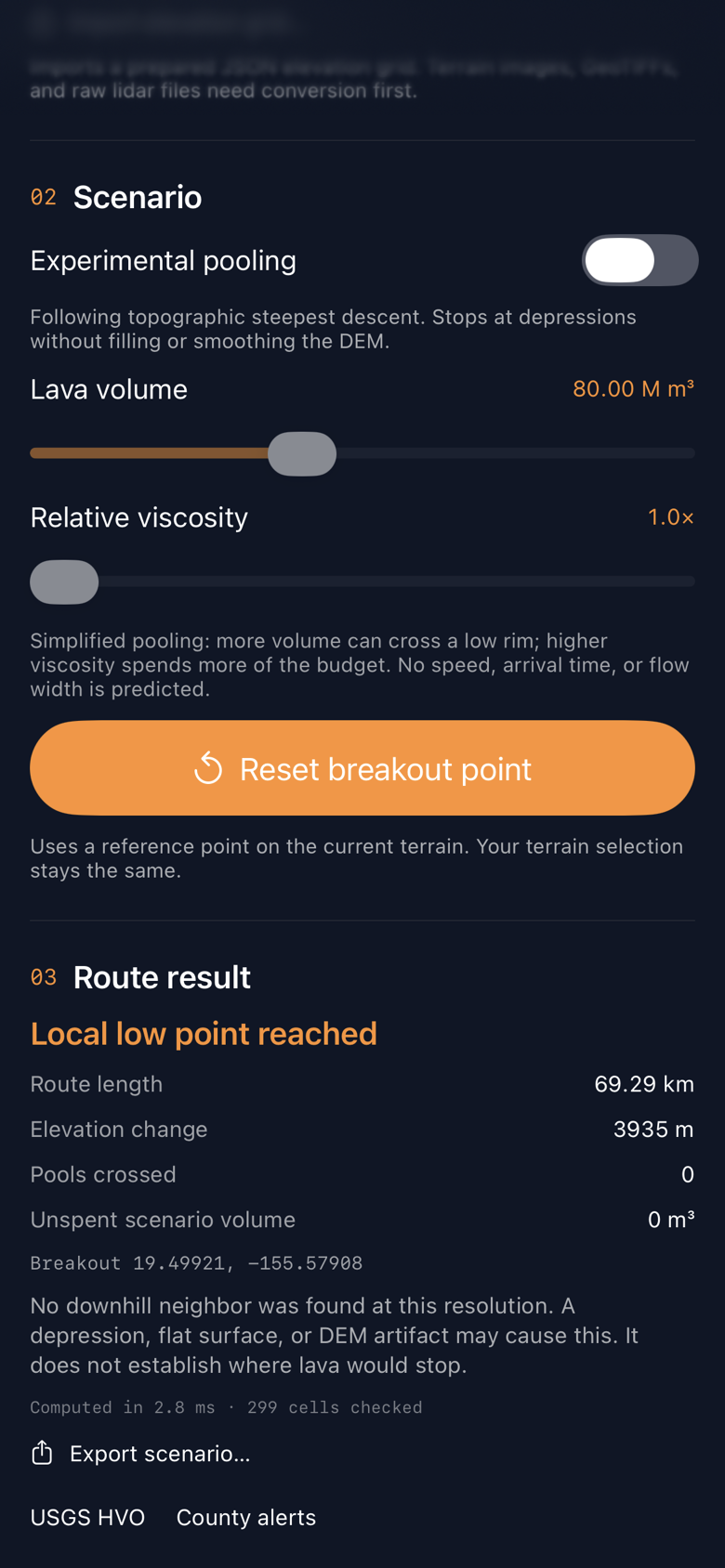
For a useful support capture, include the relevant source/date, controls, and result message. Do not include license keys, receipt details, or private information. Keep original captures beside the editable manual under images/. Captures of a compact Mac layout are not substitutes for iPhone device evidence; this revision's phone illustrations were rendered in iPhone Simulator, and its wide illustration uses the native Mac workspace.
Manual revision history#
| Manual revision | App scope | Changes |
|---|---|---|
| 2026-10-19 | Advance guide for 1.0.9; source review build 29 | Clarified that publication of the guide does not announce app availability. Print/PDF now prepares all figures before opening the print dialog, provides recovery for failed loads, and restores the reader's previous state afterward. Updated the manual title to Hawaiʻi Earthquakes & Volcanoes, with Mac & iOS on a separate line; retained the shared iPhone/iPad coverage. |
| 2026-10-18 | 1.0.9, build 29 | Detailed Lava flow lessons and limitations; terrain provenance and dates; pooling/reference tables; native screenshots and diagrams; solid 3D settings panel and larger disclosure target; corrected iPhone 3D alignment; startup/activity statistics; episode interpretation; corrected Monthly/Yearly/Lifetime and edition-specific purchase recovery; stable Help URL. |
| Previous manual | Earlier 1.0.x builds | Preserved 14-chapter organization, historic-catalog instructions, 3D concepts, and useful explanations. The legacy Google Doc remains separate. |
This book is maintained from one editable source. Corrections belong in that source before regenerating HTML or print copies. For the latest published revision, use the stable manual link at the beginning of the book; for a correction, use support.