

CopyPaste
복사 및 붙여넣기, 다중 클립 관리자 - 새로운! 대부분의 사람들은 일주일에 수천 번 복사하고 붙여넣기를 사용합니다. CopyPaste로 이전 클립보드를 다음 레벨로! 첫 번째이자 가장 인기 있는 다중 클립보드 유틸리티.

CopyPaste: 한번 써보면 없이는 어떻게 살았는지 모르겠습니다!
CopyPaste가 제 인생을 바꿨습니다… Mac에서 가장 중요한 추가 소프트웨어입니다.
Audio/Video Overview
개요
Comparing this newer CopyPaste with the long-running CopyPaste Pro/Classic? The comparison page explains the differences, which app fits which workflow, and why both versions exist.
CopyPaste 버전 비교Once upon a time apps were not multi-tasking. You would use one app at a time. Sharing in these 'before times' was difficult. To overcome this early limitation Mac OS was the first to use a system clipboard. The system clipboard allowed copying text or graphic into a 'system clipboard' in one app, quitting that app, launching another app and pasting from that same 'system clipboard'. At that time it was a revolutionary invention and productivity enhancer.
About that time we came out with the original CopyPaste which allowed the Mac to use and remember multiple clipboards from within any app. It remembered 10 clips and was the first multi-clipboard utility for any computer. It became very popular. Overtime new features were added, additional clips, more features like actions on clips, additional clipsets were added to the clip history. Decades passed, now in 2021 another complete rewrite of CopyPaste has taken place. The ancient Mac OS clipboard is the same but anyone can upgrade it by adding CopyPaste.
Most people use copy and paste thousands of times a week and would say it's essential and incredibly useful. The regular clipboard is hugely important but just a single clipboard that disappears with each copy is no longer good enough. Take the old clipboard to the next level, try CopyPaste!
경고: CopyPaste는 중독성이 있을 수 있습니다.
기능
 탭
탭Clip History
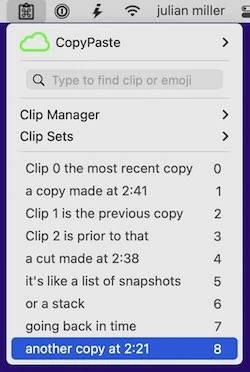
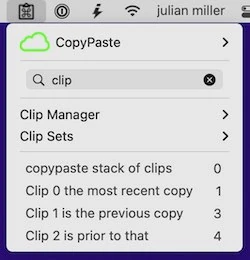
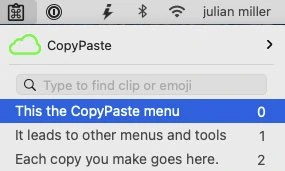
CopyPaste automatically remembers each copy or cut you make over time and keeps it in the Clip History. It's like a time machine for the clipboard - see and access any clip from today, yesterday, or last month. Never lose a clipboard again. Each new copy appears at clip 0, pushing previous copies down the stack.
Clip 0
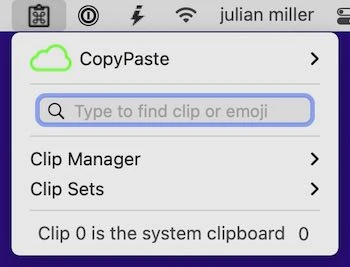
Clip 0 is the most recent copy - the same as the system clipboard. It's what gets pasted when you use Command-V. With CopyPaste, every copy is remembered, so you can see, edit, and paste from any previous clip. Clip 0 is always the newest, with older clips numbered 1, 2, 3, and so on.
 탭
탭Clip Sets
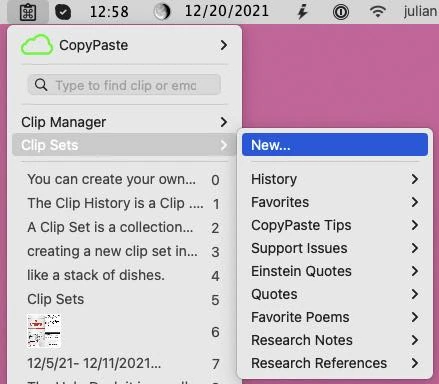
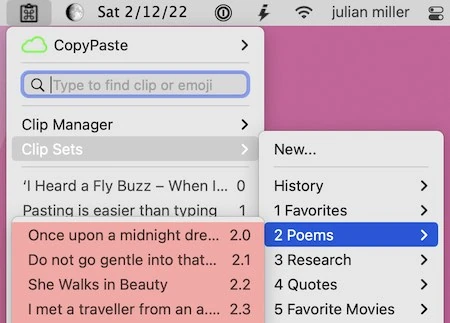
Clip Sets are archives of copies that save text and images you use often. Create unlimited Clip Sets to organize favorites, quotes, research, photos, boilerplate text, or any content you want to keep handy. Move clips from History to Clip Sets to keep them permanently. Tag and categorize clips for easy access.
 탭
탭Clip Manager
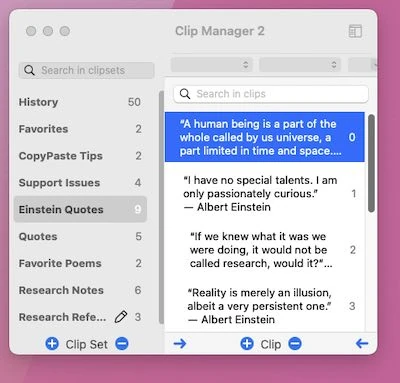
The Clip Manager lets you edit, display, modify, sort, and manage your clips. Create new clips and Clip Sets, edit text clips, drag and drop clips between Clip Sets, and organize your clipboard data exactly as you need. It gives you a whole new level of power and organization far beyond the humble single clipboard.
 탭
탭Search & Filter
Instantly search through all your previous copies or cuts. Find any clip by content, date, or type. Filtering happens in real time - as you type, clips are filtered instantly. Essential for finding that important piece of information you copied hours or days ago.
 탭
탭Preview Clips
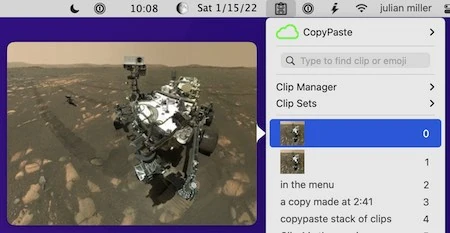
Preview clips at any time to see a visual of graphics, text, web pages from URLs, and more. Hold down the Shift key and move your cursor over any clip in the menu to see a large preview. Perfect for quickly identifying the right clip before pasting. Preview displays images, text content, and even web page previews for URLs.
 탭
탭Clip Browser
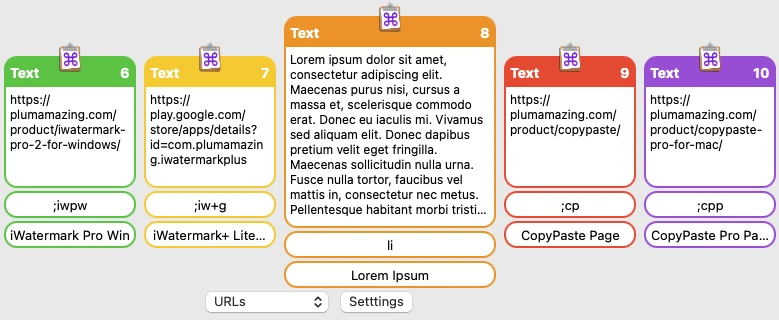
The Clip Browser is a visual aid for finding, accessing, and pasting clips from History and Clip Sets. Tap clips to paste or drag and drop them to any field. Each clip is displayed as a colorful box showing the content type, making it easy to visually identify and select the clip you need.
 탭
탭Clip Actions
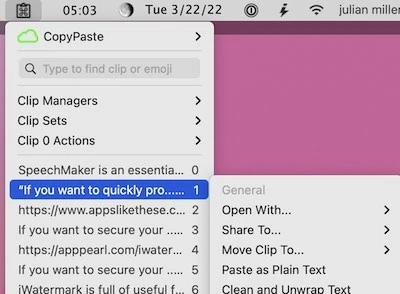
Transform clips with Actions like Extract, Convert, Translate, Clean, Insert, Sort, Stats, Quotes, and URL operations. Actions enhance productivity by allowing you to immediately transform clips in a variety of ways. Change text case, extract email addresses, translate languages, clean formatting, and much more - all with a simple menu selection.
 탭
탭TriggerClip
Type a few characters to instantly paste any text, image, spreadsheet, or file from a clip. Create memorable abbreviations for frequently used content like addresses, signatures, or complex documents. Perfect for boilerplate text and repetitive typing tasks. Saves time and effort by eliminating the need to repeatedly copy and paste the same content.
 탭
탭Find Emoji
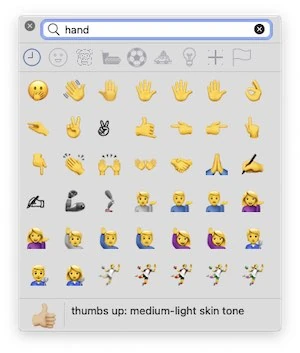
Get emojis into clips easily. Hold down Control and tap E to open the emoji palette. Type a word like "hand" to find related emojis, then tap to add them to your clipboard. Copy and paste emojis just like any other clipboard content. Essential for adding personality and expression to your messages and documents.
 탭
탭Grab/OCR
OCR text anywhere on screen into a clip. Extract text from images, PDFs, screenshots, and websites instantly. Wave the crosshair cursor over any area with text to grab and convert it to editable text. Saves hours of typing and makes it easy to extract quotes, information, or text from graphics and documents.
탭Paste from Clip Sets
Paste directly from any Clip Set using Control-Shift-V. A dialog appears showing all your Clip Sets - select a Clip Set, then choose the clip to paste. Perfect for accessing your organized collections of content like boilerplate text, favorite quotes, or frequently used information without cluttering your main Clip History.
 탭
탭Clip Notes
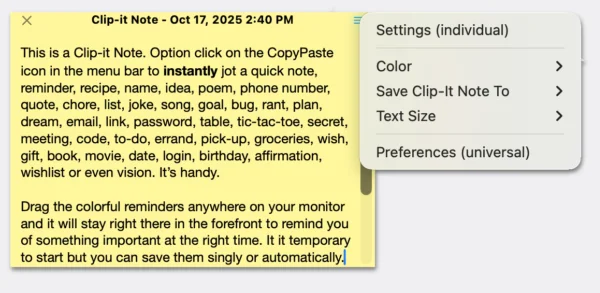
Option-tap on the CopyPaste icon in the menu bar to open Clip Notes - a convenient way to create and manage digital sticky notes from your clipboard. Perfect for keeping important information visible on your desktop. Create notes from any clip, edit them, organize them and save them to a clip set or your desktop as needed. Much more secure and private than paper stuck to your monitor. Essential for maintaining quick access to timely snippets of information.
 탭
탭Password Manager Safe
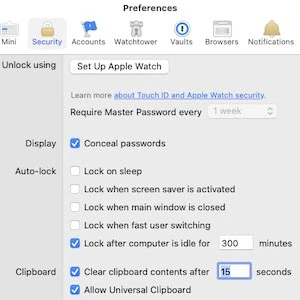
Maintains confidentiality of password managers. CopyPaste respects security and privacy by working seamlessly with password managers like 1Password without interfering with their security features. Your passwords remain protected while you still get the benefits of multiple clipboards for everything else.
 탭
탭Save & Reuse Your Work
Keep both your running clip history and your curated Clip Sets across launches and restarts. CopyPaste remembers the material you rely on, so favorite snippets, research fragments, templates, and references are ready to paste again tomorrow, next week, or next month.

Clip Append
Build one clip from many small captures. Append selections into Clip 0 as you research, quote, draft, or collect from multiple apps, then paste the assembled result anywhere. For some people, this single feature is worth the whole app.

Backup & Restore
Protect the clipboard system you have built. Make manual or automatic backups of Clip History, Clip Sets, notes, and settings, then restore after a mistake or move your setup to another Mac without starting over.

iCloud Share
Share files of any size by dragging them in the Finder and dropping them on the CopyPaste icon in the menu bar. Once you do that, the file gets copied to iCloud (if you have it turned on) and a link to your file is placed in clip 0. Paste that link into an email or message and you can share a 16kb poem or 575mb of photos or whatever. It's easy, it's convenient, it's fast, it's free, it's reusable, it's a good way to use iCloud and it costs less then sending via USPS, UPS, La Poste, Poste Algérie, Egypt Post, Paositra Malagasy, Poste Maroc, Correo Argentino, Serpost, China Post, India Post, Maldives Post, Nepal Post, Pakistan Post, Saudi Post, PHLPost, Singapore Post, Korea Post, Chunghwa Post, Austrian Post, Deutsche Post, Íslandspóstur, Posten, PostNL, Correos, PostNord, Swiss Post or the Royal Mail. I got a little carried away there but you get the idea.
 탭
탭Paste Formatted as Plain Text
Use a hotkey to paste any clip of formatted text, as plain text into any app. This ability exists in some apps but CopyPaste makes it work in all apps and everywhere on the Mac.
 탭
탭AI Prompt Library
Save your best prompts, reusable instructions, response templates, and AI snippets inside Clip Sets so they are searchable and always at hand. CopyPaste turns prompt work into reusable building blocks you can paste, refine, and reuse across whatever AI tools you are using.

Multiple Clip Types (UTI's)
Control the hidden pasteboard types, few know about, kept in every clipboard.
 탭
탭URL Actions
With the shift key and a click on a clip open any clip with a URL's in your favorite browser. Instantly access web links from your clipboard history.
 탭
탭Sequence Paste
What are those numbers for on all the clips? They let you paste by number like control 7. You can instantly paste individual or a series of clip at once, like control 7-11 which pastes clip 7,thru 11 all at once.
 탭
탭CopyPaste 튜토리얼
CopyPaste – 다중 클립보드 관리자
CopyPaste was the first and most popular multiple clipboard utility to retain multiple clipboards that can be displayed, archived and edited. With CopyPaste each copy is remembered in a clip history. It's like a time machine for the clipboard. See and edit any clip. Save multiple clips through restarts. OCR text to the clipboard. Actions to act on clips. Archives of copies called Clip Sets which save text & images you use often and tag them to create categories. Instantly search thru all your previous copies or cuts. A Clip Menu and Clip Browser to access all clips and Clip Sets in the way you like best. The most sophisticated version of CopyPaste yet.
Augment the clipboard. Enhance productivity. Incredibly useful. Never lose a clipboard again. A time saver & life saver for all Mac users since the last century (1996).
CopyPaste 앱 역사
CopyPaste, the first multiple clipboard utility, was created by Peter Hoerster in 1993. CopyPaste for Mac was the first version. The reason he embarked on the programming was simply to generate the current Bahá'í date on his computer (Peter is a Bahá'í). Having enjoyed learning to do this, he continued programming, and the result was the incredibly popular CopyPaste for Mac OS 7, 8, 9, 10, 11, 12, 13 and 14.
CopyPaste is the original multiple clip utility for the Mac. CopyPaste has been massively popular since its first release. What has made it so widely appreciated? Usefulness. CopyPaste magnifies and multiplies the usefulness of the humble clipboard and it does it invisibly in the background.

CopyPaste
The first and most popular multiple clipboard utility. Never lose a clipboard again. A time saver & life saver for all Mac users since 1996.
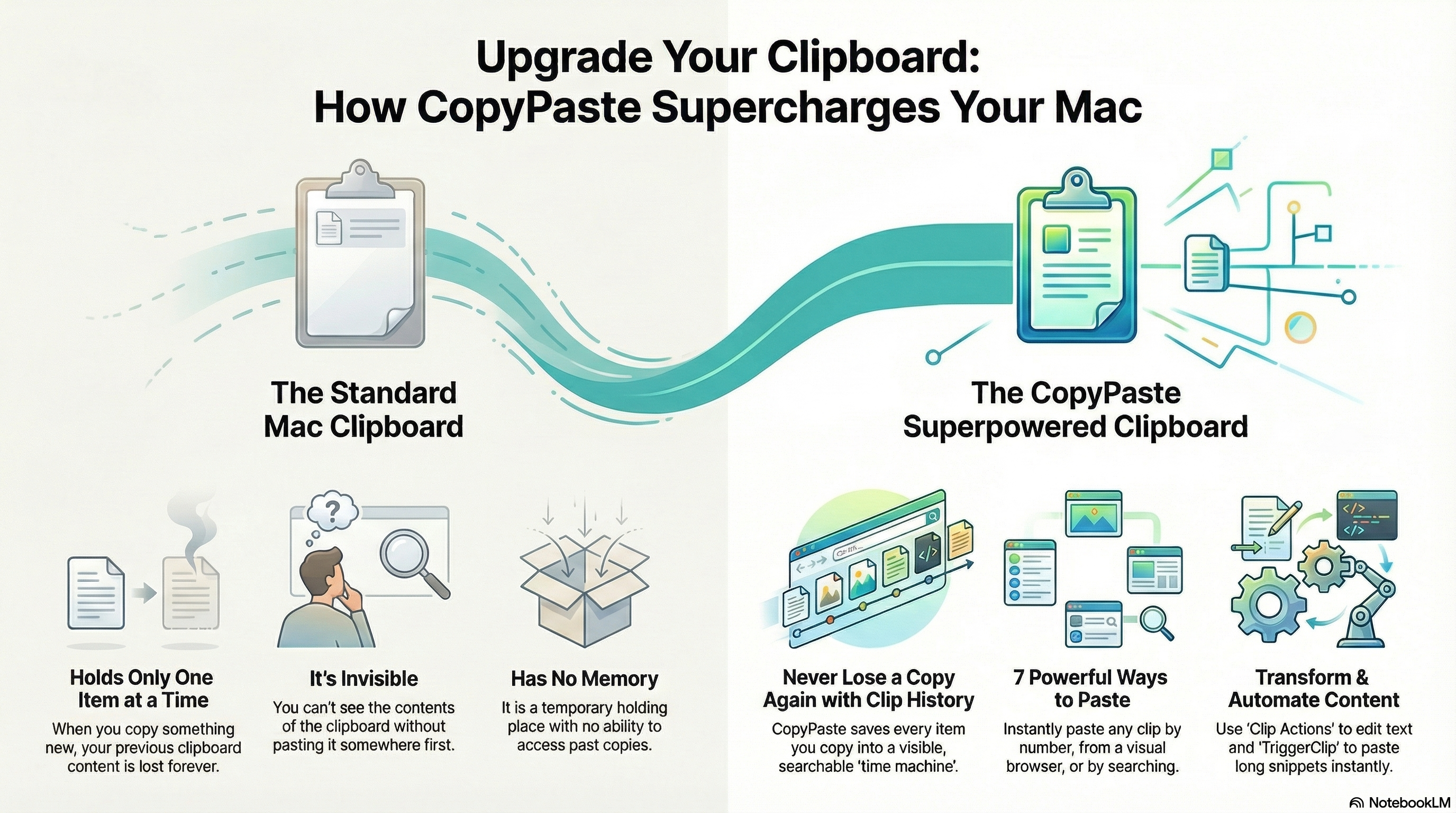
일반 Mac 클립보드의 한계
기본 Mac 클립보드에는 6가지 주요 한계:
- Holds only one clip at a time
- It's invisible
- It does not save previous copies which are gone forever
- When you restart your Mac the clipboard is empty
- You can't edit the clipboard
- There are no tools to act directly on clips
CopyPaste supplies all those missing features and many more.
For more information about CopyPaste please go to the 매뉴얼 페이지.
변경 기록
0.95.2
update📝 Changes
- Added Delete key support for deleting clip notes and selected clips.
- Fixed crashes in preview, OCR text grabbing, and Clip Notes paste flows.
- Improved OCR main-thread request handling.
- Added hierarchical save menu and text/RTF save options for Clip Notes.
- Added drag-and-drop text/file workflows for Clip Notes.
- Updated Textra to Extract Text, with image and PDF support.
- Improved Clip Manager readability, clip note positioning, sounds, and Command-VV behavior.
✨ New Features
- Delete clips and clip notes with the Delete key.
- Save Clip Notes as text or RTF files.
- Drag text from Clip Notes to create text files at the drop location.
- Drop Finder files onto Clip Notes to display their content.
- Extract Text action supports images and PDFs.
🔧 Improvements
- Improved OCR main-thread request handling.
- Changed default Clip Manager content font size from 9 point to 12 point.
- Improved clip note window positioning.
- Added delete sound for clips.
- Renamed Textra actions to clearer Extract Text actions.
🐛 Bug Fixes
- Fixed the crash in preview.
- Fixed the crash when grabbing OCR text and pasting in Clip Notes.
- Fixed Command-VV option behavior from Copy to Clip or Paste from Clip.
- Fixed sounds playing incorrectly when trying multiple copies.
0.95.01
BREAKINGmajor📝 Changes
- Major performance improvements and a redesigned database for clip sets, clip history, and metadata.
- Improved backup and restore with new features and better reliability.
- Removed clip limits; paid users now have unlimited Clip Notes.
- Free users keep existing clip notes but are prompted to upgrade for unlimited notes.
✨ New Features
- Extract Text from images and PDFs directly from the action menu.
- Clipset Lock to prevent accidental changes.
- Show Me Menu to help users discover CopyPaste features.
- Multiple clip notes can open in different positions.
- Option-click the menu bar icon to quickly show a note.
- Added sound feedback when deleting clips.
🔧 Improvements
- Improved performance when handling large clip libraries.
- Better memory usage and faster loading.
- Larger default font in Clip Manager for readability.
- Editing clips now shows a clear save indicator.
- Live updates when clip content changes.
- Improved preview handling for large images.
- Better synchronization between the menu and Clip Manager.
🐛 Bug Fixes
- Fixed the license window not appearing.
- Fixed copying text to custom clips.
- Fixed trigger clips not working in the App Store version.
- Fixed the duplicate clip removal preference.
- Fixed paste shortcuts and clip number shortcuts.
- Fixed Clip Manager editing crashes.
- Fixed clip note preview display.
- Fixed backup import reliability.
- Fixed menu and sound preference issues.
0.94.48
update0.94.47
minor📝 Changes
- Option click on the CopyPaste icon for a good surprise
- Other misc. improvements
✨ New Features
- Option click on the CopyPaste icon for a good surprise
🔧 Improvements
- Other misc. improvements
0.94.45
minor📝 Changes
- General improvements and fixes
🔧 Improvements
- General stability and performance improvements
0.94.42
minor📝 Changes
- Fixed issue after search in main menu duplicate items
- Completed CSV file editing feature. After editing of CSV file changes will be saved automatically
- Shows CSV file with columns header in ClipManager. User can edit the file, save feature is not completed
- Fixed issue in clip 0 action menu item, all items are grayed out
- Added CSV file preview in ClipManager and Main Menu
- Many other misc. changes and improvements
✨ New Features
- Completed CSV file editing feature. After editing of CSV file changes will be saved automatically
- Shows CSV file with columns header in ClipManager. User can edit the file, save feature is not completed
- Added CSV file preview in ClipManager and Main Menu
🔧 Improvements
- Many other misc. changes and improvements
🐛 Bug Fixes
- Fixed issue after search in main menu duplicate items
- Fixed issue in clip 0 action menu item, all items are grayed out
0.94.40
minor📝 Changes
- Fixed archive error for apple mac appstore version
- Fixed issue ClipManager sorting not synched with favorite menu
- Fixed issue in ClipManager when loading more clips loaded all the clips then text message not showing correctly
🐛 Bug Fixes
- Fixed archive error for apple mac appstore version
- Fixed issue ClipManager sorting not synched with favorite menu
- Fixed issue in ClipManager when loading more clips loaded all the clips then text message not showing correctly
Reviews
"CopyPaste is a fantastic program and I use it everyday a lot…really handy tool, and I congratulate you for it!✌️ Best to you and the team. Many many thanks!!"
"This new (CopyPaste) app is 100% AMAZING and I use its numerous features thousands of times daily – literally. It has been a time-saver, increased work-flow efficiency, and so much more."
User Raves
"CopyPaste has changed my life! To be able to keep save multiple snippets, instead of having each one die when you copy a new passage, is a game changer. I use it every day for so many different projects. CopyPaste is the only app I've ever paid for, and I'll keep paying for it because it's so useful."
"I frequently find myself copying and pasting standardized text snippets across various applications, both social and non-social, to ensure consistent alignment in the diverse platforms where I write. Simultaneously, I incorporate distinct portions of the text based on the specific occasion. Notably, I refer to captions of standard photographs and phrases, as well as iconic images.
Prior to utilizing CopyPaste, I relied solely on manual copying and pasting, which often resulted in subpar outcomes. However, the introduction of CopyPaste revolutionized my workflow, enabling me to efficiently manage and utilize my clips from the Favorites set of the application, as well as extensive text from the History section. Consequently, I have significantly increased my productivity and achieved a more organized and well-structured output.
In my opinion, CopyPaste deserves to be integrated into the macOS operating system. Furthermore, its availability on iOS would be highly beneficial, and I eagerly anticipate its eventual integration.
I extend my sincere gratitude for the creation of this invaluable tool."
"I am just writing to say how pleased I am with CopyPaste 2022! I have used CopyPaste for a lot of years, and while it has always been handy, this new version substantially upped the game! My new fave is the copy to OCR - it has saved me hours with out resorting to endless work-arounds. iCloud Storage and expanded clip sets have sealed the deal. CopyPaste was always worth the money. Now it is an absolute bargain!!"
"CopyPaste has made my life so much easier and I cannot imagine a computer without it. If you are writing a lot on the keyboard and are cutting and pasting this is the right tool for the job. Store all sorts of things like letter headers and addresses to insert at the touch of a key. Very simple to use."
"CopyPaste Pro is a true workhorse for me, and my oldest app in constant, heavy use."
"Ich muss mich eigentlich fast selbst über mich selbst wundern, dass ich diese Software noch nicht eher gefunden und im Einsatz hatte. Mittlerweile kann ich mir schon gar nicht mehr vorstellen, wie ein Mac ohne diese App „funktionieren" soll. Also ich gehe jetzt mal von meinem „Arbeits-Mac" aus, an dem ich den ganzen Tag sitze und erst da spiel die Software ihren Nutzen so richtig aus. Im Gegenzug dazu hab ich noch ein etwas älteres MacBook Pro und da fehlt mit die Software überhaupt nicht. Seltsam nicht. 😉 Aber wie in der Überschrift schon angedeutet: „CopyPaste Pro ist sowas ähnliches wie eine TimeMachine für die Zwischenablage." Ich glaube dieser Satz beschreibt kurz und bündig, was die Software leisten kann."
TRANSLATION: "I actually have to wonder about myself that I haven't found and used this software earlier. By now I can't even imagine how a Mac should "function" without this app. I'm talking about my "work Mac" where I sit all day and that's where the software really shows its value. On the other hand, I also have an older MacBook Pro and there I don't miss the software at all. Strange, isn't it. 😉 But as already indicated in the headline: 'CopyPaste Pro is something like a TimeMachine for the clipboard.' I think this sentence describes briefly and concisely what the software can do."
"There is not a day goes by that I do not make use of Copy Paste. Thanks again for a superb utility."
No tutorials available for this app.
Product Manuals
Product Manuals
Select your platform and app to view the complete manual in a new window.
Previous Versions
- Version 0.9.93
- Version 0.9.90
- Version 0.9.87
- Version 0.9.86
- Version 0.9.84 - is said to the be the best for Mac OS 10.15.7